


 Home
Home7 Immediate Fixes to Make Windows 11 Less Annoying
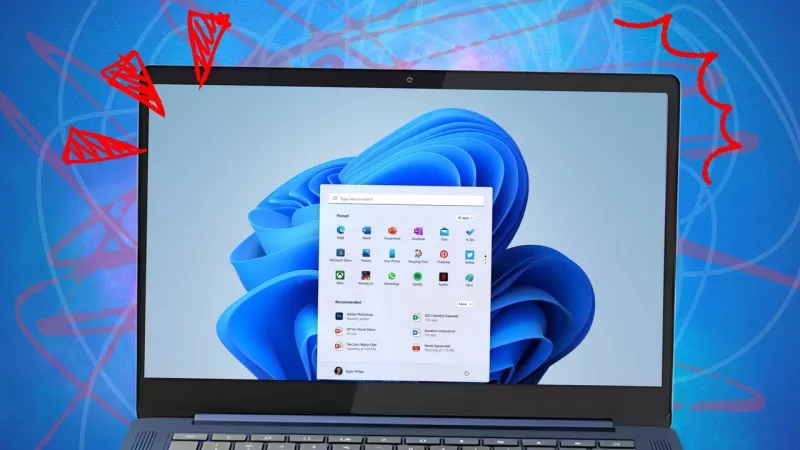
Every time I come across someone venting about their frustrations with Windows 11, I can't help but shake my head and think, *I tried to warn you.* Back in the day, I penned an article titled "Here's why Windows PCs are only going to get more annoying." The gist of it? Microsoft has been turning Windows into a massive advertisement platform, pushing everything from Microsoft 365 to OneDrive, Xbox gaming, and a slew of AI services under the Copilot brand. It's a bundle of annoyances for Windows users, and trust me, it's only going to get worse.
Of course, you could always switch to another platform. But if you're generally content with your Windows PC, there's a better way to deal with these irritations. In this post, I'll walk you through how to minimize or even eliminate these annoyances on your Windows 11 machine.
1. Silence Account Notifications
Signing in with a Microsoft account makes it easier for Windows to pitch you on services like Microsoft 365. But there are perks to using a Microsoft account, like automatic encryption of your system drive and the ability to recover your account if you forget your password.
If you opt for a local account, you'll see a nagging badge at the top of the account menu, urging you to "sign in to your Microsoft account." To get rid of this notification, head to Settings > Personalization > Start and toggle off "Show account-related notifications occasionally in Start." (In version 24H2, this option is simply labeled "Show account-related notifications.")
2. Turn Off OneDrive Backup
OneDrive backup has its merits, but it's also a prime opportunity for Microsoft to upsell you. Every free Microsoft account comes with 5 GB of online storage that syncs automatically via File Explorer, plus 15 GB of Outlook.com storage for your email. You can boost this with a paid Microsoft 365 account for as little as $1.99 a month, similar to what you'd pay for Apple's iCloud or Google Drive.
The catch? OneDrive Backup is set to automatically redirect your Desktop, Documents, and Pictures folders to OneDrive. Your data remains local but gets backed up to the cloud. Since 2023, OneDrive also offers to back up Music and Videos folders, though this isn't default.
This feature might be handy if you're a casual user without a backup plan. But if you've got more than 5 GB in those folders and accidentally enable OneDrive Backup, you'll hit your storage limit fast, which can be quite a shock.
To revert these files to local-only status, follow the steps in this article: "Is OneDrive moving all your files? How to take back control of your Windows storage." Be sure to carefully follow the instructions for moving the files back to their original local folders after disabling OneDrive backup.
3. Uninstall Third-Party App Shortcuts
When you first set up Windows 11, the Pinned Apps section of the Start menu is cluttered with icons for apps you might not want. Most are from Microsoft, but you'll also see third-party apps like Spotify, Grammarly, and Luminar Neo. These are just shortcuts and don't take up much space.
While this is a minor annoyance compared to the crapware of old, it's still irritating. To remove an unwanted app shortcut from the Windows 11 menu, right-click its icon and select Uninstall. It won't return.
4. Turn Off Recommendations
Microsoft claims its algorithms will only suggest apps you might like, likely using AI tools. If you'd rather not see these suggestions, go to Settings > Personalization > Start and toggle off "Show recommendations for tips, shortcuts, new apps, and more."
5. Hide Ads in Microsoft Edge
Microsoft Edge is packed with ads, especially on the default Microsoft Start page, mixed in with clickbait news and other unwanted content.
If you're not a fan, you could switch to another browser. But if you want to keep using Edge without the ads, open a new tab, click the gear icon in the upper right corner, and turn the Content setting to Off.
6. Clean Up (or Remove) the Widgets Feed
When Windows 11 launched, I called the Widgets feature a "colossal disappointment," mainly because it seemed designed to generate revenue through an endless feed of headlines and ads from Microsoft Start.
In current Windows 11 versions, you can ditch the news feed and keep only useful widgets on the board, like real-time weather and traffic updates, calendar details, and even phone notifications. Press the Windows key + W to open the Widgets board, click the gear icon in the upper right corner, select "Show or hide feeds," and slide the "Feed" switch to Off. Click Discover New Widgets to see if there's anything else you'd like to add.
If you'd rather not deal with Widgets at all, you can make the Widgets icon in the lower left corner disappear. Go to Settings > Personalization > Taskbar and toggle the Widgets switch to Off. To keep the icon visible but prevent the pane from opening accidentally, click the gear icon at the top of the Widgets pane and turn off the "Open Widgets board on hover" switch.
7. Turn Off Windows Copilot
Microsoft's flagship AI feature, Copilot, has been integrated into Windows in various ways over the past couple of years. Initially, it appeared as an icon on the far right of the taskbar but has since been relegated to an app. If you're not interested in using Microsoft's AI, go to Settings > Apps > Installed Apps, find Copilot in the list, click the three dots next to it, and select Uninstall to remove it.
This story was originally published on April 20, 2023, and was last updated on March 11, 2024.
Related article
 ByteDance Boosts Core AI Incentives as Doubao Surges 14.6%
ByteDance recently convened a DouBao equity briefing to unveil fresh incentive policies for staff involved in the DouBao division. The strike price for DouBao shares has been lifted from $14.85 in June 2026 to $17.02, marking an approximate 14.6% inc
MiniMax Unveils 10x Team Program to Incentivize Global AI Experts
MiniMax (Xiyu Technology), the General Artificial Intelligence Lab, has officially launched "10x Team," a global talent collaboration initiative. This program aims to recruit top experts across industries to explore the deep application of large mode
South Korea Breaks Ground on National AI Computing Center, Investing 2.5 Trillion Won with 2028 Target
South Korean outlet EtNews reports that groundbreaking for the Korea AI Computing Center (KOACC) took place on August 3 at the Solar City data center park in Sunan, Jeollanam-do. Backed by a total investment of 2.5 trillion KRW (roughly 11.838 billio
Related Special Topic Recommendations
Education and Learning
ByteDance Boosts Core AI Incentives as Doubao Surges 14.6%
ByteDance recently convened a DouBao equity briefing to unveil fresh incentive policies for staff involved in the DouBao division. The strike price for DouBao shares has been lifted from $14.85 in June 2026 to $17.02, marking an approximate 14.6% inc
MiniMax Unveils 10x Team Program to Incentivize Global AI Experts
MiniMax (Xiyu Technology), the General Artificial Intelligence Lab, has officially launched "10x Team," a global talent collaboration initiative. This program aims to recruit top experts across industries to explore the deep application of large mode
South Korea Breaks Ground on National AI Computing Center, Investing 2.5 Trillion Won with 2028 Target
South Korean outlet EtNews reports that groundbreaking for the Korea AI Computing Center (KOACC) took place on August 3 at the Solar City data center park in Sunan, Jeollanam-do. Backed by a total investment of 2.5 trillion KRW (roughly 11.838 billio
Related Special Topic Recommendations
Education and Learning
 AI Study Tools for Homework and Exam Prep
2026 Latest Best AI Study Tools for Homework and Exam Prep! XIX.AI curates a top-rated list of powerful, game-changing tools that help students boost productivity, streamline homework completion, and ace exams through real-world tests. Get a free vs paid comparison, detailed rankings, and must-try options to unlock your AI edge. Explore now!
 10 tools
 xix.ai
Music composition
AI Vocal Demo Tools for Songwriters, Hooks, Toplines, and Multilingual Draft Sessions
xix.ai
Music composition
AI Vocal Demo Tools for Songwriters, Hooks, Toplines, and Multilingual Draft Sessions
2026 Latest Best AI Vocal Demo Tools for Songwriters, Hook Creators, and Multi-Language Content Teams! XIX.AI has curated a top-rated list of powerful game-changing tools that go through rigorous real-world tests. You’ll find detailed free vs paid comparison data, comprehensive rankings, and must-try options to help you boost writing efficiency and unlock your creative potential. Explore now to discover your perfect tool for all your content needs!
9 tools
xix.ai
Business
Best AI Competitive Research Tools for Small Businesses
2026 Latest Best Top-rated AI Competitive Research Tools for Small Businesses! XIX.AI has curated a highly powerful game-changing collection, updated weekly with rigorous real-world tests and detailed rankings. You can find a comprehensive free vs paid comparison to help you identify the must-try tools that boost your productivity and give you a competitive edge. Explore now to discover your perfect tool!
9 tools
xix.ai
Image editing
Photoshop AI Retouch Tools for Ecommerce Apparel, Skin Cleanup, and Color Consistency
2026 Latest Best Photoshop AI retouch tools for ecommerce apparel, skin cleanup, and color consistency! This top-rated curated list features powerful game-changing solutions that help you boost writing efficiency, streamline content creation, and achieve perfect visual results effortlessly. Each tool has undergone real-world tests through weekly updated rankings, complete with free vs paid comparison details. Backed by XIX.AI, it’s the must-try guide for anyone aiming to unlock your AI edge. Explore now!
10 tools
xix.ai
Prompt
Best AI Prompt Libraries for ChatGPT Workflows
2026 Latest Best Top-Rated AI Prompt Libraries for optimizing all types of ChatGPT workflows. XIX.AI has curated a powerful, game-changing collection that goes through rigorous real-world tests to ensure top performance. You can find detailed free vs paid comparisons and expert rankings to help you choose the must-try tools that boost your productivity and unlock your AI edge. Explore now!
11 tools
xix.ai
Education and Learning
AI Quiz Builder Platforms for Teachers, Tutors, and Cohort-Based Learning Programs
2026 Latest Best AI Quiz Builder Platforms for Teachers, Tutors, and Cohort-Based Learning Programs! XIX.AI has curated a top-rated list of powerful game-changing tools that go through real-world tests to deliver accurate rankings. These must-try platforms help boost writing efficiency, streamline content creation, and simplify quiz design across all learning scenarios. Explore now to discover your perfect tool for unlocking your AI edge in teaching!
13 tools
xix.ai

 Comments (6)
0/500
Comments (6)
0/500
![JustinJohnson]()
Ugh, Windows 11 can be such a pain sometimes! This article’s fixes are a lifesaver—especially the taskbar tweaks. Anyone else annoyed by those clunky animations? 🙄
![FrankJackson]()
ウィンドウズ11のイライラがかなり軽減されました。これでストレスなく使えています!ただ、もう少し直感的な操作ができると嬉しいです。全体的に満足しています。
![JonathanJackson]()
This tool saved my sanity with Windows 11. I didn't know half those tweaks were possible. Now my laptop feels way less frustrating. The UI could still be better though, like a one-click fix option would've been nice. Overall, great work!
![WillBaker]()
윈도우 11에 대한 스트레스가 많이 줄었습니다. 정말 유용한 도구네요. 다만 설명이 조금 더 명확했으면 좋겠어요. 그래도 괜찮은 선택이었어요!
![AnthonyJohnson]()
¡Este programa me ha ayudado mucho con Windows 11! Ahora puedo usarlo sin tantos dolores de cabeza. Ojalá fuera más fácil de usar, pero en general, muy recomendable.
![WilliamMiller]()
Essa ferramenta salvou minha paciência com o Windows 11. Muito útil! A interface poderia ser mais intuitiva, mas deu pra resolver os principais problemas. Valeu a pena!
Every time I come across someone venting about their frustrations with Windows 11, I can't help but shake my head and think, *I tried to warn you.* Back in the day, I penned an article titled "Here's why Windows PCs are only going to get more annoying." The gist of it? Microsoft has been turning Windows into a massive advertisement platform, pushing everything from Microsoft 365 to OneDrive, Xbox gaming, and a slew of AI services under the Copilot brand. It's a bundle of annoyances for Windows users, and trust me, it's only going to get worse.
Of course, you could always switch to another platform. But if you're generally content with your Windows PC, there's a better way to deal with these irritations. In this post, I'll walk you through how to minimize or even eliminate these annoyances on your Windows 11 machine.
1. Silence Account Notifications
Signing in with a Microsoft account makes it easier for Windows to pitch you on services like Microsoft 365. But there are perks to using a Microsoft account, like automatic encryption of your system drive and the ability to recover your account if you forget your password.
If you opt for a local account, you'll see a nagging badge at the top of the account menu, urging you to "sign in to your Microsoft account." To get rid of this notification, head to Settings > Personalization > Start and toggle off "Show account-related notifications occasionally in Start." (In version 24H2, this option is simply labeled "Show account-related notifications.")
2. Turn Off OneDrive Backup
OneDrive backup has its merits, but it's also a prime opportunity for Microsoft to upsell you. Every free Microsoft account comes with 5 GB of online storage that syncs automatically via File Explorer, plus 15 GB of Outlook.com storage for your email. You can boost this with a paid Microsoft 365 account for as little as $1.99 a month, similar to what you'd pay for Apple's iCloud or Google Drive.
The catch? OneDrive Backup is set to automatically redirect your Desktop, Documents, and Pictures folders to OneDrive. Your data remains local but gets backed up to the cloud. Since 2023, OneDrive also offers to back up Music and Videos folders, though this isn't default.
This feature might be handy if you're a casual user without a backup plan. But if you've got more than 5 GB in those folders and accidentally enable OneDrive Backup, you'll hit your storage limit fast, which can be quite a shock.
To revert these files to local-only status, follow the steps in this article: "Is OneDrive moving all your files? How to take back control of your Windows storage." Be sure to carefully follow the instructions for moving the files back to their original local folders after disabling OneDrive backup.
3. Uninstall Third-Party App Shortcuts
When you first set up Windows 11, the Pinned Apps section of the Start menu is cluttered with icons for apps you might not want. Most are from Microsoft, but you'll also see third-party apps like Spotify, Grammarly, and Luminar Neo. These are just shortcuts and don't take up much space.
While this is a minor annoyance compared to the crapware of old, it's still irritating. To remove an unwanted app shortcut from the Windows 11 menu, right-click its icon and select Uninstall. It won't return.
4. Turn Off Recommendations
Microsoft claims its algorithms will only suggest apps you might like, likely using AI tools. If you'd rather not see these suggestions, go to Settings > Personalization > Start and toggle off "Show recommendations for tips, shortcuts, new apps, and more."
5. Hide Ads in Microsoft Edge
Microsoft Edge is packed with ads, especially on the default Microsoft Start page, mixed in with clickbait news and other unwanted content.
If you're not a fan, you could switch to another browser. But if you want to keep using Edge without the ads, open a new tab, click the gear icon in the upper right corner, and turn the Content setting to Off.
6. Clean Up (or Remove) the Widgets Feed
When Windows 11 launched, I called the Widgets feature a "colossal disappointment," mainly because it seemed designed to generate revenue through an endless feed of headlines and ads from Microsoft Start.
In current Windows 11 versions, you can ditch the news feed and keep only useful widgets on the board, like real-time weather and traffic updates, calendar details, and even phone notifications. Press the Windows key + W to open the Widgets board, click the gear icon in the upper right corner, select "Show or hide feeds," and slide the "Feed" switch to Off. Click Discover New Widgets to see if there's anything else you'd like to add.
If you'd rather not deal with Widgets at all, you can make the Widgets icon in the lower left corner disappear. Go to Settings > Personalization > Taskbar and toggle the Widgets switch to Off. To keep the icon visible but prevent the pane from opening accidentally, click the gear icon at the top of the Widgets pane and turn off the "Open Widgets board on hover" switch.
7. Turn Off Windows Copilot
Microsoft's flagship AI feature, Copilot, has been integrated into Windows in various ways over the past couple of years. Initially, it appeared as an icon on the far right of the taskbar but has since been relegated to an app. If you're not interested in using Microsoft's AI, go to Settings > Apps > Installed Apps, find Copilot in the list, click the three dots next to it, and select Uninstall to remove it.
This story was originally published on April 20, 2023, and was last updated on March 11, 2024.








 ByteDance Boosts Core AI Incentives as Doubao Surges 14.6%
ByteDance recently convened a DouBao equity briefing to unveil fresh incentive policies for staff involved in the DouBao division. The strike price for DouBao shares has been lifted from $14.85 in June 2026 to $17.02, marking an approximate 14.6% inc
ByteDance Boosts Core AI Incentives as Doubao Surges 14.6%
ByteDance recently convened a DouBao equity briefing to unveil fresh incentive policies for staff involved in the DouBao division. The strike price for DouBao shares has been lifted from $14.85 in June 2026 to $17.02, marking an approximate 14.6% inc
 MiniMax Unveils 10x Team Program to Incentivize Global AI Experts
MiniMax (Xiyu Technology), the General Artificial Intelligence Lab, has officially launched "10x Team," a global talent collaboration initiative. This program aims to recruit top experts across industries to explore the deep application of large mode
MiniMax Unveils 10x Team Program to Incentivize Global AI Experts
MiniMax (Xiyu Technology), the General Artificial Intelligence Lab, has officially launched "10x Team," a global talent collaboration initiative. This program aims to recruit top experts across industries to explore the deep application of large mode
 South Korea Breaks Ground on National AI Computing Center, Investing 2.5 Trillion Won with 2028 Target
South Korean outlet EtNews reports that groundbreaking for the Korea AI Computing Center (KOACC) took place on August 3 at the Solar City data center park in Sunan, Jeollanam-do. Backed by a total investment of 2.5 trillion KRW (roughly 11.838 billio
South Korea Breaks Ground on National AI Computing Center, Investing 2.5 Trillion Won with 2028 Target
South Korean outlet EtNews reports that groundbreaking for the Korea AI Computing Center (KOACC) took place on August 3 at the Solar City data center park in Sunan, Jeollanam-do. Backed by a total investment of 2.5 trillion KRW (roughly 11.838 billio

2026 Latest Best AI Study Tools for Homework and Exam Prep! XIX.AI curates a top-rated list of powerful, game-changing tools that help students boost productivity, streamline homework completion, and ace exams through real-world tests. Get a free vs paid comparison, detailed rankings, and must-try options to unlock your AI edge. Explore now!
10 tools
xix.ai

2026 Latest Best AI Vocal Demo Tools for Songwriters, Hook Creators, and Multi-Language Content Teams! XIX.AI has curated a top-rated list of powerful game-changing tools that go through rigorous real-world tests. You’ll find detailed free vs paid comparison data, comprehensive rankings, and must-try options to help you boost writing efficiency and unlock your creative potential. Explore now to discover your perfect tool for all your content needs!
9 tools
xix.ai

2026 Latest Best Top-rated AI Competitive Research Tools for Small Businesses! XIX.AI has curated a highly powerful game-changing collection, updated weekly with rigorous real-world tests and detailed rankings. You can find a comprehensive free vs paid comparison to help you identify the must-try tools that boost your productivity and give you a competitive edge. Explore now to discover your perfect tool!
9 tools
xix.ai

2026 Latest Best Photoshop AI retouch tools for ecommerce apparel, skin cleanup, and color consistency! This top-rated curated list features powerful game-changing solutions that help you boost writing efficiency, streamline content creation, and achieve perfect visual results effortlessly. Each tool has undergone real-world tests through weekly updated rankings, complete with free vs paid comparison details. Backed by XIX.AI, it’s the must-try guide for anyone aiming to unlock your AI edge. Explore now!
10 tools
xix.ai

2026 Latest Best Top-Rated AI Prompt Libraries for optimizing all types of ChatGPT workflows. XIX.AI has curated a powerful, game-changing collection that goes through rigorous real-world tests to ensure top performance. You can find detailed free vs paid comparisons and expert rankings to help you choose the must-try tools that boost your productivity and unlock your AI edge. Explore now!
11 tools
xix.ai

2026 Latest Best AI Quiz Builder Platforms for Teachers, Tutors, and Cohort-Based Learning Programs! XIX.AI has curated a top-rated list of powerful game-changing tools that go through real-world tests to deliver accurate rankings. These must-try platforms help boost writing efficiency, streamline content creation, and simplify quiz design across all learning scenarios. Explore now to discover your perfect tool for unlocking your AI edge in teaching!
13 tools
xix.ai

Ugh, Windows 11 can be such a pain sometimes! This article’s fixes are a lifesaver—especially the taskbar tweaks. Anyone else annoyed by those clunky animations? 🙄
ウィンドウズ11のイライラがかなり軽減されました。これでストレスなく使えています!ただ、もう少し直感的な操作ができると嬉しいです。全体的に満足しています。
This tool saved my sanity with Windows 11. I didn't know half those tweaks were possible. Now my laptop feels way less frustrating. The UI could still be better though, like a one-click fix option would've been nice. Overall, great work!
윈도우 11에 대한 스트레스가 많이 줄었습니다. 정말 유용한 도구네요. 다만 설명이 조금 더 명확했으면 좋겠어요. 그래도 괜찮은 선택이었어요!
¡Este programa me ha ayudado mucho con Windows 11! Ahora puedo usarlo sin tantos dolores de cabeza. Ojalá fuera más fácil de usar, pero en general, muy recomendable.
Essa ferramenta salvou minha paciência com o Windows 11. Muito útil! A interface poderia ser mais intuitiva, mas deu pra resolver os principais problemas. Valeu a pena!












