


 Home
HomeHow to transform 3-min video into 8-hr looping waterfall?
Turn a 3-Minute Video Into an 8-Hour Looping Waterfall
Table of Contents
- Introduction
- Choosing the Right Program
- Cutting the Video Clip
- Detaching the Audio
- Adjusting the Video Alignment
- Enhancing the Color
- Slowing Down the Video
- Creating Smooth Transitions
- Looping the Video
- Final Touches
Introduction
Creating a successful relaxation video for your channel requires the right techniques and tools. This guide walks you through looping a video in Adobe Premiere Pro, a widely used editing platform. Follow these step-by-step instructions to produce captivating, soothing videos. Let’s dive in and learn how to make your own seamless waterfall loop.
Choosing the Right Program
Before starting, selecting the right program matters. Adobe Premiere Pro offers advanced editing features. While this tutorial uses the Premiere Pro Beta version, the original Premiere Pro works just as well for a more stable experience. Let’s begin by turning a waterfall video into a smooth YouTube Loop .
Cutting the Video Clip
Start by importing your video clip into Adobe Premiere Pro. If the clip is too long, trim it to your preferred length. Right‑click the clip, select “Unlink,” then cut away unnecessary sections. This separates video from audio, giving you better control for later adjustments.
Detaching the Audio
To focus on visuals alone, detach the audio track. Right‑click the clip and choose “Unlink.” This separation allows you to loop the video seamlessly without distracting sounds, creating a more immersive experience.
Adjusting the Video Alignment
Proper alignment ensures a pleasing composition. Double‑click the clip to open it in the Source Monitor. Adjust alignment by dragging the corners or using the scaling option. Experiment with different positions to frame your waterfall footage best.
Enhancing the Color
Apply color grading to make the video more vibrant. In Adobe Premiere Pro, use the “Curves” adjustment to balance colors. Drag the curve line until you achieve the desired look. Try different settings to create a natural, captivating color scheme that highlights the waterfall’s beauty.
Slowing Down the Video
To amplify the relaxation effect, slow down the footage. Right‑click the clip and choose “Speed/Duration.” Set the speed to a slower rate, such as 50%. This produces a gentle, calming motion, making the waterfall appear more tranquil.
Creating Smooth Transitions
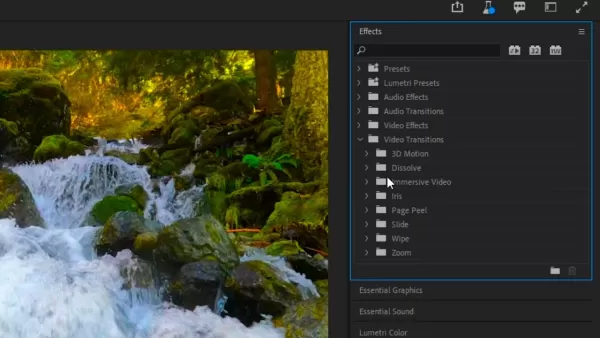
For a seamless loop, build smooth transitions between the end and beginning. Use the “Cross Dissolve” transition to add fade‑in and fade‑out effects. Place the transition exactly where you want the loop to occur—typically in the middle of the clip.
Looping the Video
To create a continuous loop, cut the clip in half and rearrange the sections. Put the latter half before the first half for a seamless join. Apply “Cross Dissolve” to both ends. Repeat this process with any other clips to build a captivating loop that can run for hours.
Final Touches
After looping, review the entire composition. Check for any noticeable jumps or inconsistencies. Fine‑tune overall settings like brightness, contrast, and saturation to bring out the best in your waterfall footage. Your looped relaxation video is now ready to share.
Highlights
- Learn how to loop videos for relaxation channels
- Use Adobe Premiere Pro for professional editing
- Enhance your video with color grading techniques
- Slow down footage for a calming effect
- Create seamless transitions for a continuous loop
FAQ
Q: Can I use a different video editing software to loop my videos? A: This guide focuses on Adobe Premiere Pro, but you can apply similar steps in other software. The workflow may vary slightly.
Q: How long should my looped relaxation videos be? A: Length depends on your audience and platform. Aim for at least 30 minutes to an hour to provide a truly relaxing experience.
Q: Can I loop videos with sound? A: Yes, you can. However, for relaxation videos, detaching the audio and focusing on visuals often creates a more immersive, calming effect for viewers.
Q: Can I use different types of footage for looped relaxation videos? A: Absolutely. While waterfall scenes are popular, try nature clips like forests, beaches, or cityscapes. Choose visually captivating footage that promotes relaxation and tranquility.
Related article
 U.S. Stocks Hit Historic Milestone as AI and Aerospace Giants Prepare for Trillion-Dollar Debut
Elon Musk, Sam Altman, and Dario Amodei, three titans of the technology sector, are advancing toward initial public offerings for their respective ventures. With SpaceX, OpenAI, and Anthropic—three industry behemoths nearing trillion-dollar valuation
Swedish AI Startup Lovable Eyes $13.2 Billion Valuation After Major Funding Round
As AI-driven coding tools gain traction, Swedish startup Lovable has secured a major funding round. The company aims to raise $3 billion, potentially boosting its valuation to $13.2 billion—double the $6.6 billion recorded last December. Menlo Ventur
Google Tests Remy AI Agent for Gemini as Focus Shifts to User Control
According to Business Insider, Google is testing Remy, a new AI personal agent for Gemini. This tool aims to execute tasks on behalf of users, streamlining both professional workflows and daily routines.Currently, Remy is undergoing testing in an int
Related Special Topic Recommendations
writing
U.S. Stocks Hit Historic Milestone as AI and Aerospace Giants Prepare for Trillion-Dollar Debut
Elon Musk, Sam Altman, and Dario Amodei, three titans of the technology sector, are advancing toward initial public offerings for their respective ventures. With SpaceX, OpenAI, and Anthropic—three industry behemoths nearing trillion-dollar valuation
Swedish AI Startup Lovable Eyes $13.2 Billion Valuation After Major Funding Round
As AI-driven coding tools gain traction, Swedish startup Lovable has secured a major funding round. The company aims to raise $3 billion, potentially boosting its valuation to $13.2 billion—double the $6.6 billion recorded last December. Menlo Ventur
Google Tests Remy AI Agent for Gemini as Focus Shifts to User Control
According to Business Insider, Google is testing Remy, a new AI personal agent for Gemini. This tool aims to execute tasks on behalf of users, streamlining both professional workflows and daily routines.Currently, Remy is undergoing testing in an int
Related Special Topic Recommendations
writing
 Best AI Outline Generators for Long-Form SEO Articles
2026 Latest Best Top-Rated AI Outline Generators for Long-Form SEO Articles, meticulously curated by XIX.AI. These powerful tools offer game-changing assistance in creating high-quality content quickly, boosting writing efficiency significantly. Get a free vs paid comparison along with real-world tests and detailed rankings to help you find the must-try option that suits your needs. Explore now to unlock your AI edge.
 8 tools
 xix.ai
Education and Learning
AI Study Tools for Homework and Exam Prep
xix.ai
Education and Learning
AI Study Tools for Homework and Exam Prep
2026 Latest Best AI Study Tools for Homework and Exam Prep! XIX.AI curates a top-rated list of powerful, game-changing tools that help students boost productivity, streamline homework completion, and ace exams through real-world tests. Get a free vs paid comparison, detailed rankings, and must-try options to unlock your AI edge. Explore now!
10 tools
xix.ai
Music composition
AI Vocal Demo Tools for Songwriters, Hooks, Toplines, and Multilingual Draft Sessions
2026 Latest Best AI Vocal Demo Tools for Songwriters, Hook Creators, and Multi-Language Content Teams! XIX.AI has curated a top-rated list of powerful game-changing tools that go through rigorous real-world tests. You’ll find detailed free vs paid comparison data, comprehensive rankings, and must-try options to help you boost writing efficiency and unlock your creative potential. Explore now to discover your perfect tool for all your content needs!
9 tools
xix.ai
Business
Best AI Competitive Research Tools for Small Businesses
2026 Latest Best Top-rated AI Competitive Research Tools for Small Businesses! XIX.AI has curated a highly powerful game-changing collection, updated weekly with rigorous real-world tests and detailed rankings. You can find a comprehensive free vs paid comparison to help you identify the must-try tools that boost your productivity and give you a competitive edge. Explore now to discover your perfect tool!
9 tools
xix.ai
Image editing
Photoshop AI Retouch Tools for Ecommerce Apparel, Skin Cleanup, and Color Consistency
2026 Latest Best Photoshop AI retouch tools for ecommerce apparel, skin cleanup, and color consistency! This top-rated curated list features powerful game-changing solutions that help you boost writing efficiency, streamline content creation, and achieve perfect visual results effortlessly. Each tool has undergone real-world tests through weekly updated rankings, complete with free vs paid comparison details. Backed by XIX.AI, it’s the must-try guide for anyone aiming to unlock your AI edge. Explore now!
10 tools
xix.ai
Prompt
Best AI Prompt Libraries for ChatGPT Workflows
2026 Latest Best Top-Rated AI Prompt Libraries for optimizing all types of ChatGPT workflows. XIX.AI has curated a powerful, game-changing collection that goes through rigorous real-world tests to ensure top performance. You can find detailed free vs paid comparisons and expert rankings to help you choose the must-try tools that boost your productivity and unlock your AI edge. Explore now!
11 tools
xix.ai

 Comments (0)
0/500
Comments (0)
0/500
Turn a 3-Minute Video Into an 8-Hour Looping Waterfall
Table of Contents
- Introduction
- Choosing the Right Program
- Cutting the Video Clip
- Detaching the Audio
- Adjusting the Video Alignment
- Enhancing the Color
- Slowing Down the Video
- Creating Smooth Transitions
- Looping the Video
- Final Touches
Introduction
Creating a successful relaxation video for your channel requires the right techniques and tools. This guide walks you through looping a video in Adobe Premiere Pro, a widely used editing platform. Follow these step-by-step instructions to produce captivating, soothing videos. Let’s dive in and learn how to make your own seamless waterfall loop.
Choosing the Right Program
Before starting, selecting the right program matters. Adobe Premiere Pro offers advanced editing features. While this tutorial uses the Premiere Pro Beta version, the original Premiere Pro works just as well for a more stable experience. Let’s begin by turning a waterfall video into a smooth
Cutting the Video Clip
Start by importing your video clip into Adobe Premiere Pro. If the clip is too long, trim it to your preferred length. Right‑click the clip, select “Unlink,” then cut away unnecessary sections. This separates video from audio, giving you better control for later adjustments.
Detaching the Audio
To focus on visuals alone, detach the audio track. Right‑click the clip and choose “Unlink.” This separation allows you to loop the video seamlessly without distracting sounds, creating a more immersive experience.
Adjusting the Video Alignment
Proper alignment ensures a pleasing composition. Double‑click the clip to open it in the Source Monitor. Adjust alignment by dragging the corners or using the scaling option. Experiment with different positions to frame your waterfall footage best.
Enhancing the Color
Apply color grading to make the video more vibrant. In Adobe Premiere Pro, use the “Curves” adjustment to balance colors. Drag the curve line until you achieve the desired look. Try different settings to create a natural, captivating color scheme that highlights the waterfall’s beauty.
Slowing Down the Video
To amplify the relaxation effect, slow down the footage. Right‑click the clip and choose “Speed/Duration.” Set the speed to a slower rate, such as 50%. This produces a gentle, calming motion, making the waterfall appear more tranquil.
Creating Smooth Transitions
For a seamless loop, build smooth transitions between the end and beginning. Use the “Cross Dissolve” transition to add fade‑in and fade‑out effects. Place the transition exactly where you want the loop to occur—typically in the middle of the clip.
Looping the Video
To create a continuous loop, cut the clip in half and rearrange the sections. Put the latter half before the first half for a seamless join. Apply “Cross Dissolve” to both ends. Repeat this process with any other clips to build a captivating loop that can run for hours.
Final Touches
After looping, review the entire composition. Check for any noticeable jumps or inconsistencies. Fine‑tune overall settings like brightness, contrast, and saturation to bring out the best in your waterfall footage. Your looped relaxation video is now ready to share.
Highlights
- Learn how to loop videos for relaxation channels
- Use Adobe Premiere Pro for professional editing
- Enhance your video with color grading techniques
- Slow down footage for a calming effect
- Create seamless transitions for a continuous loop
FAQ
Q: Can I use a different video editing software to loop my videos? A: This guide focuses on Adobe Premiere Pro, but you can apply similar steps in other software. The workflow may vary slightly.
Q: How long should my looped relaxation videos be? A: Length depends on your audience and platform. Aim for at least 30 minutes to an hour to provide a truly relaxing experience.
Q: Can I loop videos with sound? A: Yes, you can. However, for relaxation videos, detaching the audio and focusing on visuals often creates a more immersive, calming effect for viewers.
Q: Can I use different types of footage for looped relaxation videos? A: Absolutely. While waterfall scenes are popular, try nature clips like forests, beaches, or cityscapes. Choose visually captivating footage that promotes relaxation and tranquility.








 U.S. Stocks Hit Historic Milestone as AI and Aerospace Giants Prepare for Trillion-Dollar Debut
Elon Musk, Sam Altman, and Dario Amodei, three titans of the technology sector, are advancing toward initial public offerings for their respective ventures. With SpaceX, OpenAI, and Anthropic—three industry behemoths nearing trillion-dollar valuation
U.S. Stocks Hit Historic Milestone as AI and Aerospace Giants Prepare for Trillion-Dollar Debut
Elon Musk, Sam Altman, and Dario Amodei, three titans of the technology sector, are advancing toward initial public offerings for their respective ventures. With SpaceX, OpenAI, and Anthropic—three industry behemoths nearing trillion-dollar valuation
 Swedish AI Startup Lovable Eyes $13.2 Billion Valuation After Major Funding Round
As AI-driven coding tools gain traction, Swedish startup Lovable has secured a major funding round. The company aims to raise $3 billion, potentially boosting its valuation to $13.2 billion—double the $6.6 billion recorded last December. Menlo Ventur
Google Tests Remy AI Agent for Gemini as Focus Shifts to User Control
According to Business Insider, Google is testing Remy, a new AI personal agent for Gemini. This tool aims to execute tasks on behalf of users, streamlining both professional workflows and daily routines.Currently, Remy is undergoing testing in an int
Swedish AI Startup Lovable Eyes $13.2 Billion Valuation After Major Funding Round
As AI-driven coding tools gain traction, Swedish startup Lovable has secured a major funding round. The company aims to raise $3 billion, potentially boosting its valuation to $13.2 billion—double the $6.6 billion recorded last December. Menlo Ventur
Google Tests Remy AI Agent for Gemini as Focus Shifts to User Control
According to Business Insider, Google is testing Remy, a new AI personal agent for Gemini. This tool aims to execute tasks on behalf of users, streamlining both professional workflows and daily routines.Currently, Remy is undergoing testing in an int

2026 Latest Best Top-Rated AI Outline Generators for Long-Form SEO Articles, meticulously curated by XIX.AI. These powerful tools offer game-changing assistance in creating high-quality content quickly, boosting writing efficiency significantly. Get a free vs paid comparison along with real-world tests and detailed rankings to help you find the must-try option that suits your needs. Explore now to unlock your AI edge.
8 tools
xix.ai

2026 Latest Best AI Study Tools for Homework and Exam Prep! XIX.AI curates a top-rated list of powerful, game-changing tools that help students boost productivity, streamline homework completion, and ace exams through real-world tests. Get a free vs paid comparison, detailed rankings, and must-try options to unlock your AI edge. Explore now!
10 tools
xix.ai

2026 Latest Best AI Vocal Demo Tools for Songwriters, Hook Creators, and Multi-Language Content Teams! XIX.AI has curated a top-rated list of powerful game-changing tools that go through rigorous real-world tests. You’ll find detailed free vs paid comparison data, comprehensive rankings, and must-try options to help you boost writing efficiency and unlock your creative potential. Explore now to discover your perfect tool for all your content needs!
9 tools
xix.ai

2026 Latest Best Top-rated AI Competitive Research Tools for Small Businesses! XIX.AI has curated a highly powerful game-changing collection, updated weekly with rigorous real-world tests and detailed rankings. You can find a comprehensive free vs paid comparison to help you identify the must-try tools that boost your productivity and give you a competitive edge. Explore now to discover your perfect tool!
9 tools
xix.ai

2026 Latest Best Photoshop AI retouch tools for ecommerce apparel, skin cleanup, and color consistency! This top-rated curated list features powerful game-changing solutions that help you boost writing efficiency, streamline content creation, and achieve perfect visual results effortlessly. Each tool has undergone real-world tests through weekly updated rankings, complete with free vs paid comparison details. Backed by XIX.AI, it’s the must-try guide for anyone aiming to unlock your AI edge. Explore now!
10 tools
xix.ai

2026 Latest Best Top-Rated AI Prompt Libraries for optimizing all types of ChatGPT workflows. XIX.AI has curated a powerful, game-changing collection that goes through rigorous real-world tests to ensure top performance. You can find detailed free vs paid comparisons and expert rankings to help you choose the must-try tools that boost your productivity and unlock your AI edge. Explore now!
11 tools
xix.ai












