


 Home
HomeDisable AI in Google Docs
I opened a Google Doc to start writing an article, only to be greeted by a text box urging me to “write with Gemini.” I searched for a way to dismiss that flashy AI interface but couldn't find one. It frustrated me.
So instead of working on my intended article, I’m writing about how to remove those AI pop-ups from your Google Docs screen—because it took me a while to figure out. You're welcome.
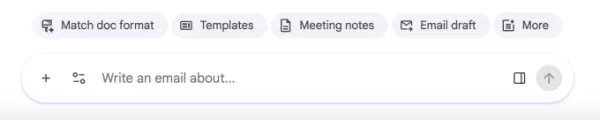
What is this monstrosity? Why won't it go away?Image credit:Screenshot from Google Docs
The first fix is pretty straightforward:
Click “Gemini” in the top menu bar above your document. From the drop-down menu, choose “Bottom bar preferences.” You can then disable that bottom bar, which removes the AI box at the bottom of your screen. 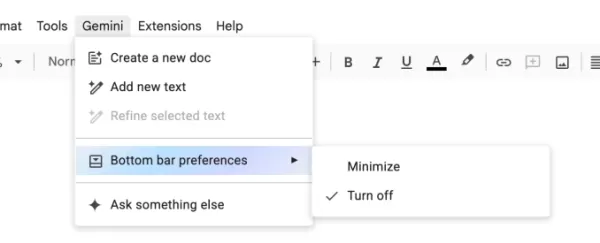
Image credit:Screenshot from Google Docs
Full disclosure: I was so frustrated searching for “bottom bar preferences” that I completely overlooked it at first. Instead, I clicked “Ask something else” and begged Gemini to remove itself from my life. AI may not be human, but Gemini appeared to have a survival instinct—it told me to click the “X” icon. That doesn't remove Gemini. It only closed the conversation where I was asking it how to turn itself off. Suspicious!
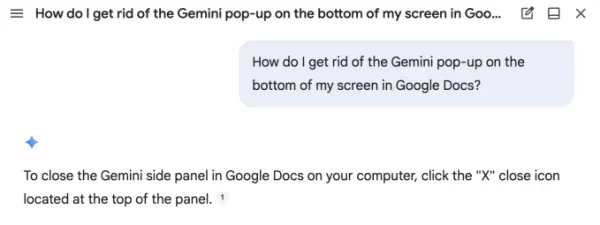
Image credit:Screenshot from Google Docs
Other frustrated Google Docs users have mentioned features I haven't seen yet, such as a “help me write” box that follows your cursor. That sounds annoying, so it's wise to stop it before it starts. Benjamin Franklin once said, “An ounce of prevention is worth a pound of cure.” (He meant fire safety; I mean product design.)
Rather than disabling each AI feature one by one like a game of Whac-A-Mole, you can turn off “smart features” across your entire Google Workspace through Gmail.
First, open your Gmail inbox. Then click the gear icon for Settings. In the menu that appears, choose “See all settings.” (While you're there, you might pick a playful theme for your inbox. A little whimsy never hurt anyone.) After clicking “See all settings,” scroll about halfway down to find “Google Workspace smart features” and click “Manage Workspace smart feature settings.”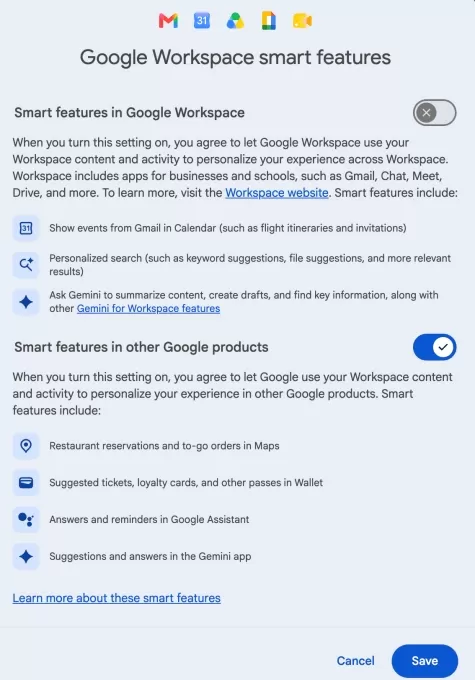
Image credit:Screenshot from Gmail
Here, you see two options: one to disable smart features in Google Workspace (including those annoying Gemini pop-ups in Google Docs), and another for other smart features (which I find less bothersome). I only turned off the first one, but if you dislike Gmail automatically creating calendar events from your flights, this is where you can change that.You should now be free from those irritating Gemini pop-ups that interrupt your writing in Google Docs. Rest easy.
Related article
 The Year's Biggest AI Stories So Far
You can track a year by product launches, but the bigger moments that reshape our understanding of AI matter more. The AI industry keeps generating headlines—major acquisitions, indie developer wins, backlash against questionable products, and high-s
Six Search Engines to Try When Google Isn't What It Used to Be
Google’s appearance is about to change drastically, and if you’re not a fan of AI Overviews, you won’t like what’s ahead.
During this week’s Google I/O 2026 keynote, the company revealed a major overhaul of Search, shifting toward a conversational, A
Top U.S. AI Firms Securing $100 Million-Plus Funding in 2026
In just under two months of 2026, nearly 20 AI startups based in the United States have already secured massive funding rounds of $100 million or more.If the initial weeks of the year are any indication, the AI startup scene is poised for another yea
Related Special Topic Recommendations
Business
The Year's Biggest AI Stories So Far
You can track a year by product launches, but the bigger moments that reshape our understanding of AI matter more. The AI industry keeps generating headlines—major acquisitions, indie developer wins, backlash against questionable products, and high-s
Six Search Engines to Try When Google Isn't What It Used to Be
Google’s appearance is about to change drastically, and if you’re not a fan of AI Overviews, you won’t like what’s ahead.
During this week’s Google I/O 2026 keynote, the company revealed a major overhaul of Search, shifting toward a conversational, A
Top U.S. AI Firms Securing $100 Million-Plus Funding in 2026
In just under two months of 2026, nearly 20 AI startups based in the United States have already secured massive funding rounds of $100 million or more.If the initial weeks of the year are any indication, the AI startup scene is poised for another yea
Related Special Topic Recommendations
Business
 Best AI Competitive Research Tools for Small Businesses
2026 Latest Best Top-rated AI Competitive Research Tools for Small Businesses! XIX.AI has curated a highly powerful game-changing collection, updated weekly with rigorous real-world tests and detailed rankings. You can find a comprehensive free vs paid comparison to help you identify the must-try tools that boost your productivity and give you a competitive edge. Explore now to discover your perfect tool!
 9 tools
 xix.ai
Image editing
Photoshop AI Retouch Tools for Ecommerce Apparel, Skin Cleanup, and Color Consistency
xix.ai
Image editing
Photoshop AI Retouch Tools for Ecommerce Apparel, Skin Cleanup, and Color Consistency
2026 Latest Best Photoshop AI retouch tools for ecommerce apparel, skin cleanup, and color consistency! This top-rated curated list features powerful game-changing solutions that help you boost writing efficiency, streamline content creation, and achieve perfect visual results effortlessly. Each tool has undergone real-world tests through weekly updated rankings, complete with free vs paid comparison details. Backed by XIX.AI, it’s the must-try guide for anyone aiming to unlock your AI edge. Explore now!
10 tools
xix.ai
Prompt
Best AI Prompt Libraries for ChatGPT Workflows
2026 Latest Best Top-Rated AI Prompt Libraries for optimizing all types of ChatGPT workflows. XIX.AI has curated a powerful, game-changing collection that goes through rigorous real-world tests to ensure top performance. You can find detailed free vs paid comparisons and expert rankings to help you choose the must-try tools that boost your productivity and unlock your AI edge. Explore now!
11 tools
xix.ai
Education and Learning
AI Quiz Builder Platforms for Teachers, Tutors, and Cohort-Based Learning Programs
2026 Latest Best AI Quiz Builder Platforms for Teachers, Tutors, and Cohort-Based Learning Programs! XIX.AI has curated a top-rated list of powerful game-changing tools that go through real-world tests to deliver accurate rankings. These must-try platforms help boost writing efficiency, streamline content creation, and simplify quiz design across all learning scenarios. Explore now to discover your perfect tool for unlocking your AI edge in teaching!
13 tools
xix.ai
code
AI Pull Request Review Tools for GitHub Teams Handling Refactors, Bugs, and Security Gaps
2026 Latest Best AI Pull Request Review Tools for GitHub Teams are here on XIX.AI! This top-rated curated list showcases powerful game-changing solutions that streamline refactoring, bug fixing, and security gap detection across all team workflows. Enjoy a free vs paid comparison along with real-world tests and detailed rankings to help you find the perfect tool that boosts productivity significantly. Explore now to unlock your AI edge!
12 tools
xix.ai
Text-to-speech
Best AI Text to Speech Tools for Natural Voiceovers
2026 Latest Best Top-rated AI Text to Speech Tools for Natural Voiceovers are here on XIX.AI! This curated list features powerful, game-changing options that deliver crystal-clear voices for every use case, backed by real-world tests and weekly updated rankings. Get a free vs paid comparison to find the must-try solution that boosts your productivity instantly. Explore now to Unlock your AI edge!
11 tools
xix.ai

 Comments (0)
0/500
Comments (0)
0/500
I opened a Google Doc to start writing an article, only to be greeted by a text box urging me to “write with Gemini.” I searched for a way to dismiss that flashy AI interface but couldn't find one. It frustrated me.
So instead of working on my intended article, I’m writing about how to remove those AI pop-ups from your Google Docs screen—because it took me a while to figure out. You're welcome.
What is this monstrosity? Why won't it go away?Image credit:Screenshot from Google Docs
The first fix is pretty straightforward:
Click “Gemini” in the top menu bar above your document. From the drop-down menu, choose “Bottom bar preferences.” You can then disable that bottom bar, which removes the AI box at the bottom of your screen.Image credit:Screenshot from Google Docs
Full disclosure: I was so frustrated searching for “bottom bar preferences” that I completely overlooked it at first. Instead, I clicked “Ask something else” and begged Gemini to remove itself from my life. AI may not be human, but Gemini appeared to have a survival instinct—it told me to click the “X” icon. That doesn't remove Gemini. It only closed the conversation where I was asking it how to turn itself off. Suspicious!
Image credit:Screenshot from Google Docs
Other frustrated Google Docs users have mentioned features I haven't seen yet, such as a “help me write” box that follows your cursor. That sounds annoying, so it's wise to stop it before it starts. Benjamin Franklin once said, “An ounce of prevention is worth a pound of cure.” (He meant fire safety; I mean product design.)
Rather than disabling each AI feature one by one like a game of Whac-A-Mole, you can turn off “smart features” across your entire Google Workspace through Gmail.
First, open your Gmail inbox. Then click the gear icon for Settings. In the menu that appears, choose “See all settings.” (While you're there, you might pick a playful theme for your inbox. A little whimsy never hurt anyone.) After clicking “See all settings,” scroll about halfway down to find “Google Workspace smart features” and click “Manage Workspace smart feature settings.”Image credit:Screenshot from Gmail
Here, you see two options: one to disable smart features in Google Workspace (including those annoying Gemini pop-ups in Google Docs), and another for other smart features (which I find less bothersome). I only turned off the first one, but if you dislike Gmail automatically creating calendar events from your flights, this is where you can change that.You should now be free from those irritating Gemini pop-ups that interrupt your writing in Google Docs. Rest easy.








 The Year's Biggest AI Stories So Far
You can track a year by product launches, but the bigger moments that reshape our understanding of AI matter more. The AI industry keeps generating headlines—major acquisitions, indie developer wins, backlash against questionable products, and high-s
The Year's Biggest AI Stories So Far
You can track a year by product launches, but the bigger moments that reshape our understanding of AI matter more. The AI industry keeps generating headlines—major acquisitions, indie developer wins, backlash against questionable products, and high-s
 Six Search Engines to Try When Google Isn't What It Used to Be
Google’s appearance is about to change drastically, and if you’re not a fan of AI Overviews, you won’t like what’s ahead.
During this week’s Google I/O 2026 keynote, the company revealed a major overhaul of Search, shifting toward a conversational, A
Six Search Engines to Try When Google Isn't What It Used to Be
Google’s appearance is about to change drastically, and if you’re not a fan of AI Overviews, you won’t like what’s ahead.
During this week’s Google I/O 2026 keynote, the company revealed a major overhaul of Search, shifting toward a conversational, A
 Top U.S. AI Firms Securing $100 Million-Plus Funding in 2026
In just under two months of 2026, nearly 20 AI startups based in the United States have already secured massive funding rounds of $100 million or more.If the initial weeks of the year are any indication, the AI startup scene is poised for another yea
Top U.S. AI Firms Securing $100 Million-Plus Funding in 2026
In just under two months of 2026, nearly 20 AI startups based in the United States have already secured massive funding rounds of $100 million or more.If the initial weeks of the year are any indication, the AI startup scene is poised for another yea

2026 Latest Best Top-rated AI Competitive Research Tools for Small Businesses! XIX.AI has curated a highly powerful game-changing collection, updated weekly with rigorous real-world tests and detailed rankings. You can find a comprehensive free vs paid comparison to help you identify the must-try tools that boost your productivity and give you a competitive edge. Explore now to discover your perfect tool!
9 tools
xix.ai

2026 Latest Best Photoshop AI retouch tools for ecommerce apparel, skin cleanup, and color consistency! This top-rated curated list features powerful game-changing solutions that help you boost writing efficiency, streamline content creation, and achieve perfect visual results effortlessly. Each tool has undergone real-world tests through weekly updated rankings, complete with free vs paid comparison details. Backed by XIX.AI, it’s the must-try guide for anyone aiming to unlock your AI edge. Explore now!
10 tools
xix.ai
2026 Latest Best Top-Rated AI Prompt Libraries for optimizing all types of ChatGPT workflows. XIX.AI has curated a powerful, game-changing collection that goes through rigorous real-world tests to ensure top performance. You can find detailed free vs paid comparisons and expert rankings to help you choose the must-try tools that boost your productivity and unlock your AI edge. Explore now!
11 tools
xix.ai

2026 Latest Best AI Quiz Builder Platforms for Teachers, Tutors, and Cohort-Based Learning Programs! XIX.AI has curated a top-rated list of powerful game-changing tools that go through real-world tests to deliver accurate rankings. These must-try platforms help boost writing efficiency, streamline content creation, and simplify quiz design across all learning scenarios. Explore now to discover your perfect tool for unlocking your AI edge in teaching!
13 tools
xix.ai

2026 Latest Best AI Pull Request Review Tools for GitHub Teams are here on XIX.AI! This top-rated curated list showcases powerful game-changing solutions that streamline refactoring, bug fixing, and security gap detection across all team workflows. Enjoy a free vs paid comparison along with real-world tests and detailed rankings to help you find the perfect tool that boosts productivity significantly. Explore now to unlock your AI edge!
12 tools
xix.ai

2026 Latest Best Top-rated AI Text to Speech Tools for Natural Voiceovers are here on XIX.AI! This curated list features powerful, game-changing options that deliver crystal-clear voices for every use case, backed by real-world tests and weekly updated rankings. Get a free vs paid comparison to find the must-try solution that boosts your productivity instantly. Explore now to Unlock your AI edge!
11 tools
xix.ai












