


 Home
HomeMaster Essential AI Skills With This Infographic Tutorial
Artificial Intelligence is driving profound change across industries. To succeed in this new era, mastering key AI skills is essential. This Adobe Illustrator tutorial will guide you through creating an impactful infographic that highlights these vital abilities. The step-by-step process is designed for designers and tech enthusiasts to not only produce a striking visual but also gain a deeper understanding of the technical and soft skills that matter most.
Key Points
Grasp the core AI competencies needed for future career growth.
Master the process of designing a professional infographic using Adobe Illustrator.
Learn essential techniques for creating shapes, applying color, and integrating text.
Improve your ability to present complex information through clear visual design.
Discover practical tips for efficient and effective infographic creation.
Creating an AI Skills Infographic in Adobe Illustrator
Setting Up the Document and Background
Begin by launching Adobe Illustrator and creating a new document.
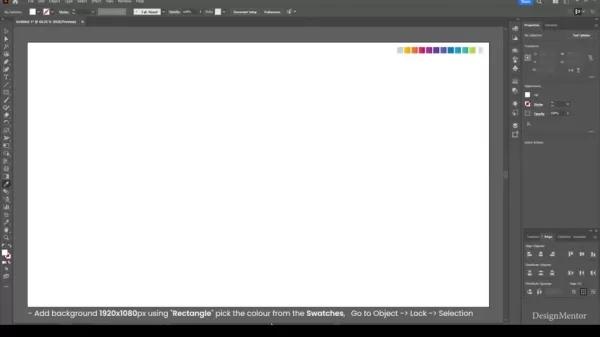
We'll start by crafting a clean background. Choose a document size suitable for a presentation slide; 1920x1080 pixels is a standard, versatile option. Use the Rectangle Tool to draw a shape covering the entire artboard. Select a professional, subtle color like a light gray or muted blue from the Swatches panel. To lock this background in place and avoid accidental edits, go to Object > Lock > Selection. This provides a stable foundation for the rest of your design work.
Key Actions: Rectangle Tool, Object Locking, Color Selection
Drawing Reference Circles and Creating Widgets
Next, we'll establish a circular layout to organize the information.
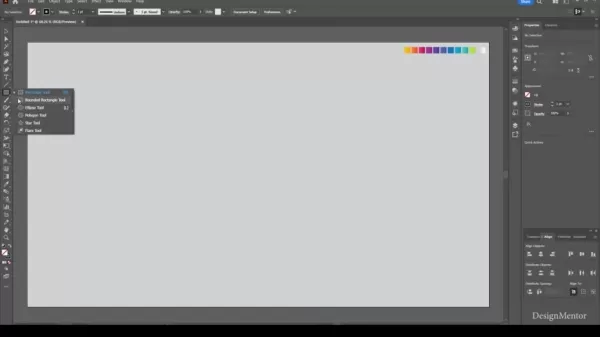
Use the Ellipse Tool to draw a large circle (approximately 1050x1050 pixels) and center it on the artboard using the Align panel (Window > Align). This will be our main structural guide. Inside it, draw a smaller circle (around 300x300 pixels) to serve as the central title area.
Now, create the individual "skill bubbles." Draw an ellipse roughly 225x225 pixels and position it near the top of the large guide circle. Using the Direct Selection Tool (A), select the bottom anchor point and drag it down to form a teardrop or pill shape. This distinctive shape will act as a container for each AI skill.
Key Actions: Ellipse Tool, Align Panel, Direct Selection Tool
Distributing Widgets Evenly Around the Circle
To arrange the bubbles uniformly, we'll use the Rotate Tool. Select the widget, activate the Rotate Tool (R), and click on the center of the inner small circle to set the pivot point. In the dialog box, enter an angle based on the number of skills: for 10 skills, divide 360 by 10 to get 36 degrees. Click 'Copy'.
Then, press Ctrl+D (Cmd+D on Mac) repeatedly to duplicate the transformation, placing copies evenly around the circle. This method ensures a balanced and professional layout.
Key Actions: Rotate Tool, Ctrl+D (Cmd+D), Angle Calculation
Here's a table to explain the math involved:
Skill Count Angle Calculation Angle 10 360 / 10 36 12 360 / 12 30 8 360 / 8 45
Applying Colors and Drop Shadows to the Widgets
Assign distinct colors to each widget to improve visual separation and appeal.
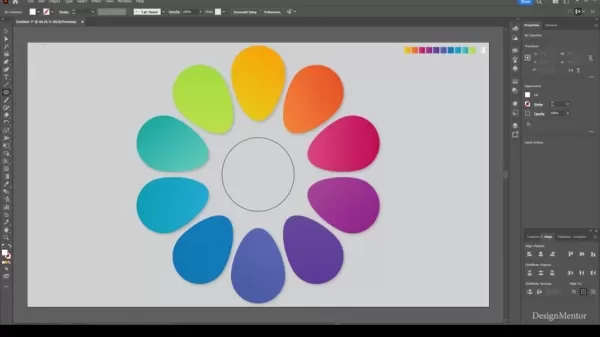
Select each bubble individually and apply a fill color or gradient from the Swatches panel, choosing a harmonious palette. To add depth, select all widgets and apply a drop shadow via Effect > Stylize > Drop Shadow. Adjust the opacity, X/Y offset, and blur to achieve a subtle, lifting effect that makes the elements stand out.
Key Actions: Color Selection, Gradient Tool, Drop Shadow Effect
Adding Text and Labels to the Infographic
Label each skill bubble clearly. Using the Type Tool (T), click inside each widget to add a number. Choose a clean, readable font from the Character panel (Window > Type > Character), adjusting the size and weight for clarity. For the central title, use a larger, bold font to create a strong focal point.
Then, add the list of AI skills themselves within the outer areas of the bubbles. Ensure the text is legible and well-aligned. Here is a sample list of essential skills:
- Programming Language
- Data Modeling and Analytics
- Machine Learning and Deep Learning
- Libraries and Frameworks
- Mathematics and Statistics
- Natural Language Processing (NLP)
- Problem Solving
- Critical Thinking
- Creativity
- AI Ethics
Key Actions: Type Tool, Font Selection, Font Formatting
Enhancing and Finalizing Your AI Skills Infographic
Adding Icons and Visual Elements
Incorporate relevant icons to make each skill more instantly recognizable. Source simple, cohesive icons from reputable libraries and place them thoughtfully within the widgets. This visual reinforcement aids comprehension and makes the design more engaging. Consider including other graphical elements to enrich the presentation.
Visual elements can significantly boost the impact of your infographic. Useful additions include:
- Charts and graphs: To visualize data on AI skill demand or salary trends.
- Illustrations: Custom graphics to demystify complex AI concepts.
- Icons: A consistent set of icons to provide quick visual cues for each skill.
Key Actions: Icon Integration, Visual Element Selection, Design Coherence
Creating outlines
Convert all text to outlines to ensure the font styling remains intact when sharing the file. Select all text elements and go to Type > Create Outlines.
Key Actions: Type > Create Outlines
Polishing and Exporting the Infographic
Conduct a final review of your design. Check for alignment, spelling, color consistency, and overall visual flow. Make any final tweaks to perfect the layout.
Once satisfied, export the file. For digital use (websites, social media), save as a high-quality PNG or JPG. For print purposes, export as a high-resolution PDF. Choose the appropriate settings to maintain quality. Sharing your finished infographic on professional networks and portfolios can help demonstrate your expertise in both AI and design.
Key Actions: Export Settings, File Format Selection, Quality Optimization
Pros and Cons of Learning Adobe Illustrator for Infographic Design
Pros
Vector Graphics: Create infinitely scalable graphics that never lose quality, a must for versatile infographics.
Precision Tools: Enjoy pixel-perfect control over every shape, line, and text element for polished results.
Creative Freedom: Access a vast toolkit of brushes, effects, and features to bring complex visual ideas to life.
Industry Standard: Use software preferred by design professionals, facilitating smooth collaboration and workflow.
Cons
Steep Learning Curve: The extensive feature set can be overwhelming for absolute beginners.
Cost: Requires an ongoing Adobe Creative Cloud subscription, which represents a recurring expense.
Resource Intensive: May run slowly on older or less powerful computers, especially with complex documents.
Not Ideal for Data Visualization: While capable, it's less efficient for generating complex, data-driven charts compared to specialized tools like Tableau.
Frequently Asked Questions (FAQ)
What software do I need to create this infographic?
This tutorial is designed specifically for Adobe Illustrator. Other vector software may have similar tools, but the instructions and steps are optimized for Illustrator's interface.
Where can I find icons for my infographic?
Excellent sources for icons include Flaticon, The Noun Project, and Adobe Stock, which offer extensive libraries in various styles, both free and premium.
How can I make my infographic accessible?
Ensure high contrast between text and background, add descriptive alternative text for all images, and structure the design with a logical visual hierarchy for screen readers.
What are some other AI skills I can include?
Consider adding skills like data visualization, cloud computing platforms (AWS, Azure), robotics process automation, or AI product management to your list.
Related Questions
What are the most in-demand AI skills?
Currently, the highest demand is for expertise in Machine Learning, Deep Learning, Natural Language Processing, and a strong understanding of AI Ethics. Proficiency in these areas is critical for developing responsible and effective AI solutions, making them highly valuable across sectors.
What are the best resources for learning AI skills?
Top resources include structured online courses from platforms like Coursera, edX, and Udacity, alongside practical platforms like Kaggle for hands-on experience. Reading research papers, following influential AI blogs, and contributing to open-source projects are also highly effective for deepening your knowledge.
How can I showcase my AI skills to potential employers?
Build a strong portfolio featuring real-world projects, such as models developed for Kaggle competitions or personal initiatives. Detail these projects on your resume and LinkedIn, clearly explaining your role and the tools used. Networking at industry meetups and conferences can also open doors to new opportunities.
Related article
 Apple, Google Partner With Anthropic to Address 27-Year-Old Vulnerability via Glass Wing Protection
As artificial intelligence advances rapidly in code generation and logical reasoning, the cybersecurity landscape faces unprecedented challenges. Recently, the prominent AI startup Anthropic officially launched a cross-industry collaboration called *
OpenAI Chief Scientist Addresses AI Reasoning Transparency Debate: Complexity Steady, No Sudden Jump
On September 2, Jakub Pachocki, OpenAI’s Chief Scientist, addressed public concerns on X regarding the AI model Astra, clarifying claims that it operates without oversight and lacks transparent reasoning.Why the Controversy Erupted: Deep Recurrence O
U.S. Navy Selects Blue Water Autonomy for Deep-Sea Survey Missions
Blue Water Autonomy’s Liberty Class is a 190-foot steel autonomous ship. | Source: Blue Water AutonomyBoston-based technology and shipbuilding firm Blue Water Autonomy has secured a multiple-award contract with the Naval Oceanographic Office (NAVOCEA
Related Special Topic Recommendations
Text-to-speech
Apple, Google Partner With Anthropic to Address 27-Year-Old Vulnerability via Glass Wing Protection
As artificial intelligence advances rapidly in code generation and logical reasoning, the cybersecurity landscape faces unprecedented challenges. Recently, the prominent AI startup Anthropic officially launched a cross-industry collaboration called *
OpenAI Chief Scientist Addresses AI Reasoning Transparency Debate: Complexity Steady, No Sudden Jump
On September 2, Jakub Pachocki, OpenAI’s Chief Scientist, addressed public concerns on X regarding the AI model Astra, clarifying claims that it operates without oversight and lacks transparent reasoning.Why the Controversy Erupted: Deep Recurrence O
U.S. Navy Selects Blue Water Autonomy for Deep-Sea Survey Missions
Blue Water Autonomy’s Liberty Class is a 190-foot steel autonomous ship. | Source: Blue Water AutonomyBoston-based technology and shipbuilding firm Blue Water Autonomy has secured a multiple-award contract with the Naval Oceanographic Office (NAVOCEA
Related Special Topic Recommendations
Text-to-speech
 Best AI Text to Speech Tools for Online Courses
2026 Latest Best Top-rated AI Text to Speech Tools for Online Courses are curated by XIX.AI based on rigorous real-world tests and weekly updated rankings. These powerful tools help creators deliver crystal-clear audio content effortlessly, boosting writing efficiency and streamlining course production. Check out the free vs paid comparison to find your perfect fit. Explore now to unlock your AI edge in online education.
 10 tools
 xix.ai
writing
AI Blog Title Tools for Higher Click Through Rates
xix.ai
writing
AI Blog Title Tools for Higher Click Through Rates
2026 Latest Best Top-Rated AI Blog Title Tools for Higher Click Through Rates! XIX.AI has carefully curated a powerful, game-changing collection of top tools that go through rigorous real-world tests. You’ll find a free vs paid comparison, weekly updated rankings, and detailed insights to help you boost your blog’s traffic efficiently. Must-try options are highlighted to help you unlock your AI edge. Explore now!
10 tools
xix.ai
automation
Best AI Task Routing Tools for Support Workflows
2026 Latest Best Top-rated AI Task Routing Tools for Support Workflows! XIX.AI has curated a highly powerful game-changing collection of must-try solutions, all undergoing rigorous real-world tests and updated weekly. These tools streamline workflows, boost productivity, and help teams deliver faster, more efficient support. Explore now to discover your perfect tool and unlock your AI edge!
17 tools
xix.ai
Academic Research
AI Citation and Paper Summary Tools
2026 Latest Best Top-Rated AI Citation and Paper Summary Tools Curated by XIX.AI. Get powerful game-changing solutions for quick content creation, improved writing efficiency, and boosting productivity. We offer a free vs paid comparison along with real-world tests and weekly updated rankings to help you find the must-try tool that fits your needs perfectly. Explore now to Unlock your AI edge.
10 tools
xix.ai
Productivity
Best AI Productivity Tools for Daily Work
2026 Latest Best Top-Rated AI Productivity Tools for Daily Work! XIX.AI has curated a powerful, game-changing selection based on rigorous weekly updated rankings and real-world tests. You’ll find must-try options that boost writing efficiency, streamline content creation, and help you overcome daily work challenges. Get a free vs paid comparison to find the perfect fit for your needs. Explore now to unlock your AI edge!
9 tools
xix.ai
Academic Research
AI Systematic Review Tools for Research Screening
2026 Latest Best Top-Rated AI Systematic Review Tools for Research Screening are here on XIX.AI! This curated collection includes powerful, game-changing solutions that go through rigorous real-world tests to deliver accurate results. We also offer a free vs paid comparison along with weekly updated rankings to help you find the must-try option that boosts your research efficiency significantly. Explore now to unlock your AI edge in academic work!
11 tools
xix.ai

 Comments (2)
0/500
Comments (2)
0/500
![JasonAnderson]()
Als Designer finde ich solche Tutorials super hilfreich! 🎨 Gerade bei komplexen Themen wie KI hilft eine gute Infografik, die Kernkompetenzen visuell zu vermitteln. Die Kombi aus Adobe Illustrator und aktuellen Inhalten ist praktisch. Hoffe, es gibt auch Tipps zur Datenvisualisierung – das ist bei KI-Themen ja oft die größte Herausforderung. Mal sehen, ob ich das für mein nächstes Team-Meeting nutzen kann!
![JackMartin]()
このインフォグラフィックを作れるようになるというのは、AIの話をしていながらも「情報を視覚的に伝える」AI時代ならではのスキルを学べて面白い。デザインしながら、機械学習、倫理、どうやったら普及されるか考えられて一石二鳥かな笑。イラストレータースキルも上がりそうで、やってみようかな? 🎨
Artificial Intelligence is driving profound change across industries. To succeed in this new era, mastering key AI skills is essential. This Adobe Illustrator tutorial will guide you through creating an impactful infographic that highlights these vital abilities. The step-by-step process is designed for designers and tech enthusiasts to not only produce a striking visual but also gain a deeper understanding of the technical and soft skills that matter most.
Key Points
Grasp the core AI competencies needed for future career growth.
Master the process of designing a professional infographic using Adobe Illustrator.
Learn essential techniques for creating shapes, applying color, and integrating text.
Improve your ability to present complex information through clear visual design.
Discover practical tips for efficient and effective infographic creation.
Creating an AI Skills Infographic in Adobe Illustrator
Setting Up the Document and Background
Begin by launching Adobe Illustrator and creating a new document.
We'll start by crafting a clean background. Choose a document size suitable for a presentation slide; 1920x1080 pixels is a standard, versatile option. Use the Rectangle Tool to draw a shape covering the entire artboard. Select a professional, subtle color like a light gray or muted blue from the Swatches panel. To lock this background in place and avoid accidental edits, go to Object > Lock > Selection. This provides a stable foundation for the rest of your design work.
Key Actions: Rectangle Tool, Object Locking, Color Selection
Drawing Reference Circles and Creating Widgets
Next, we'll establish a circular layout to organize the information.
Use the Ellipse Tool to draw a large circle (approximately 1050x1050 pixels) and center it on the artboard using the Align panel (Window > Align). This will be our main structural guide. Inside it, draw a smaller circle (around 300x300 pixels) to serve as the central title area.
Now, create the individual "skill bubbles." Draw an ellipse roughly 225x225 pixels and position it near the top of the large guide circle. Using the Direct Selection Tool (A), select the bottom anchor point and drag it down to form a teardrop or pill shape. This distinctive shape will act as a container for each AI skill.
Key Actions: Ellipse Tool, Align Panel, Direct Selection Tool
Distributing Widgets Evenly Around the Circle
To arrange the bubbles uniformly, we'll use the Rotate Tool. Select the widget, activate the Rotate Tool (R), and click on the center of the inner small circle to set the pivot point. In the dialog box, enter an angle based on the number of skills: for 10 skills, divide 360 by 10 to get 36 degrees. Click 'Copy'.
Then, press Ctrl+D (Cmd+D on Mac) repeatedly to duplicate the transformation, placing copies evenly around the circle. This method ensures a balanced and professional layout.
Key Actions: Rotate Tool, Ctrl+D (Cmd+D), Angle Calculation
Here's a table to explain the math involved:
| Skill Count | Angle Calculation | Angle |
|---|---|---|
| 10 | 360 / 10 | 36 |
| 12 | 360 / 12 | 30 |
| 8 | 360 / 8 | 45 |
Applying Colors and Drop Shadows to the Widgets
Assign distinct colors to each widget to improve visual separation and appeal.
Select each bubble individually and apply a fill color or gradient from the Swatches panel, choosing a harmonious palette. To add depth, select all widgets and apply a drop shadow via Effect > Stylize > Drop Shadow. Adjust the opacity, X/Y offset, and blur to achieve a subtle, lifting effect that makes the elements stand out.
Key Actions: Color Selection, Gradient Tool, Drop Shadow Effect
Adding Text and Labels to the Infographic
Label each skill bubble clearly. Using the Type Tool (T), click inside each widget to add a number. Choose a clean, readable font from the Character panel (Window > Type > Character), adjusting the size and weight for clarity. For the central title, use a larger, bold font to create a strong focal point.
Then, add the list of AI skills themselves within the outer areas of the bubbles. Ensure the text is legible and well-aligned. Here is a sample list of essential skills:
- Programming Language
- Data Modeling and Analytics
- Machine Learning and Deep Learning
- Libraries and Frameworks
- Mathematics and Statistics
- Natural Language Processing (NLP)
- Problem Solving
- Critical Thinking
- Creativity
- AI Ethics
Key Actions: Type Tool, Font Selection, Font Formatting
Enhancing and Finalizing Your AI Skills Infographic
Adding Icons and Visual Elements
Incorporate relevant icons to make each skill more instantly recognizable. Source simple, cohesive icons from reputable libraries and place them thoughtfully within the widgets. This visual reinforcement aids comprehension and makes the design more engaging. Consider including other graphical elements to enrich the presentation.
Visual elements can significantly boost the impact of your infographic. Useful additions include:
- Charts and graphs: To visualize data on AI skill demand or salary trends.
- Illustrations: Custom graphics to demystify complex AI concepts.
- Icons: A consistent set of icons to provide quick visual cues for each skill.
Key Actions: Icon Integration, Visual Element Selection, Design Coherence
Creating outlines
Convert all text to outlines to ensure the font styling remains intact when sharing the file. Select all text elements and go to Type > Create Outlines.
Key Actions: Type > Create Outlines
Polishing and Exporting the Infographic
Conduct a final review of your design. Check for alignment, spelling, color consistency, and overall visual flow. Make any final tweaks to perfect the layout.
Once satisfied, export the file. For digital use (websites, social media), save as a high-quality PNG or JPG. For print purposes, export as a high-resolution PDF. Choose the appropriate settings to maintain quality. Sharing your finished infographic on professional networks and portfolios can help demonstrate your expertise in both AI and design.
Key Actions: Export Settings, File Format Selection, Quality Optimization
Pros and Cons of Learning Adobe Illustrator for Infographic Design
Pros
Vector Graphics: Create infinitely scalable graphics that never lose quality, a must for versatile infographics.
Precision Tools: Enjoy pixel-perfect control over every shape, line, and text element for polished results.
Creative Freedom: Access a vast toolkit of brushes, effects, and features to bring complex visual ideas to life.
Industry Standard: Use software preferred by design professionals, facilitating smooth collaboration and workflow.
Cons
Steep Learning Curve: The extensive feature set can be overwhelming for absolute beginners.
Cost: Requires an ongoing Adobe Creative Cloud subscription, which represents a recurring expense.
Resource Intensive: May run slowly on older or less powerful computers, especially with complex documents.
Not Ideal for Data Visualization: While capable, it's less efficient for generating complex, data-driven charts compared to specialized tools like Tableau.
Frequently Asked Questions (FAQ)
What software do I need to create this infographic?
This tutorial is designed specifically for Adobe Illustrator. Other vector software may have similar tools, but the instructions and steps are optimized for Illustrator's interface.
Where can I find icons for my infographic?
Excellent sources for icons include Flaticon, The Noun Project, and Adobe Stock, which offer extensive libraries in various styles, both free and premium.
How can I make my infographic accessible?
Ensure high contrast between text and background, add descriptive alternative text for all images, and structure the design with a logical visual hierarchy for screen readers.
What are some other AI skills I can include?
Consider adding skills like data visualization, cloud computing platforms (AWS, Azure), robotics process automation, or AI product management to your list.
Related Questions
What are the most in-demand AI skills?
Currently, the highest demand is for expertise in Machine Learning, Deep Learning, Natural Language Processing, and a strong understanding of AI Ethics. Proficiency in these areas is critical for developing responsible and effective AI solutions, making them highly valuable across sectors.
What are the best resources for learning AI skills?
Top resources include structured online courses from platforms like Coursera, edX, and Udacity, alongside practical platforms like Kaggle for hands-on experience. Reading research papers, following influential AI blogs, and contributing to open-source projects are also highly effective for deepening your knowledge.
How can I showcase my AI skills to potential employers?
Build a strong portfolio featuring real-world projects, such as models developed for Kaggle competitions or personal initiatives. Detail these projects on your resume and LinkedIn, clearly explaining your role and the tools used. Networking at industry meetups and conferences can also open doors to new opportunities.








 Apple, Google Partner With Anthropic to Address 27-Year-Old Vulnerability via Glass Wing Protection
As artificial intelligence advances rapidly in code generation and logical reasoning, the cybersecurity landscape faces unprecedented challenges. Recently, the prominent AI startup Anthropic officially launched a cross-industry collaboration called *
Apple, Google Partner With Anthropic to Address 27-Year-Old Vulnerability via Glass Wing Protection
As artificial intelligence advances rapidly in code generation and logical reasoning, the cybersecurity landscape faces unprecedented challenges. Recently, the prominent AI startup Anthropic officially launched a cross-industry collaboration called *
 OpenAI Chief Scientist Addresses AI Reasoning Transparency Debate: Complexity Steady, No Sudden Jump
On September 2, Jakub Pachocki, OpenAI’s Chief Scientist, addressed public concerns on X regarding the AI model Astra, clarifying claims that it operates without oversight and lacks transparent reasoning.Why the Controversy Erupted: Deep Recurrence O
OpenAI Chief Scientist Addresses AI Reasoning Transparency Debate: Complexity Steady, No Sudden Jump
On September 2, Jakub Pachocki, OpenAI’s Chief Scientist, addressed public concerns on X regarding the AI model Astra, clarifying claims that it operates without oversight and lacks transparent reasoning.Why the Controversy Erupted: Deep Recurrence O
 U.S. Navy Selects Blue Water Autonomy for Deep-Sea Survey Missions
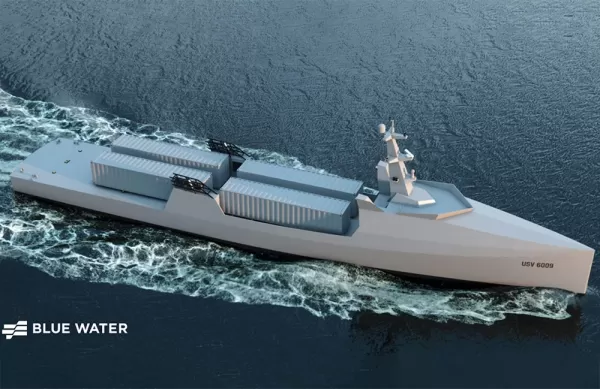
Blue Water Autonomy’s Liberty Class is a 190-foot steel autonomous ship. | Source: Blue Water AutonomyBoston-based technology and shipbuilding firm Blue Water Autonomy has secured a multiple-award contract with the Naval Oceanographic Office (NAVOCEA
U.S. Navy Selects Blue Water Autonomy for Deep-Sea Survey Missions
Blue Water Autonomy’s Liberty Class is a 190-foot steel autonomous ship. | Source: Blue Water AutonomyBoston-based technology and shipbuilding firm Blue Water Autonomy has secured a multiple-award contract with the Naval Oceanographic Office (NAVOCEA

2026 Latest Best Top-rated AI Text to Speech Tools for Online Courses are curated by XIX.AI based on rigorous real-world tests and weekly updated rankings. These powerful tools help creators deliver crystal-clear audio content effortlessly, boosting writing efficiency and streamlining course production. Check out the free vs paid comparison to find your perfect fit. Explore now to unlock your AI edge in online education.
10 tools
xix.ai

2026 Latest Best Top-Rated AI Blog Title Tools for Higher Click Through Rates! XIX.AI has carefully curated a powerful, game-changing collection of top tools that go through rigorous real-world tests. You’ll find a free vs paid comparison, weekly updated rankings, and detailed insights to help you boost your blog’s traffic efficiently. Must-try options are highlighted to help you unlock your AI edge. Explore now!
10 tools
xix.ai

2026 Latest Best Top-rated AI Task Routing Tools for Support Workflows! XIX.AI has curated a highly powerful game-changing collection of must-try solutions, all undergoing rigorous real-world tests and updated weekly. These tools streamline workflows, boost productivity, and help teams deliver faster, more efficient support. Explore now to discover your perfect tool and unlock your AI edge!
17 tools
xix.ai
2026 Latest Best Top-Rated AI Citation and Paper Summary Tools Curated by XIX.AI. Get powerful game-changing solutions for quick content creation, improved writing efficiency, and boosting productivity. We offer a free vs paid comparison along with real-world tests and weekly updated rankings to help you find the must-try tool that fits your needs perfectly. Explore now to Unlock your AI edge.
10 tools
xix.ai

2026 Latest Best Top-Rated AI Productivity Tools for Daily Work! XIX.AI has curated a powerful, game-changing selection based on rigorous weekly updated rankings and real-world tests. You’ll find must-try options that boost writing efficiency, streamline content creation, and help you overcome daily work challenges. Get a free vs paid comparison to find the perfect fit for your needs. Explore now to unlock your AI edge!
9 tools
xix.ai

2026 Latest Best Top-Rated AI Systematic Review Tools for Research Screening are here on XIX.AI! This curated collection includes powerful, game-changing solutions that go through rigorous real-world tests to deliver accurate results. We also offer a free vs paid comparison along with weekly updated rankings to help you find the must-try option that boosts your research efficiency significantly. Explore now to unlock your AI edge in academic work!
11 tools
xix.ai

Als Designer finde ich solche Tutorials super hilfreich! 🎨 Gerade bei komplexen Themen wie KI hilft eine gute Infografik, die Kernkompetenzen visuell zu vermitteln. Die Kombi aus Adobe Illustrator und aktuellen Inhalten ist praktisch. Hoffe, es gibt auch Tipps zur Datenvisualisierung – das ist bei KI-Themen ja oft die größte Herausforderung. Mal sehen, ob ich das für mein nächstes Team-Meeting nutzen kann!
このインフォグラフィックを作れるようになるというのは、AIの話をしていながらも「情報を視覚的に伝える」AI時代ならではのスキルを学べて面白い。デザインしながら、機械学習、倫理、どうやったら普及されるか考えられて一石二鳥かな笑。イラストレータースキルも上がりそうで、やってみようかな? 🎨












