


 Home
HomeHow to extract bank statements effortlessly in 2026 with statement reader?
Statement Reader is a powerful application that automates the extraction of data from bank statements, transforming a traditionally manual and time-consuming task. Ideal for accountants, financial analysts, or individuals managing personal finances, it provides an intuitive platform to automate data capture, saving time and minimizing manual entry errors. This guide covers the core features and advantages of Statement Reader, showing how it simplifies financial analysis. We will also walk through creating custom templates, requesting new bank formats, and resolving common problems to help you maximize this versatile tool.
Key Points
Statement Reader automates and simplifies data extraction from bank statements.
You can build custom templates for bank statement formats not currently supported.
The application allows you to submit requests for new bank layouts directly.
A step-by-step template creation wizard makes the setup process straightforward.
Precise data extraction is fundamental for effective financial analysis.
Understanding Statement Reader
What is Statement Reader?
Statement Reader is a specialized software that automates data extraction from bank statements, eliminating the inefficiencies and inaccuracies of manual data entry. It utilizes Optical Character Recognition (OCR) and a template-based system to reliably capture transaction details like dates, descriptions, payment types, and amounts. This tool is beneficial for businesses, accounting professionals, and individuals, enhancing productivity, improving data accuracy, and delivering deeper financial insights through automation.
Key benefits of using Statement Reader include:
- Time Savings: Drastically cuts down the hours spent on manual data entry tasks.
- Accuracy: Leverages OCR and templates to ensure data is captured correctly.
- Efficiency: Optimizes workflows to boost overall productivity in financial analysis.
- User-Friendliness: Boasts an intuitive interface that is easy to learn and operate.
- Customization: Enables the creation of custom templates for unique bank statement formats.
Navigating the Statement Reader Interface
The Statement Reader interface is logically organized for ease of use, with distinct sections for different functions.
Left Panel: This section lists countries and banks. Users select their country and then the specific bank for their statement. The list is comprehensive, including many financial institutions globally.
Main Panel: This central area displays key job details such as job ID, basename, bank name, start date, processing method, total pages, progress, and status, offering a clear overview of all extraction tasks.
Bottom Panel: Here, you choose the file mode (single file or folder), browse to select your documents, and find options to extract all lines, parse PDFs, or bypass encryption. A 'Go!' button starts the extraction.
Right Panel: The Statistics panel on the right summarizes total jobs processed, total pages, average processing time per page, available credit, and your account's expiry date.
Familiarity with this interface is crucial for efficiently using Statement Reader to process bank statements.
Creating Custom Templates
Why Create a Custom Template?
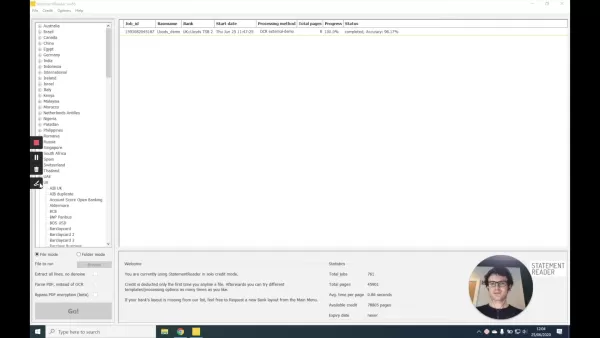
You may need to create a custom template if your bank's statement layout isn't supported by the application. This is common for banks not in the database or for statements with updated formats. A custom template ensures Statement Reader can accurately identify and extract all necessary data fields from your specific document, which is vital for dealing with uncommon or proprietary layouts.
Consider creating a custom template when:
- Your bank is not found in the application's list.
- The bank has recently changed its statement format.
- Default templates fail to capture all the required data correctly.
Creating a custom template tailors the software to your exact requirements, guaranteeing reliable data extraction.
Step-by-Step Guide to Creating a New Bank Layout
Statement Reader includes a wizard to simplify the creation of a new bank layout. Follow these steps:
- Access the Template Creation Tool:
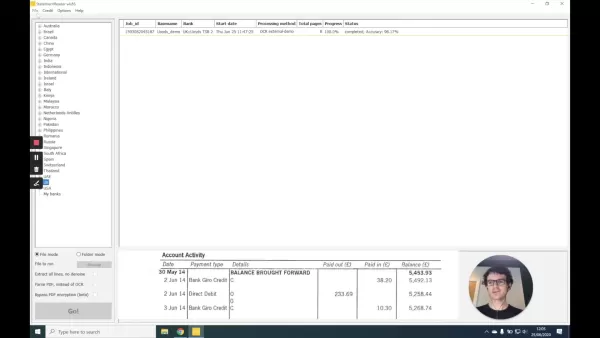
Navigate to the 'File' menu and choose 'New Bank Layout.' This opens the template creation window to guide you.
- Select the File:In the new window, click 'Select File' and choose the bank statement you want to base the template on. Supported formats include PDF and TIFF.
- Configure the Image: After selection, the application processes the document image to prepare for template setup, which may take a moment.
- Define Columns:The wizard first asks you to define the data columns. Adjust the splitter lines to match the actual column boundaries on your statement for proper data separation.
- Adjust Splitter Lines: Precisely align the splitter lines with the left edge of each data column to define their widths accurately. Remove any unnecessary splitters by setting their width to zero.
- Input Column Headers:Next, enter the column headers exactly as they appear on your statement, such as 'Date,' 'Payment Type,' 'Details,' 'Paid Out,' and 'Paid In.'
- Review and Save: After defining columns and headers, review the template for accuracy. Save it with a clear, descriptive name for future use.
This process enables you to build a custom template that ensures Statement Reader accurately processes your bank statements, all through a streamlined and user-friendly method.
How to Use
Requesting a New Bank Layout
If creating a template yourself seems complex, or you'd prefer expert assistance, you can request a new bank layout directly from within Statement Reader.
Here’s how to request a new bank layout:
- Navigate to the Request Option: Go to the 'File' menu and select 'Request Bank Layout.'
- Provide Details: Complete the request form with comprehensive details, including the bank name, country, and a sample statement. Clear information helps the team understand your requirements.
- Submit the Request: Submit the form, and the Statement Reader team will develop a custom template for you, typically at no extra cost.
Requesting a new layout is a great alternative for users seeking a quick, reliable solution without building a template themselves. The team continually expands the supported bank layouts, enhancing the application's versatility.
Pricing
Statement Reader Pricing Plans
Statement Reader offers flexible pricing tiers to suit different users, from individuals to large organizations. Plans generally vary by the number of pages processed, user seats, and included features.
Common pricing models include:
- Free Trial: A feature-limited trial allows you to test the application with a set number of pages.
- Subscription Plans: Monthly or annual subscriptions offer access with different page limits and feature sets.
- Enterprise Plans: Custom plans for large organizations, which may include dedicated support and tailored development.
Visit the official Statement Reader website for current pricing details and to select the plan that aligns with your needs.
Pros and Cons
Pros
Automated data extraction leads to substantial time savings.
High level of accuracy minimizes errors in financial reporting.
The user-friendly interface ensures ease of use.
Custom templates accommodate a wide variety of bank statement layouts.
Seamless integration with accounting software improves workflow efficiency.
Cons
There can be a learning curve during initial setup.
Extraction accuracy is dependent on the quality of the source document image.
The free trial has restricted capabilities.
Access to advanced features often requires a paid subscription.
Core Features
Statement Reader Core Features Overview
Statement Reader is equipped with a robust set of features designed to optimize bank statement data extraction and analysis.
Key core features of Statement Reader include:
- Automated Data Extraction: Automatically pulls data from statements, reducing manual input.
- OCR Technology: Employs Optical Character Recognition to read data from scanned documents accurately.
- Template-Based Extraction: Uses predefined or custom templates for precise data capture from various layouts.
- Custom Template Creation: Allows users to design templates for unsupported bank formats.
- Support for Multiple Formats: Works with various file types, including PDF, TIFF, and image files.
- User-Friendly Interface: Features a clear and intuitive design for straightforward navigation.
- Data Validation: Includes tools to verify the accuracy and consistency of extracted data.
- Reporting and Analysis: Generates reports and offers analytical tools for financial insight.
- Integration Capabilities: Connects with other accounting and financial systems for smooth data import.
These functionalities make Statement Reader an adaptable solution for all bank statement data extraction needs.
Use Cases
Practical Applications of Statement Reader
Statement Reader is utilized in various sectors and by different user profiles.
Common use cases include:
- Accounting Firms: Simplify bank reconciliation and financial report preparation.
- Financial Analysts: Extract data for financial modeling, analysis, and forecasting.
- Businesses: Automate bookkeeping, auditing, and expense tracking processes.
- Individuals: Manage personal finances by easily monitoring income and expenditures.
- Loan Processing: Rapidly verify applicant income and expenses for loan approvals.
- Auditing: Ensure regulatory compliance through efficient data extraction and review.
Statement Reader is an invaluable asset for anyone who regularly works with bank statement data.
FAQ
How do I select the correct bank template in Statement Reader?
To select the right template, browse the list of countries and banks in the left panel. First, choose the country, then select the matching bank for your statement. If the bank isn't listed or the format differs, you can create a custom template. Compare the thumbnail previews with your document. If a match isn't found, you can create your own template or submit a request for one.
What if my bank is not listed in the Statement Reader application?
If your bank is absent from the list, you have two choices: create a custom template or request a new bank layout from the support team. To request a layout, go to the 'File' menu, select 'Request Bank Layout,' and provide detailed information including the bank name, country, and a sample statement.
Can I create a custom template for a scanned bank statement?
Absolutely. Statement Reader supports scanned statements using its OCR technology to extract data. For best results, ensure the scan is clear and high-resolution. The application will process the image to prepare for template creation, which might take a few seconds.
Is there a free trial available for Statement Reader?
Yes, Statement Reader usually provides a free trial with limited features, allowing you to evaluate the application before committing to a subscription. Visit the official website for specific details on the trial's scope and the available subscription and enterprise plans.
How accurate is the data extraction with Statement Reader?
Data extraction is highly accurate, leveraging OCR and template-based systems. However, accuracy can be influenced by the statement's image quality and the template's precision. It's always advisable to review the extracted data for verification.
Related Questions
How does Statement Reader handle different currencies and languages?
Statement Reader accommodates multiple currencies and languages through its settings and template configurations. When creating a custom template, you can specify the currency format and language, and the application will adapt its extraction process accordingly. This automation significantly reduces the risk of manual errors associated with handling diverse financial documents.
What types of file formats are supported by Statement Reader?
Statement Reader supports a broad array of file formats, including PDF, TIFF, and various scanned image types. It uses OCR and template-based extraction to pull data from these files. For optimal accuracy, ensure files are clear and legible. This capability eliminates the tedious manual task of extracting data from bank statements.
How do I update Statement Reader to the latest version?
The application typically notifies you of available updates automatically. You can also manually check for updates via the 'Help' menu by selecting 'Check for Updates.' Regular updates provide the latest features, bug fixes, and security improvements, contributing to a more efficient financial analysis workflow.
Can Statement Reader integrate with other accounting software?
Yes, Statement Reader is built to integrate with various accounting and financial platforms, allowing for smooth data import and reducing manual entry. Consult the Statement Reader website or documentation for a list of supported integrations and setup guides.
What security measures are in place to protect my bank statement data?
Statement Reader implements multiple security protocols to safeguard your data, including encryption, secure data storage, and access controls. The application also adheres to relevant privacy regulations. For specific details on security practices and compliance, refer to the official website or documentation. This protection is crucial, as the core OCR and template-based extraction technologies are designed for accurate and secure data handling.
Related article
 Musk's xAI Halts Recruitment of AI Mentors Amid HR Overload
Elon Musk’s AI venture, xAI, has recently introduced an unexpected operational shift. Citing informed sources, Bloomberg reports that the company has temporarily halted recruitment for specialists tasked with training and refining its Grok chatbot. T
How to fix Core Web Vitals for better SEO rankings
How to Build a Free Website: Free Domain, Hosting & AI Website BuilderTable of ContentsIntroductionAI Website Builder 1: Hookous AIStep 1: Sign UpStep 2: Choose Business Type/NicheStep 3: Select ServicesStep 4: Define Website GoalsStep 5: Enter Busin
Apple, Google Partner With Anthropic to Address 27-Year-Old Vulnerability via Glass Wing Protection
As artificial intelligence advances rapidly in code generation and logical reasoning, the cybersecurity landscape faces unprecedented challenges. Recently, the prominent AI startup Anthropic officially launched a cross-industry collaboration called *
Related Special Topic Recommendations
Image editing
Musk's xAI Halts Recruitment of AI Mentors Amid HR Overload
Elon Musk’s AI venture, xAI, has recently introduced an unexpected operational shift. Citing informed sources, Bloomberg reports that the company has temporarily halted recruitment for specialists tasked with training and refining its Grok chatbot. T
How to fix Core Web Vitals for better SEO rankings
How to Build a Free Website: Free Domain, Hosting & AI Website BuilderTable of ContentsIntroductionAI Website Builder 1: Hookous AIStep 1: Sign UpStep 2: Choose Business Type/NicheStep 3: Select ServicesStep 4: Define Website GoalsStep 5: Enter Busin
Apple, Google Partner With Anthropic to Address 27-Year-Old Vulnerability via Glass Wing Protection
As artificial intelligence advances rapidly in code generation and logical reasoning, the cybersecurity landscape faces unprecedented challenges. Recently, the prominent AI startup Anthropic officially launched a cross-industry collaboration called *
Related Special Topic Recommendations
Image editing
 AI Object Removal Editors: Clean Up Portraits, Travel, and Product Shots
2026 Latest Best Top-rated AI Object Removal Editors for portraits travel product shots! XIX.AI curates a powerful game-changing collection regularly updated with weekly rankings. These tools offer real-world tests to help you quickly remove unwanted elements, boost content quality, and save tons of time without compromising results. Must-try for anyone aiming to unlock their AI creation edge. Explore now!
 10 tools
 xix.ai
Text-to-speech
Best AI Text to Speech Tools for Online Courses
xix.ai
Text-to-speech
Best AI Text to Speech Tools for Online Courses
2026 Latest Best Top-rated AI Text to Speech Tools for Online Courses are curated by XIX.AI based on rigorous real-world tests and weekly updated rankings. These powerful tools help creators deliver crystal-clear audio content effortlessly, boosting writing efficiency and streamlining course production. Check out the free vs paid comparison to find your perfect fit. Explore now to unlock your AI edge in online education.
10 tools
xix.ai
writing
AI Blog Title Tools for Higher Click Through Rates
2026 Latest Best Top-Rated AI Blog Title Tools for Higher Click Through Rates! XIX.AI has carefully curated a powerful, game-changing collection of top tools that go through rigorous real-world tests. You’ll find a free vs paid comparison, weekly updated rankings, and detailed insights to help you boost your blog’s traffic efficiently. Must-try options are highlighted to help you unlock your AI edge. Explore now!
10 tools
xix.ai
automation
Best AI Task Routing Tools for Support Workflows
2026 Latest Best Top-rated AI Task Routing Tools for Support Workflows! XIX.AI has curated a highly powerful game-changing collection of must-try solutions, all undergoing rigorous real-world tests and updated weekly. These tools streamline workflows, boost productivity, and help teams deliver faster, more efficient support. Explore now to discover your perfect tool and unlock your AI edge!
17 tools
xix.ai
Academic Research
AI Citation and Paper Summary Tools
2026 Latest Best Top-Rated AI Citation and Paper Summary Tools Curated by XIX.AI. Get powerful game-changing solutions for quick content creation, improved writing efficiency, and boosting productivity. We offer a free vs paid comparison along with real-world tests and weekly updated rankings to help you find the must-try tool that fits your needs perfectly. Explore now to Unlock your AI edge.
10 tools
xix.ai
Productivity
Best AI Productivity Tools for Daily Work
2026 Latest Best Top-Rated AI Productivity Tools for Daily Work! XIX.AI has curated a powerful, game-changing selection based on rigorous weekly updated rankings and real-world tests. You’ll find must-try options that boost writing efficiency, streamline content creation, and help you overcome daily work challenges. Get a free vs paid comparison to find the perfect fit for your needs. Explore now to unlock your AI edge!
9 tools
xix.ai

 Comments (0)
0/500
Comments (0)
0/500
Statement Reader is a powerful application that automates the extraction of data from bank statements, transforming a traditionally manual and time-consuming task. Ideal for accountants, financial analysts, or individuals managing personal finances, it provides an intuitive platform to automate data capture, saving time and minimizing manual entry errors. This guide covers the core features and advantages of Statement Reader, showing how it simplifies financial analysis. We will also walk through creating custom templates, requesting new bank formats, and resolving common problems to help you maximize this versatile tool.
Key Points
Statement Reader automates and simplifies data extraction from bank statements.
You can build custom templates for bank statement formats not currently supported.
The application allows you to submit requests for new bank layouts directly.
A step-by-step template creation wizard makes the setup process straightforward.
Precise data extraction is fundamental for effective financial analysis.
Understanding Statement Reader
What is Statement Reader?
Statement Reader is a specialized software that automates data extraction from bank statements, eliminating the inefficiencies and inaccuracies of manual data entry. It utilizes Optical Character Recognition (OCR) and a template-based system to reliably capture transaction details like dates, descriptions, payment types, and amounts. This tool is beneficial for businesses, accounting professionals, and individuals, enhancing productivity, improving data accuracy, and delivering deeper financial insights through automation.
Key benefits of using Statement Reader include:
- Time Savings: Drastically cuts down the hours spent on manual data entry tasks.
- Accuracy: Leverages OCR and templates to ensure data is captured correctly.
- Efficiency: Optimizes workflows to boost overall productivity in financial analysis.
- User-Friendliness: Boasts an intuitive interface that is easy to learn and operate.
- Customization: Enables the creation of custom templates for unique bank statement formats.
Navigating the Statement Reader Interface
The Statement Reader interface is logically organized for ease of use, with distinct sections for different functions.
Left Panel: This section lists countries and banks. Users select their country and then the specific bank for their statement. The list is comprehensive, including many financial institutions globally.
Main Panel: This central area displays key job details such as job ID, basename, bank name, start date, processing method, total pages, progress, and status, offering a clear overview of all extraction tasks.
Bottom Panel: Here, you choose the file mode (single file or folder), browse to select your documents, and find options to extract all lines, parse PDFs, or bypass encryption. A 'Go!' button starts the extraction.
Right Panel: The Statistics panel on the right summarizes total jobs processed, total pages, average processing time per page, available credit, and your account's expiry date.
Familiarity with this interface is crucial for efficiently using Statement Reader to process bank statements.
Creating Custom Templates
Why Create a Custom Template?
You may need to create a custom template if your bank's statement layout isn't supported by the application. This is common for banks not in the database or for statements with updated formats. A custom template ensures Statement Reader can accurately identify and extract all necessary data fields from your specific document, which is vital for dealing with uncommon or proprietary layouts.
Consider creating a custom template when:
- Your bank is not found in the application's list.
- The bank has recently changed its statement format.
- Default templates fail to capture all the required data correctly.
Creating a custom template tailors the software to your exact requirements, guaranteeing reliable data extraction.
Step-by-Step Guide to Creating a New Bank Layout
Statement Reader includes a wizard to simplify the creation of a new bank layout. Follow these steps:
- Access the Template Creation Tool:
Navigate to the 'File' menu and choose 'New Bank Layout.' This opens the template creation window to guide you.
- Select the File:In the new window, click 'Select File' and choose the bank statement you want to base the template on. Supported formats include PDF and TIFF.
- Configure the Image: After selection, the application processes the document image to prepare for template setup, which may take a moment.
- Define Columns:The wizard first asks you to define the data columns. Adjust the splitter lines to match the actual column boundaries on your statement for proper data separation.
- Adjust Splitter Lines: Precisely align the splitter lines with the left edge of each data column to define their widths accurately. Remove any unnecessary splitters by setting their width to zero.
- Input Column Headers:Next, enter the column headers exactly as they appear on your statement, such as 'Date,' 'Payment Type,' 'Details,' 'Paid Out,' and 'Paid In.'
- Review and Save: After defining columns and headers, review the template for accuracy. Save it with a clear, descriptive name for future use.
This process enables you to build a custom template that ensures Statement Reader accurately processes your bank statements, all through a streamlined and user-friendly method.
How to Use
Requesting a New Bank Layout
If creating a template yourself seems complex, or you'd prefer expert assistance, you can request a new bank layout directly from within Statement Reader.
Here’s how to request a new bank layout:
- Navigate to the Request Option: Go to the 'File' menu and select 'Request Bank Layout.'
- Provide Details: Complete the request form with comprehensive details, including the bank name, country, and a sample statement. Clear information helps the team understand your requirements.
- Submit the Request: Submit the form, and the Statement Reader team will develop a custom template for you, typically at no extra cost.
Requesting a new layout is a great alternative for users seeking a quick, reliable solution without building a template themselves. The team continually expands the supported bank layouts, enhancing the application's versatility.
Pricing
Statement Reader Pricing Plans
Statement Reader offers flexible pricing tiers to suit different users, from individuals to large organizations. Plans generally vary by the number of pages processed, user seats, and included features.
Common pricing models include:
- Free Trial: A feature-limited trial allows you to test the application with a set number of pages.
- Subscription Plans: Monthly or annual subscriptions offer access with different page limits and feature sets.
- Enterprise Plans: Custom plans for large organizations, which may include dedicated support and tailored development.
Visit the official Statement Reader website for current pricing details and to select the plan that aligns with your needs.
Pros and Cons
Pros
Automated data extraction leads to substantial time savings.
High level of accuracy minimizes errors in financial reporting.
The user-friendly interface ensures ease of use.
Custom templates accommodate a wide variety of bank statement layouts.
Seamless integration with accounting software improves workflow efficiency.
Cons
There can be a learning curve during initial setup.
Extraction accuracy is dependent on the quality of the source document image.
The free trial has restricted capabilities.
Access to advanced features often requires a paid subscription.
Core Features
Statement Reader Core Features Overview
Statement Reader is equipped with a robust set of features designed to optimize bank statement data extraction and analysis.
Key core features of Statement Reader include:
- Automated Data Extraction: Automatically pulls data from statements, reducing manual input.
- OCR Technology: Employs Optical Character Recognition to read data from scanned documents accurately.
- Template-Based Extraction: Uses predefined or custom templates for precise data capture from various layouts.
- Custom Template Creation: Allows users to design templates for unsupported bank formats.
- Support for Multiple Formats: Works with various file types, including PDF, TIFF, and image files.
- User-Friendly Interface: Features a clear and intuitive design for straightforward navigation.
- Data Validation: Includes tools to verify the accuracy and consistency of extracted data.
- Reporting and Analysis: Generates reports and offers analytical tools for financial insight.
- Integration Capabilities: Connects with other accounting and financial systems for smooth data import.
These functionalities make Statement Reader an adaptable solution for all bank statement data extraction needs.
Use Cases
Practical Applications of Statement Reader
Statement Reader is utilized in various sectors and by different user profiles.
Common use cases include:
- Accounting Firms: Simplify bank reconciliation and financial report preparation.
- Financial Analysts: Extract data for financial modeling, analysis, and forecasting.
- Businesses: Automate bookkeeping, auditing, and expense tracking processes.
- Individuals: Manage personal finances by easily monitoring income and expenditures.
- Loan Processing: Rapidly verify applicant income and expenses for loan approvals.
- Auditing: Ensure regulatory compliance through efficient data extraction and review.
Statement Reader is an invaluable asset for anyone who regularly works with bank statement data.
FAQ
How do I select the correct bank template in Statement Reader?
To select the right template, browse the list of countries and banks in the left panel. First, choose the country, then select the matching bank for your statement. If the bank isn't listed or the format differs, you can create a custom template. Compare the thumbnail previews with your document. If a match isn't found, you can create your own template or submit a request for one.
What if my bank is not listed in the Statement Reader application?
If your bank is absent from the list, you have two choices: create a custom template or request a new bank layout from the support team. To request a layout, go to the 'File' menu, select 'Request Bank Layout,' and provide detailed information including the bank name, country, and a sample statement.
Can I create a custom template for a scanned bank statement?
Absolutely. Statement Reader supports scanned statements using its OCR technology to extract data. For best results, ensure the scan is clear and high-resolution. The application will process the image to prepare for template creation, which might take a few seconds.
Is there a free trial available for Statement Reader?
Yes, Statement Reader usually provides a free trial with limited features, allowing you to evaluate the application before committing to a subscription. Visit the official website for specific details on the trial's scope and the available subscription and enterprise plans.
How accurate is the data extraction with Statement Reader?
Data extraction is highly accurate, leveraging OCR and template-based systems. However, accuracy can be influenced by the statement's image quality and the template's precision. It's always advisable to review the extracted data for verification.
Related Questions
How does Statement Reader handle different currencies and languages?
Statement Reader accommodates multiple currencies and languages through its settings and template configurations. When creating a custom template, you can specify the currency format and language, and the application will adapt its extraction process accordingly. This automation significantly reduces the risk of manual errors associated with handling diverse financial documents.
What types of file formats are supported by Statement Reader?
Statement Reader supports a broad array of file formats, including PDF, TIFF, and various scanned image types. It uses OCR and template-based extraction to pull data from these files. For optimal accuracy, ensure files are clear and legible. This capability eliminates the tedious manual task of extracting data from bank statements.
How do I update Statement Reader to the latest version?
The application typically notifies you of available updates automatically. You can also manually check for updates via the 'Help' menu by selecting 'Check for Updates.' Regular updates provide the latest features, bug fixes, and security improvements, contributing to a more efficient financial analysis workflow.
Can Statement Reader integrate with other accounting software?
Yes, Statement Reader is built to integrate with various accounting and financial platforms, allowing for smooth data import and reducing manual entry. Consult the Statement Reader website or documentation for a list of supported integrations and setup guides.
What security measures are in place to protect my bank statement data?
Statement Reader implements multiple security protocols to safeguard your data, including encryption, secure data storage, and access controls. The application also adheres to relevant privacy regulations. For specific details on security practices and compliance, refer to the official website or documentation. This protection is crucial, as the core OCR and template-based extraction technologies are designed for accurate and secure data handling.







 Musk's xAI Halts Recruitment of AI Mentors Amid HR Overload
Elon Musk’s AI venture, xAI, has recently introduced an unexpected operational shift. Citing informed sources, Bloomberg reports that the company has temporarily halted recruitment for specialists tasked with training and refining its Grok chatbot. T
Musk's xAI Halts Recruitment of AI Mentors Amid HR Overload
Elon Musk’s AI venture, xAI, has recently introduced an unexpected operational shift. Citing informed sources, Bloomberg reports that the company has temporarily halted recruitment for specialists tasked with training and refining its Grok chatbot. T
 How to fix Core Web Vitals for better SEO rankings
How to Build a Free Website: Free Domain, Hosting & AI Website BuilderTable of ContentsIntroductionAI Website Builder 1: Hookous AIStep 1: Sign UpStep 2: Choose Business Type/NicheStep 3: Select ServicesStep 4: Define Website GoalsStep 5: Enter Busin
How to fix Core Web Vitals for better SEO rankings
How to Build a Free Website: Free Domain, Hosting & AI Website BuilderTable of ContentsIntroductionAI Website Builder 1: Hookous AIStep 1: Sign UpStep 2: Choose Business Type/NicheStep 3: Select ServicesStep 4: Define Website GoalsStep 5: Enter Busin
 Apple, Google Partner With Anthropic to Address 27-Year-Old Vulnerability via Glass Wing Protection
As artificial intelligence advances rapidly in code generation and logical reasoning, the cybersecurity landscape faces unprecedented challenges. Recently, the prominent AI startup Anthropic officially launched a cross-industry collaboration called *
Apple, Google Partner With Anthropic to Address 27-Year-Old Vulnerability via Glass Wing Protection
As artificial intelligence advances rapidly in code generation and logical reasoning, the cybersecurity landscape faces unprecedented challenges. Recently, the prominent AI startup Anthropic officially launched a cross-industry collaboration called *

2026 Latest Best Top-rated AI Object Removal Editors for portraits travel product shots! XIX.AI curates a powerful game-changing collection regularly updated with weekly rankings. These tools offer real-world tests to help you quickly remove unwanted elements, boost content quality, and save tons of time without compromising results. Must-try for anyone aiming to unlock their AI creation edge. Explore now!
10 tools
xix.ai

2026 Latest Best Top-rated AI Text to Speech Tools for Online Courses are curated by XIX.AI based on rigorous real-world tests and weekly updated rankings. These powerful tools help creators deliver crystal-clear audio content effortlessly, boosting writing efficiency and streamlining course production. Check out the free vs paid comparison to find your perfect fit. Explore now to unlock your AI edge in online education.
10 tools
xix.ai

2026 Latest Best Top-Rated AI Blog Title Tools for Higher Click Through Rates! XIX.AI has carefully curated a powerful, game-changing collection of top tools that go through rigorous real-world tests. You’ll find a free vs paid comparison, weekly updated rankings, and detailed insights to help you boost your blog’s traffic efficiently. Must-try options are highlighted to help you unlock your AI edge. Explore now!
10 tools
xix.ai

2026 Latest Best Top-rated AI Task Routing Tools for Support Workflows! XIX.AI has curated a highly powerful game-changing collection of must-try solutions, all undergoing rigorous real-world tests and updated weekly. These tools streamline workflows, boost productivity, and help teams deliver faster, more efficient support. Explore now to discover your perfect tool and unlock your AI edge!
17 tools
xix.ai

2026 Latest Best Top-Rated AI Citation and Paper Summary Tools Curated by XIX.AI. Get powerful game-changing solutions for quick content creation, improved writing efficiency, and boosting productivity. We offer a free vs paid comparison along with real-world tests and weekly updated rankings to help you find the must-try tool that fits your needs perfectly. Explore now to Unlock your AI edge.
10 tools
xix.ai

2026 Latest Best Top-Rated AI Productivity Tools for Daily Work! XIX.AI has curated a powerful, game-changing selection based on rigorous weekly updated rankings and real-world tests. You’ll find must-try options that boost writing efficiency, streamline content creation, and help you overcome daily work challenges. Get a free vs paid comparison to find the perfect fit for your needs. Explore now to unlock your AI edge!
9 tools
xix.ai












