


 Home
HomeHow to transform text into visuals with Napkin AI in 2025? Full tutorial guide.
In today's fast-paced digital landscape, transforming information into visuals is essential for effective communication and deeper understanding. Napkin AI provides a powerful solution by converting text into various visual formats, such as mind maps and diagrams. This tool greatly enhances presentations, brainstorming sessions, and the overall grasp of complex subjects. This guide will walk you through using Napkin AI to turn your text into compelling and insightful visuals.
Key Points
Napkin AI transforms text into visual formats like mind maps.
Setting up a free account is quick and simple.
You have the option to paste your own content or utilize AI to generate text.
Visual outputs can be customized for tailored presentations.
Download options include PNG, SVG, and PDF file formats.
The AI generation feature includes topic suggestions.
Getting Started with Napkin AI
What is Napkin AI?
Napkin AI is an innovative, AI-driven tool that redefines how we process and share information. It specializes in taking text-based data and converting it into visually appealing, easy-to-understand formats. Imagine turning detailed reports, brainstorming notes, or intricate articles into clear, concise mind maps, diagrams, and visual summaries. That's the core capability of Napkin AI.
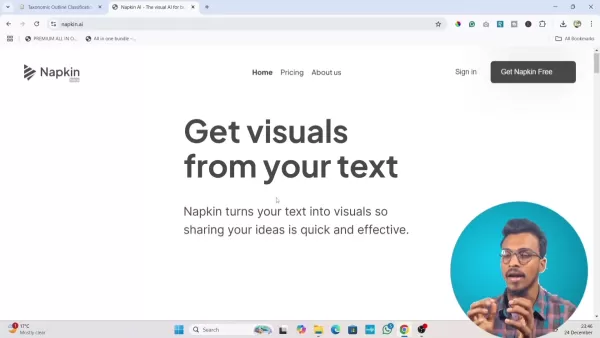
By simplifying complex information, Napkin AI improves comprehension, fosters collaboration, and increases productivity. Its intuitive interface makes it accessible to individuals and teams across diverse sectors, including education, business, and creative projects. Napkin AI is a visual communication platform that leverages artificial intelligence to convert text into easily digestible visuals. The tool helps break down complicated information by generating visuals from notes, documents, and slides. It is applicable for presentations, brainstorming, social media content, research reports, teaching, and much more. This AI-powered tool is designed to help users quickly and effectively visualize their ideas.
Creating a Free Napkin AI Account
To start using Napkin AI, your first step is to create an account. The platform offers a free plan, allowing you to explore its features and functionalities. Follow these steps to sign up for a free account:
Visit the official Napkin AI website (napkin.ai).
Click the Get Napkin Free button located in the top right corner of the homepage.
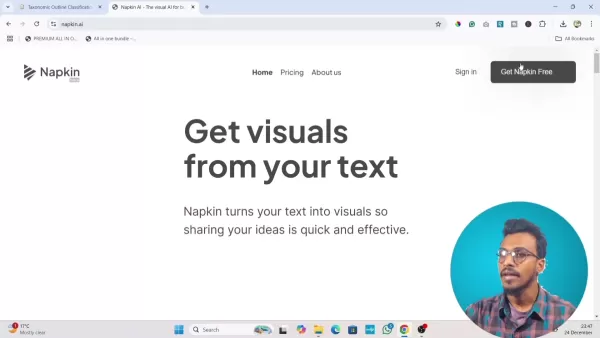
You will be directed to the signup page.
Choose to sign up using your Google account or by providing an email address.
Follow the on-screen instructions to complete your account setup after selecting your preferred method.
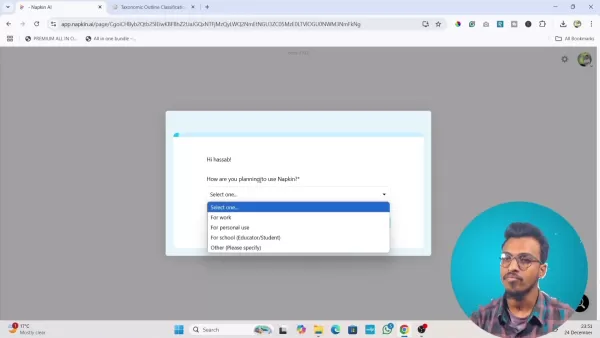
Upon signing in, Napkin AI will present a few onboarding questions regarding your intended use of the tool. Select the option most relevant to your needs, click next, then submit your information.By completing these steps, your free account will be ready, and you can begin converting text into impressive visuals.
Maximizing Napkin AI’s Potential
Customizing Your Visuals
Napkin AI offers several customization options to personalize your visuals:
Modifying Text: Edit text within visual elements by double-clicking on them to adjust to your precise requirements.
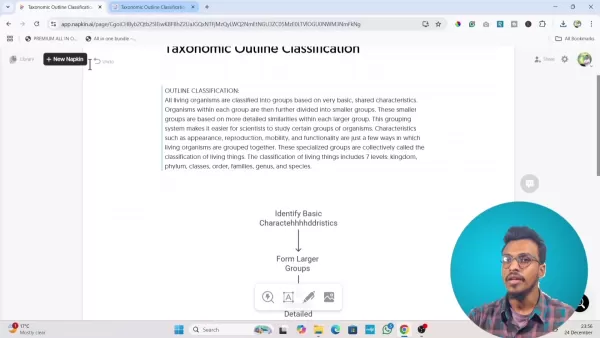
Adjusting Visual Elements: Reposition elements on the workspace by clicking and dragging. This lets you highlight key relationships and create a layout that suits your preferences.
Color Customization: Colors play a significant role in visual engagement. Click the paintbrush icon to access customization options, where you can adjust colors to enhance your mind map.
Visual Style: Selecting a different visual style for your mind map can be highly effective. For instance, you can change the style of a brain visual to better align with your content.
Downloading and Sharing Your Creations
Once your mind map meets your satisfaction, Napkin AI enables you to download it in several formats, simplifying how you share and incorporate it into presentations or documents.
- Click the Share button.
- You have the option to copy the board to your clipboard.
- Select from PNG, SVG, or PDF formats.
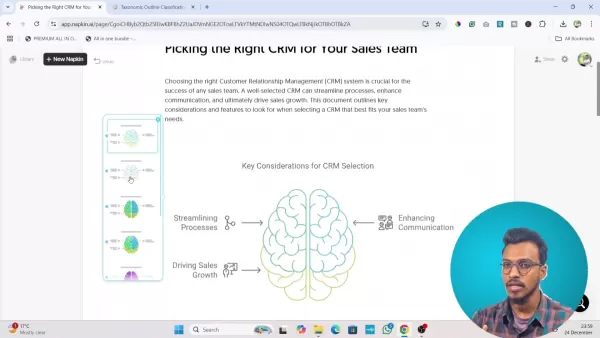
These visual diagrams offer insights that text alone cannot convey.
Napkin AI not only converts text but also improves communication by visually representing intricate ideas, making them more digestible for team members.
Transforming Text into Visuals
Pasting Your Own Text Content
Napkin AI provides two methods for adding text: pasting your own content or generating text using its AI. Here’s how to use the Paste feature:
After logging in, click on Create my first Napkin.
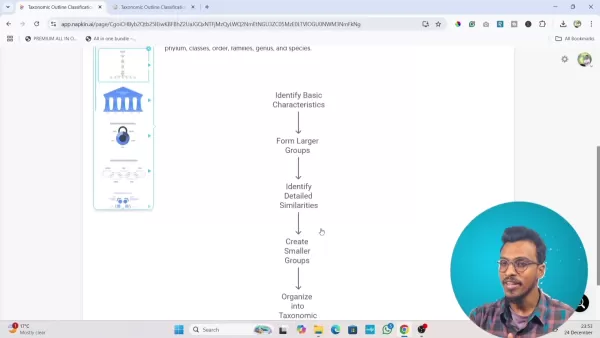
Choose By pasting my text content.
A text box will appear. Paste your content into this box.
Provide a title for your content in the Untitled field at the top of the page.
Click the Generate Visuals button to process the text.Napkin AI will analyze your text and produce a mind map. This functionality transforms written content by identifying central themes and relationships, organizing them visually for better understanding. The resulting mind map is useful for various purposes, including:
- Summarizing reports
- Illustrating processes
- Depicting hierarchical structures
Generating Text Using AI
Napkin AI can also generate text for you using its artificial intelligence. Here’s how to use the AI generation feature:
After logging in, click on Create my first Napkin.
Select By generating text using AI.
Enter a descriptive prompt into the text field. This prompt should outline the type of content you wish to generate. You can also utilize existing titles to generate related content.
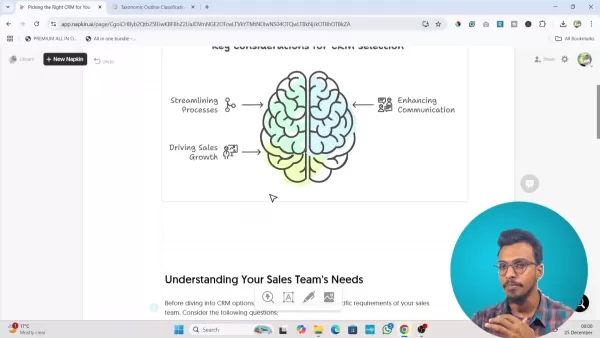
Click the Continue button. Napkin AI will then generate text based on your prompt and convert it into a visual mind map.
Navigating the Visual Output
After Napkin AI generates your visual, you can begin making adjustments. The visual output will display a diagram based on the provided text. Once a visual is created from text, Napkin AI provides various features for further customization to meet specific user needs. These include:
- Moving diagram elements.
- Downloading the diagram in various formats like PNG, SVG, and PDF.
- Customizing different aspects of diagram components.
- Visual Styles: Multiple diagram styles are available to choose from.
Napkin AI Pricing Plans
Understanding Napkin AI's Subscription Options
While Napkin AI offers a free version, it also includes subscription plans that unlock additional functionality. Prices vary depending on the features you select, but the general pricing structure is as follows:
Plan Name Price Features FreeFreelimited access to core features, including text-to-mind map conversion and basic export capabilities.Pro$15/MonthUnlimited boards, unlimited exports, shareable boards, and priority support.Weighing the Options: Pros
and Cons
of Napkin AI
Pros
User-Friendly Interface
AI Text Generation
Versatile Application
Cons
Limited free plan
Requires Internet Connectivity
Reliance on AI Accuracy
Diverse Use Cases for Napkin AI
How Napkin AI Can Be Applied Across Various Fields
The text-to-visual functionality of Napkin AI delivers value across numerous fields and scenarios. Here are some examples:
Education: Educators and students utilize it to clarify difficult subjects, organize lecture notes, and create study aids.
Business: Professionals employ it to depict organizational structures, map project strategies, and explain complex issues.
Social Media Content: Social media specialists can leverage visual mind maps for their content strategies.
Research Reports: Visualizing reports can significantly streamline the reporting and analysis process.
Frequently Asked Questions about Napkin AI
Is Napkin AI free to use?
Yes, Napkin AI provides a free plan. However, this plan has restrictions on the number of boards you can create. For unlimited access, you will need to upgrade to a paid subscription.
Can I use Napkin AI to generate text?
Definitely! Napkin AI includes an AI text generation feature that operates based on user prompts. You simply need to provide the prompts to generate content.
What file formats can I download my visuals in?
Napkin AI allows users to download their diagrams in PNG, SVG, and PDF formats.
Can you use Napkin AI with a Google account?
Yes, Napkin AI integrates seamlessly with Google, allowing for a quick and straightforward account setup process.
Related Questions
What other AI tools are available for visualization?
The market for visualization tools offers a wide range of alternatives to Napkin AI, and it continues to expand each year due to rapid advancements in AI technology. Some alternatives excel in certain types of diagrams or cater to different audiences and purposes.Some notable AI tools with similar visualization capabilities include:MindMeister: An excellent choice for creating detailed and complex maps, featuring an intuitive interface and strong collaboration features for teams. It supports multiple languages, though it is primarily used in English and German.Miro: A versatile platform used by various professionals, but particularly popular among product managers and UX designers. It offers numerous templates to better visualize your data.Lucidchart: Part of the Lucid Software Suite, this tool focuses heavily on data visualization as a core business solution. It has a slightly steeper learning curve compared to others but remains quite intuitive. This platform also prioritizes data security and privacy.
Related article
 Six Tech Giants Back Linux Foundation With $12.5M to Tackle AI Vulnerability Noise
To tackle the flood of low-quality security reports produced by AI automation tools, six major tech companies—Anthropic, Amazon (AWS), GitHub, Google, Microsoft, and OpenAI—have collectively contributed $12.5 million in funding to Linux Foundation in
Musk Considered Leaving OpenAI to His Kids as Altman Testifies
This morning, OpenAI CEO Sam Altman took the stand to address former co-founder Elon Musk’s lawsuit challenging the company’s corporate structure.When asked about Musk’s claim that other founders “stole a charity” by launching a for-profit subsidiary
Sam Altman Sparks Debate Over AI's Deceleration
Listen onApple PodcastsListen onSpotifyOpenAI CEO Sam Altman recently suggested that it may be time to “pace the rate of AI development” to allow society to “harden around some of these new capability levels.”On the latest episode of TechCrunch’s Equ
Related Special Topic Recommendations
Business
Six Tech Giants Back Linux Foundation With $12.5M to Tackle AI Vulnerability Noise
To tackle the flood of low-quality security reports produced by AI automation tools, six major tech companies—Anthropic, Amazon (AWS), GitHub, Google, Microsoft, and OpenAI—have collectively contributed $12.5 million in funding to Linux Foundation in
Musk Considered Leaving OpenAI to His Kids as Altman Testifies
This morning, OpenAI CEO Sam Altman took the stand to address former co-founder Elon Musk’s lawsuit challenging the company’s corporate structure.When asked about Musk’s claim that other founders “stole a charity” by launching a for-profit subsidiary
Sam Altman Sparks Debate Over AI's Deceleration
Listen onApple PodcastsListen onSpotifyOpenAI CEO Sam Altman recently suggested that it may be time to “pace the rate of AI development” to allow society to “harden around some of these new capability levels.”On the latest episode of TechCrunch’s Equ
Related Special Topic Recommendations
Business
 Best AI Competitive Research Tools for Small Businesses
2026 Latest Best Top-rated AI Competitive Research Tools for Small Businesses! XIX.AI has curated a highly powerful game-changing collection, updated weekly with rigorous real-world tests and detailed rankings. You can find a comprehensive free vs paid comparison to help you identify the must-try tools that boost your productivity and give you a competitive edge. Explore now to discover your perfect tool!
 9 tools
 xix.ai
Image editing
Photoshop AI Retouch Tools for Ecommerce Apparel, Skin Cleanup, and Color Consistency
xix.ai
Image editing
Photoshop AI Retouch Tools for Ecommerce Apparel, Skin Cleanup, and Color Consistency
2026 Latest Best Photoshop AI retouch tools for ecommerce apparel, skin cleanup, and color consistency! This top-rated curated list features powerful game-changing solutions that help you boost writing efficiency, streamline content creation, and achieve perfect visual results effortlessly. Each tool has undergone real-world tests through weekly updated rankings, complete with free vs paid comparison details. Backed by XIX.AI, it’s the must-try guide for anyone aiming to unlock your AI edge. Explore now!
10 tools
xix.ai
Prompt
Best AI Prompt Libraries for ChatGPT Workflows
2026 Latest Best Top-Rated AI Prompt Libraries for optimizing all types of ChatGPT workflows. XIX.AI has curated a powerful, game-changing collection that goes through rigorous real-world tests to ensure top performance. You can find detailed free vs paid comparisons and expert rankings to help you choose the must-try tools that boost your productivity and unlock your AI edge. Explore now!
11 tools
xix.ai
Education and Learning
AI Quiz Builder Platforms for Teachers, Tutors, and Cohort-Based Learning Programs
2026 Latest Best AI Quiz Builder Platforms for Teachers, Tutors, and Cohort-Based Learning Programs! XIX.AI has curated a top-rated list of powerful game-changing tools that go through real-world tests to deliver accurate rankings. These must-try platforms help boost writing efficiency, streamline content creation, and simplify quiz design across all learning scenarios. Explore now to discover your perfect tool for unlocking your AI edge in teaching!
13 tools
xix.ai
code
AI Pull Request Review Tools for GitHub Teams Handling Refactors, Bugs, and Security Gaps
2026 Latest Best AI Pull Request Review Tools for GitHub Teams are here on XIX.AI! This top-rated curated list showcases powerful game-changing solutions that streamline refactoring, bug fixing, and security gap detection across all team workflows. Enjoy a free vs paid comparison along with real-world tests and detailed rankings to help you find the perfect tool that boosts productivity significantly. Explore now to unlock your AI edge!
12 tools
xix.ai
Text-to-speech
Best AI Text to Speech Tools for Natural Voiceovers
2026 Latest Best Top-rated AI Text to Speech Tools for Natural Voiceovers are here on XIX.AI! This curated list features powerful, game-changing options that deliver crystal-clear voices for every use case, backed by real-world tests and weekly updated rankings. Get a free vs paid comparison to find the must-try solution that boosts your productivity instantly. Explore now to Unlock your AI edge!
11 tools
xix.ai

 Comments (1)
0/500
Comments (1)
0/500
![WalterRodriguez]()
Just tried Napkin AI for a project presentation and it's a total game-changer! The mind maps it generates from my messy notes are surprisingly clear and actually look good. Saves me so much time compared to fiddling with design tools. Anyone know if it handles flowcharts well too? 🤔
In today's fast-paced digital landscape, transforming information into visuals is essential for effective communication and deeper understanding. Napkin AI provides a powerful solution by converting text into various visual formats, such as mind maps and diagrams. This tool greatly enhances presentations, brainstorming sessions, and the overall grasp of complex subjects. This guide will walk you through using Napkin AI to turn your text into compelling and insightful visuals.
Key Points
Napkin AI transforms text into visual formats like mind maps.
Setting up a free account is quick and simple.
You have the option to paste your own content or utilize AI to generate text.
Visual outputs can be customized for tailored presentations.
Download options include PNG, SVG, and PDF file formats.
The AI generation feature includes topic suggestions.
Getting Started with Napkin AI
What is Napkin AI?
Napkin AI is an innovative, AI-driven tool that redefines how we process and share information. It specializes in taking text-based data and converting it into visually appealing, easy-to-understand formats. Imagine turning detailed reports, brainstorming notes, or intricate articles into clear, concise mind maps, diagrams, and visual summaries. That's the core capability of Napkin AI.
By simplifying complex information, Napkin AI improves comprehension, fosters collaboration, and increases productivity. Its intuitive interface makes it accessible to individuals and teams across diverse sectors, including education, business, and creative projects. Napkin AI is a visual communication platform that leverages artificial intelligence to convert text into easily digestible visuals. The tool helps break down complicated information by generating visuals from notes, documents, and slides. It is applicable for presentations, brainstorming, social media content, research reports, teaching, and much more. This AI-powered tool is designed to help users quickly and effectively visualize their ideas.
Creating a Free Napkin AI Account
To start using Napkin AI, your first step is to create an account. The platform offers a free plan, allowing you to explore its features and functionalities. Follow these steps to sign up for a free account:
Visit the official Napkin AI website (napkin.ai).
Click the Get Napkin Free button located in the top right corner of the homepage.
You will be directed to the signup page.
Choose to sign up using your Google account or by providing an email address.
Follow the on-screen instructions to complete your account setup after selecting your preferred method.
Upon signing in, Napkin AI will present a few onboarding questions regarding your intended use of the tool. Select the option most relevant to your needs, click next, then submit your information.By completing these steps, your free account will be ready, and you can begin converting text into impressive visuals.
Maximizing Napkin AI’s Potential
Customizing Your Visuals
Napkin AI offers several customization options to personalize your visuals:
Modifying Text: Edit text within visual elements by double-clicking on them to adjust to your precise requirements.
Adjusting Visual Elements: Reposition elements on the workspace by clicking and dragging. This lets you highlight key relationships and create a layout that suits your preferences.
Color Customization: Colors play a significant role in visual engagement. Click the paintbrush icon to access customization options, where you can adjust colors to enhance your mind map.
Visual Style: Selecting a different visual style for your mind map can be highly effective. For instance, you can change the style of a brain visual to better align with your content.
Downloading and Sharing Your Creations
Once your mind map meets your satisfaction, Napkin AI enables you to download it in several formats, simplifying how you share and incorporate it into presentations or documents.
- Click the Share button.
- You have the option to copy the board to your clipboard.
- Select from PNG, SVG, or PDF formats.
These visual diagrams offer insights that text alone cannot convey.
Napkin AI not only converts text but also improves communication by visually representing intricate ideas, making them more digestible for team members.
Transforming Text into Visuals
Pasting Your Own Text Content
Napkin AI provides two methods for adding text: pasting your own content or generating text using its AI. Here’s how to use the Paste feature:
After logging in, click on Create my first Napkin.
Choose By pasting my text content.
A text box will appear. Paste your content into this box.
Provide a title for your content in the Untitled field at the top of the page.
Click the Generate Visuals button to process the text.Napkin AI will analyze your text and produce a mind map. This functionality transforms written content by identifying central themes and relationships, organizing them visually for better understanding. The resulting mind map is useful for various purposes, including:
- Summarizing reports
- Illustrating processes
- Depicting hierarchical structures
Generating Text Using AI
Napkin AI can also generate text for you using its artificial intelligence. Here’s how to use the AI generation feature:
After logging in, click on Create my first Napkin.
Select By generating text using AI.
Enter a descriptive prompt into the text field. This prompt should outline the type of content you wish to generate. You can also utilize existing titles to generate related content.
Click the Continue button. Napkin AI will then generate text based on your prompt and convert it into a visual mind map.
Navigating the Visual Output
After Napkin AI generates your visual, you can begin making adjustments. The visual output will display a diagram based on the provided text. Once a visual is created from text, Napkin AI provides various features for further customization to meet specific user needs. These include:
- Moving diagram elements.
- Downloading the diagram in various formats like PNG, SVG, and PDF.
- Customizing different aspects of diagram components.
- Visual Styles: Multiple diagram styles are available to choose from.
Napkin AI Pricing Plans
Understanding Napkin AI's Subscription Options
While Napkin AI offers a free version, it also includes subscription plans that unlock additional functionality. Prices vary depending on the features you select, but the general pricing structure is as follows:
Weighing the Options: Pros
and Cons
of Napkin AI
Pros
User-Friendly Interface
AI Text Generation
Versatile Application
Cons
Limited free plan
Requires Internet Connectivity
Reliance on AI Accuracy
Diverse Use Cases for Napkin AI
How Napkin AI Can Be Applied Across Various Fields
The text-to-visual functionality of Napkin AI delivers value across numerous fields and scenarios. Here are some examples:
Education: Educators and students utilize it to clarify difficult subjects, organize lecture notes, and create study aids.
Business: Professionals employ it to depict organizational structures, map project strategies, and explain complex issues.
Social Media Content: Social media specialists can leverage visual mind maps for their content strategies.
Research Reports: Visualizing reports can significantly streamline the reporting and analysis process.
Frequently Asked Questions about Napkin AI
Is Napkin AI free to use?
Yes, Napkin AI provides a free plan. However, this plan has restrictions on the number of boards you can create. For unlimited access, you will need to upgrade to a paid subscription.
Can I use Napkin AI to generate text?
Definitely! Napkin AI includes an AI text generation feature that operates based on user prompts. You simply need to provide the prompts to generate content.
What file formats can I download my visuals in?
Napkin AI allows users to download their diagrams in PNG, SVG, and PDF formats.
Can you use Napkin AI with a Google account?
Yes, Napkin AI integrates seamlessly with Google, allowing for a quick and straightforward account setup process.
Related Questions
What other AI tools are available for visualization?
The market for visualization tools offers a wide range of alternatives to Napkin AI, and it continues to expand each year due to rapid advancements in AI technology. Some alternatives excel in certain types of diagrams or cater to different audiences and purposes.Some notable AI tools with similar visualization capabilities include:MindMeister: An excellent choice for creating detailed and complex maps, featuring an intuitive interface and strong collaboration features for teams. It supports multiple languages, though it is primarily used in English and German.Miro: A versatile platform used by various professionals, but particularly popular among product managers and UX designers. It offers numerous templates to better visualize your data.Lucidchart: Part of the Lucid Software Suite, this tool focuses heavily on data visualization as a core business solution. It has a slightly steeper learning curve compared to others but remains quite intuitive. This platform also prioritizes data security and privacy.








 Six Tech Giants Back Linux Foundation With $12.5M to Tackle AI Vulnerability Noise
To tackle the flood of low-quality security reports produced by AI automation tools, six major tech companies—Anthropic, Amazon (AWS), GitHub, Google, Microsoft, and OpenAI—have collectively contributed $12.5 million in funding to Linux Foundation in
Six Tech Giants Back Linux Foundation With $12.5M to Tackle AI Vulnerability Noise
To tackle the flood of low-quality security reports produced by AI automation tools, six major tech companies—Anthropic, Amazon (AWS), GitHub, Google, Microsoft, and OpenAI—have collectively contributed $12.5 million in funding to Linux Foundation in
 Musk Considered Leaving OpenAI to His Kids as Altman Testifies
This morning, OpenAI CEO Sam Altman took the stand to address former co-founder Elon Musk’s lawsuit challenging the company’s corporate structure.When asked about Musk’s claim that other founders “stole a charity” by launching a for-profit subsidiary
Musk Considered Leaving OpenAI to His Kids as Altman Testifies
This morning, OpenAI CEO Sam Altman took the stand to address former co-founder Elon Musk’s lawsuit challenging the company’s corporate structure.When asked about Musk’s claim that other founders “stole a charity” by launching a for-profit subsidiary
 Sam Altman Sparks Debate Over AI's Deceleration
Listen onApple PodcastsListen onSpotifyOpenAI CEO Sam Altman recently suggested that it may be time to “pace the rate of AI development” to allow society to “harden around some of these new capability levels.”On the latest episode of TechCrunch’s Equ
Sam Altman Sparks Debate Over AI's Deceleration
Listen onApple PodcastsListen onSpotifyOpenAI CEO Sam Altman recently suggested that it may be time to “pace the rate of AI development” to allow society to “harden around some of these new capability levels.”On the latest episode of TechCrunch’s Equ

2026 Latest Best Top-rated AI Competitive Research Tools for Small Businesses! XIX.AI has curated a highly powerful game-changing collection, updated weekly with rigorous real-world tests and detailed rankings. You can find a comprehensive free vs paid comparison to help you identify the must-try tools that boost your productivity and give you a competitive edge. Explore now to discover your perfect tool!
9 tools
xix.ai

2026 Latest Best Photoshop AI retouch tools for ecommerce apparel, skin cleanup, and color consistency! This top-rated curated list features powerful game-changing solutions that help you boost writing efficiency, streamline content creation, and achieve perfect visual results effortlessly. Each tool has undergone real-world tests through weekly updated rankings, complete with free vs paid comparison details. Backed by XIX.AI, it’s the must-try guide for anyone aiming to unlock your AI edge. Explore now!
10 tools
xix.ai
2026 Latest Best Top-Rated AI Prompt Libraries for optimizing all types of ChatGPT workflows. XIX.AI has curated a powerful, game-changing collection that goes through rigorous real-world tests to ensure top performance. You can find detailed free vs paid comparisons and expert rankings to help you choose the must-try tools that boost your productivity and unlock your AI edge. Explore now!
11 tools
xix.ai

2026 Latest Best AI Quiz Builder Platforms for Teachers, Tutors, and Cohort-Based Learning Programs! XIX.AI has curated a top-rated list of powerful game-changing tools that go through real-world tests to deliver accurate rankings. These must-try platforms help boost writing efficiency, streamline content creation, and simplify quiz design across all learning scenarios. Explore now to discover your perfect tool for unlocking your AI edge in teaching!
13 tools
xix.ai
2026 Latest Best AI Pull Request Review Tools for GitHub Teams are here on XIX.AI! This top-rated curated list showcases powerful game-changing solutions that streamline refactoring, bug fixing, and security gap detection across all team workflows. Enjoy a free vs paid comparison along with real-world tests and detailed rankings to help you find the perfect tool that boosts productivity significantly. Explore now to unlock your AI edge!
12 tools
xix.ai
2026 Latest Best Top-rated AI Text to Speech Tools for Natural Voiceovers are here on XIX.AI! This curated list features powerful, game-changing options that deliver crystal-clear voices for every use case, backed by real-world tests and weekly updated rankings. Get a free vs paid comparison to find the must-try solution that boosts your productivity instantly. Explore now to Unlock your AI edge!
11 tools
xix.ai

Just tried Napkin AI for a project presentation and it's a total game-changer! The mind maps it generates from my messy notes are surprisingly clear and actually look good. Saves me so much time compared to fiddling with design tools. Anyone know if it handles flowcharts well too? 🤔












