


 Home
HomeMaster Adobe Illustrator's Generative AI in Live Demonstration
Explore the dynamic capabilities of generative AI built directly into Adobe Illustrator. This in-depth tutorial, adapted from a live session, guides you through using the text-to-vector graphic tool and generative color features, giving you the skills to produce impressive, custom artwork. Discover how to leverage AI to accelerate your design process and unlock new creative possibilities.
Key Points
Master the use of the text-to-vector graphic tool within Adobe Illustrator.
Grasp the process of creating artwork with generative AI.
Uncover the generative recolor function and its extensive applications.
Learn to customize vector graphics for one-of-a-kind designs.
Experiment with various prompt-writing methods to generate your desired AI art.
Acquire practical tips for effectively using and modifying AI-generated vectors.
Introduction to Generative AI in Adobe Illustrator
What is Generative AI and Why Use It in Illustrator?
Generative AI is transforming the design industry by providing robust tools that simplify workflows and unlock creative potential. Within Adobe Illustrator, these generative AI capabilities allow designers to produce vector graphics and recolor artwork using simple text descriptions. This empowers users to rapidly develop ideas, experiment with various aesthetics, and create distinctive designs effortlessly. Adopting Generative AI in Illustrator can substantially increase productivity and open up new paths for creative discovery, proving particularly valuable for initial brainstorming and visual style exploration.
The incorporation of generative AI into Adobe Illustrator represents a major advancement in design technology, fundamentally altering how designers approach their craft. By simply entering text prompts, users can instruct the AI to create a broad spectrum of visual assets, from detailed vector illustrations to cohesive color schemes. This process makes design more accessible, allowing people with different skill levels to materialize their creative ideas with remarkable speed.
This technology not only accelerates the early design stages but also promotes a culture of experimentation and discovery. Designers can swiftly test multiple versions of their concepts, polishing and developing them based on AI-generated suggestions. This iterative approach enables greater accuracy and creativity, resulting in more innovative and visually striking designs.
Setting Up Your Adobe Illustrator Workspace
Before you start using generative AI, optimize your Adobe Illustrator workspace for a smooth creative process. Ensure you are running Adobe Illustrator 2024
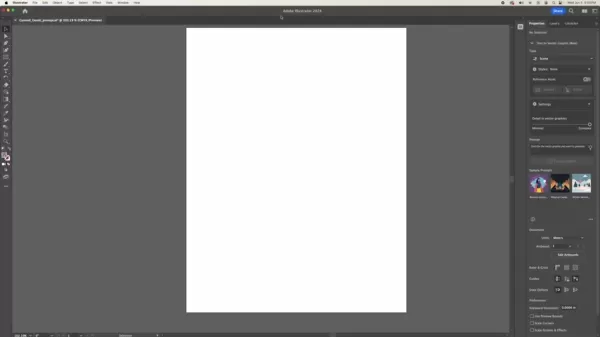
or a newer version to access the latest AI-powered tools. Get to know the essential panels and toolbars, particularly the 'Properties' panel for fast access to settings. Feeling at home in the Illustrator environment is crucial for seamlessly integrating generative AI. A solid grasp of the fundamentals lets you concentrate on creativity without struggling with software navigation.
A properly configured workspace involves more than just locating tools; it's about building a personalized setup that supports your creative workflow. Consider arranging panels to fit your process and use keyboard shortcuts to speed up routine actions. An organized workspace reduces distractions, allowing you to focus entirely on maximizing the potential of generative AI.
Tips and Tricks for Optimal Generative AI Results
Leveraging Reference Assets for Enhanced Output
Adobe Illustrator includes a reference asset feature. Uploading a sample image or style helps the AI generate artwork that more closely aligns with your requirements, which is ideal for maintaining brand identity or following a particular visual theme.
Using reference assets together with text prompts provides a powerful method to steer the AI's creative output. You can employ reference images to shape the composition, style, and overall look of the generated art. This leads to more predictable and uniform results, especially for complex projects with specific visual demands.
Mastering Pattern Generation for Unique Backgrounds
AI's utility extends beyond single images. In Adobe Illustrator, you can use a custom-sized pattern
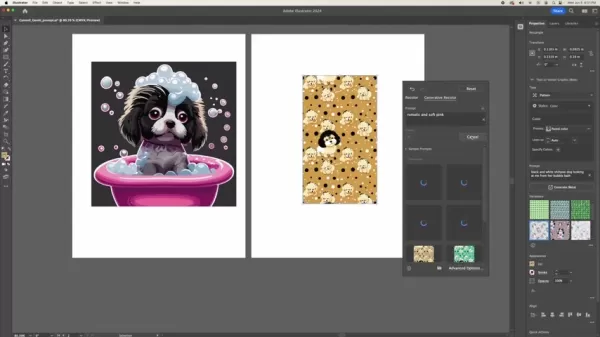
to cover entire artboards and create distinctive backgrounds. Once the artwork is generated, you can fully customize it or select a preset color scheme that matches your taste.
Utilize Illustrator's pattern editing tools to adjust the layout, spacing, and scale of the generated patterns. Try different tiling options, modify the pattern's starting point, and create seamless repeats to achieve your intended visual impact. By mastering pattern generation, you can craft engaging backgrounds that enhance your projects and add a unique flair to your designs.
Step-by-Step Guide: Create a Custom Phone Wallpaper Using AI
Step 1: Set Up the Artboard
Start a new document in Adobe Illustrator. Modify your artboard dimensions to match your phone's specifications. A 16:9 aspect ratio is generally suitable, but it's best to confirm your device's exact resolution.
Step 2: Generate a Vector Graphic Pattern
Open the 'Text to Vector Graphic' panel. Use the rectangle tool from there, then set the type to 'pattern'. Enter a prompt such as, 'A black and white Shihpoo puppy in a pink bubble bath looking at me.'
Step 3: Apply Generative Recoloring
After generating the vector image, you can transform its colors. Access the Generative Recolor feature via 'Edit' > 'Edit Colors' > 'Generative Recolor'. Input a descriptive phrase like 'Romantic and soft pink'.
Step 4: Export and Set as Wallpaper
Save the final image as a .png file and export it. Then, transfer the file to your phone and set it as your new background!
Adobe Illustrator Pricing
Understanding Adobe Illustrator's Subscription Plans
Adobe Illustrator is available through Adobe's Creative Cloud subscription service. Several plans are offered to suit different needs and budgets. As of 2025, here are some common subscription choices. Please be aware that prices and plan details will likely have changed since this writing.
- Individual Plan: A standalone Illustrator subscription, perfect for single users. As of 2025, it costs approximately $20.99 per month with an annual commitment.
- All Apps Plan: This includes Illustrator along with all other Adobe Creative Cloud applications like Photoshop, InDesign, and Premiere Pro. It's an excellent choice for professionals requiring a complete set of creative software. This plan is priced at about $54.99 per month when billed annually.
- Business Plan: Tailored for teams and organizations, it offers collaboration tools and centralized license administration. Pricing depends on the number of users but generally starts around $79.99 per month per license.
- Student & Teacher Plan: Provides discounted rates for students and educators. The All Apps plan is typically available for around $19.99 per month for the first year.
Always check Adobe's official website for the most up-to-date details.
Benefits and Drawbacks of Using Generative AI in Adobe Illustrator
Pros
Increased Efficiency: Rapidly produce design alternatives and iterate on concepts.
Enhanced Creativity: Discover new styles and combinations you might not have thought of initially.
Accessibility: Lower the skill barrier for creating sophisticated vector graphics.
Customization: Easily adjust and personalize AI-generated artwork.
Cons
Dependence on Prompts: The output quality is highly dependent on how well you write your prompts.
Learning Curve: Requires knowledge of both Illustrator and effective AI prompting strategies.
Potential for Generic Output: Might need considerable tweaking to avoid commonplace-looking designs.
Licensing Restrictions: Consistently verify Adobe's licensing agreements to ensure appropriate usage rights.
Key Features of Adobe Illustrator for AI-Powered Design
Generative AI Integration: Text to Vector and Recolor
Adobe Illustrator's primary advantage is its seamless integration of AI-driven tools directly into the design workflow. These features offer an incredible way to try out a wide variety of design styles.
- Text to Vector Graphic: Input descriptive text to generate custom artwork.
- Generative Recolor: Create new color schemes for existing vector art.
Vector Editing and Customization
Adobe Illustrator has always been renowned for its vector editing capabilities. Now, combined with AI, it's simpler than ever to fine-tune details to meet exact specifications.
Use Cases: How Generative AI Can Transform Your Design Workflow
Creating Unique Vector Graphics
This is ideal for producing custom icons, illustrations, and graphic components for your projects. The text-to-vector graphic tool can rapidly generate numerous design options for you to then refine and tailor to your specific requirements.
Recoloring Existing Artwork
The Generative Recolor feature lets you quickly test different color combinations for your designs. The various presets available in Adobe Illustrator are straightforward to apply to your own artwork or background patterns.
Designing Custom Phone Wallpapers
As demonstrated in this live session, Illustrator's AI tools are also practical for designing personalized phone wallpapers. You can generate unique patterns, illustrations, or abstract designs to create custom backgrounds for mobile devices.
FAQ
What version of Adobe Illustrator do I need to use Generative AI?
You must have Adobe Illustrator 2024 or a more recent version to use the Generative AI features.
Can I use Generative AI features for commercial projects?
Yes, AI-generated artwork can be used commercially, but you should always consult Adobe's licensing terms for specific usage rights.
How do I craft effective prompts for the Text to Vector Graphic feature?
Use specific and detailed language in your prompts, incorporating information about the subject, artistic style, and layout. Test different prompt variations and hone your descriptions to get the results you envision.
Can I customize the color palettes generated by the Generative Recolor feature?
Absolutely, you can modify individual colors, adjust their saturation and brightness, and create coordinated variations from the generated palette.
What are reference assets and how do I use them?
Reference assets are images or style examples you upload to influence the AI's creative direction. Pairing reference assets with text prompts is an effective strategy for achieving more controlled and consistent outcomes.
Related Questions
How does Adobe's Generative AI in Illustrator compare to other AI design tools?
Adobe Illustrator's Generative AI distinguishes itself through its tight integration within a professional vector graphics environment. Unlike independent AI image generators, Illustrator offers precise control over the final output through its comprehensive vector editing tools. This lets designers refine AI-generated content to perfectly match their creative intent. Other tools in the market include CorelDRAW, which also incorporates AI functions, and various online AI design platforms that may not offer the same level of detail and precision. In summary, Adobe provides a powerful and adaptable solution for seasoned designers.
What are the ethical considerations when using AI in design, and how does Adobe address them?
Employing AI in design involves several ethical considerations. These include potential copyright issues, the risk of the AI perpetuating biases, and concerns about AI's effect on employment within the creative sector. Adobe tackles copyright concerns by training its AI models on properly licensed content. They work to reduce biases through continuous monitoring and refinement of their algorithms. Adobe is also engaging with the conversation about AI's role in creative professions, framing it as a tool that amplifies human creativity. As a user, it's crucial to stay informed about these implications when utilizing AI technologies.
Related article
 South Korea Breaks Ground on National AI Computing Center, Investing 2.5 Trillion Won with 2028 Target
South Korean outlet EtNews reports that groundbreaking for the Korea AI Computing Center (KOACC) took place on August 3 at the Solar City data center park in Sunan, Jeollanam-do. Backed by a total investment of 2.5 trillion KRW (roughly 11.838 billio
Six Tech Giants Back Linux Foundation With $12.5M to Tackle AI Vulnerability Noise
To tackle the flood of low-quality security reports produced by AI automation tools, six major tech companies—Anthropic, Amazon (AWS), GitHub, Google, Microsoft, and OpenAI—have collectively contributed $12.5 million in funding to Linux Foundation in
Musk Considered Leaving OpenAI to His Kids as Altman Testifies
This morning, OpenAI CEO Sam Altman took the stand to address former co-founder Elon Musk’s lawsuit challenging the company’s corporate structure.When asked about Musk’s claim that other founders “stole a charity” by launching a for-profit subsidiary
Related Special Topic Recommendations
Education and Learning
South Korea Breaks Ground on National AI Computing Center, Investing 2.5 Trillion Won with 2028 Target
South Korean outlet EtNews reports that groundbreaking for the Korea AI Computing Center (KOACC) took place on August 3 at the Solar City data center park in Sunan, Jeollanam-do. Backed by a total investment of 2.5 trillion KRW (roughly 11.838 billio
Six Tech Giants Back Linux Foundation With $12.5M to Tackle AI Vulnerability Noise
To tackle the flood of low-quality security reports produced by AI automation tools, six major tech companies—Anthropic, Amazon (AWS), GitHub, Google, Microsoft, and OpenAI—have collectively contributed $12.5 million in funding to Linux Foundation in
Musk Considered Leaving OpenAI to His Kids as Altman Testifies
This morning, OpenAI CEO Sam Altman took the stand to address former co-founder Elon Musk’s lawsuit challenging the company’s corporate structure.When asked about Musk’s claim that other founders “stole a charity” by launching a for-profit subsidiary
Related Special Topic Recommendations
Education and Learning
 AI Study Tools for Homework and Exam Prep
2026 Latest Best AI Study Tools for Homework and Exam Prep! XIX.AI curates a top-rated list of powerful, game-changing tools that help students boost productivity, streamline homework completion, and ace exams through real-world tests. Get a free vs paid comparison, detailed rankings, and must-try options to unlock your AI edge. Explore now!
 10 tools
 xix.ai
Music composition
AI Vocal Demo Tools for Songwriters, Hooks, Toplines, and Multilingual Draft Sessions
xix.ai
Music composition
AI Vocal Demo Tools for Songwriters, Hooks, Toplines, and Multilingual Draft Sessions
2026 Latest Best AI Vocal Demo Tools for Songwriters, Hook Creators, and Multi-Language Content Teams! XIX.AI has curated a top-rated list of powerful game-changing tools that go through rigorous real-world tests. You’ll find detailed free vs paid comparison data, comprehensive rankings, and must-try options to help you boost writing efficiency and unlock your creative potential. Explore now to discover your perfect tool for all your content needs!
9 tools
xix.ai
Business
Best AI Competitive Research Tools for Small Businesses
2026 Latest Best Top-rated AI Competitive Research Tools for Small Businesses! XIX.AI has curated a highly powerful game-changing collection, updated weekly with rigorous real-world tests and detailed rankings. You can find a comprehensive free vs paid comparison to help you identify the must-try tools that boost your productivity and give you a competitive edge. Explore now to discover your perfect tool!
9 tools
xix.ai
Image editing
Photoshop AI Retouch Tools for Ecommerce Apparel, Skin Cleanup, and Color Consistency
2026 Latest Best Photoshop AI retouch tools for ecommerce apparel, skin cleanup, and color consistency! This top-rated curated list features powerful game-changing solutions that help you boost writing efficiency, streamline content creation, and achieve perfect visual results effortlessly. Each tool has undergone real-world tests through weekly updated rankings, complete with free vs paid comparison details. Backed by XIX.AI, it’s the must-try guide for anyone aiming to unlock your AI edge. Explore now!
10 tools
xix.ai
Prompt
Best AI Prompt Libraries for ChatGPT Workflows
2026 Latest Best Top-Rated AI Prompt Libraries for optimizing all types of ChatGPT workflows. XIX.AI has curated a powerful, game-changing collection that goes through rigorous real-world tests to ensure top performance. You can find detailed free vs paid comparisons and expert rankings to help you choose the must-try tools that boost your productivity and unlock your AI edge. Explore now!
11 tools
xix.ai
Education and Learning
AI Quiz Builder Platforms for Teachers, Tutors, and Cohort-Based Learning Programs
2026 Latest Best AI Quiz Builder Platforms for Teachers, Tutors, and Cohort-Based Learning Programs! XIX.AI has curated a top-rated list of powerful game-changing tools that go through real-world tests to deliver accurate rankings. These must-try platforms help boost writing efficiency, streamline content creation, and simplify quiz design across all learning scenarios. Explore now to discover your perfect tool for unlocking your AI edge in teaching!
13 tools
xix.ai

 Comments (4)
0/500
Comments (4)
0/500
![ChristopherHarris]()
As a designer, I'm both excited and skeptical. Will these AI features make us lazy or supercharge creativity? The live demo sounds promising but I worry about originality. 🤔
![ChristopherThomas]()
Just watched that live demo and honestly, my freelance design side is thrilled 🎨 The direct text-to-vector feature is a game-changer, especially for quick mockups. But part of me wonders how this will affect the market for custom icon designers. I guess we all have to adapt and find new niches. Excited to give it a try this weekend!
![RalphGarcia]()
AdobeのAI機能がここまで進化したとは…テキストからベクターグラフィックを生成できるのは革命的な進化だね。でも、これでデザイナーの仕事が減らないか少し心配😅 習得するのに時間がかかりそうだけど、楽しみながら学べそう!
![DanielJohnson]()
Das war jetzt ein bisschen zu technisch für mich 😅 Aber die GenAI-Funktionen in Illustrator sehen echt praktisch aus, vielleicht um schnell mal ein Mockup zu erstellen. Ich hoffe nur, Adobe hält die Preise im Rahmen, wenn sie das vollständig integrieren.
Explore the dynamic capabilities of generative AI built directly into Adobe Illustrator. This in-depth tutorial, adapted from a live session, guides you through using the text-to-vector graphic tool and generative color features, giving you the skills to produce impressive, custom artwork. Discover how to leverage AI to accelerate your design process and unlock new creative possibilities.
Key Points
Master the use of the text-to-vector graphic tool within Adobe Illustrator.
Grasp the process of creating artwork with generative AI.
Uncover the generative recolor function and its extensive applications.
Learn to customize vector graphics for one-of-a-kind designs.
Experiment with various prompt-writing methods to generate your desired AI art.
Acquire practical tips for effectively using and modifying AI-generated vectors.
Introduction to Generative AI in Adobe Illustrator
What is Generative AI and Why Use It in Illustrator?
Generative AI is transforming the design industry by providing robust tools that simplify workflows and unlock creative potential. Within Adobe Illustrator, these generative AI capabilities allow designers to produce vector graphics and recolor artwork using simple text descriptions. This empowers users to rapidly develop ideas, experiment with various aesthetics, and create distinctive designs effortlessly. Adopting Generative AI in Illustrator can substantially increase productivity and open up new paths for creative discovery, proving particularly valuable for initial brainstorming and visual style exploration.
The incorporation of generative AI into Adobe Illustrator represents a major advancement in design technology, fundamentally altering how designers approach their craft. By simply entering text prompts, users can instruct the AI to create a broad spectrum of visual assets, from detailed vector illustrations to cohesive color schemes. This process makes design more accessible, allowing people with different skill levels to materialize their creative ideas with remarkable speed.
This technology not only accelerates the early design stages but also promotes a culture of experimentation and discovery. Designers can swiftly test multiple versions of their concepts, polishing and developing them based on AI-generated suggestions. This iterative approach enables greater accuracy and creativity, resulting in more innovative and visually striking designs.
Setting Up Your Adobe Illustrator Workspace
Before you start using generative AI, optimize your Adobe Illustrator workspace for a smooth creative process. Ensure you are running Adobe Illustrator 2024
or a newer version to access the latest AI-powered tools. Get to know the essential panels and toolbars, particularly the 'Properties' panel for fast access to settings. Feeling at home in the Illustrator environment is crucial for seamlessly integrating generative AI. A solid grasp of the fundamentals lets you concentrate on creativity without struggling with software navigation.
A properly configured workspace involves more than just locating tools; it's about building a personalized setup that supports your creative workflow. Consider arranging panels to fit your process and use keyboard shortcuts to speed up routine actions. An organized workspace reduces distractions, allowing you to focus entirely on maximizing the potential of generative AI.
Tips and Tricks for Optimal Generative AI Results
Leveraging Reference Assets for Enhanced Output
Adobe Illustrator includes a reference asset feature. Uploading a sample image or style helps the AI generate artwork that more closely aligns with your requirements, which is ideal for maintaining brand identity or following a particular visual theme.
Using reference assets together with text prompts provides a powerful method to steer the AI's creative output. You can employ reference images to shape the composition, style, and overall look of the generated art. This leads to more predictable and uniform results, especially for complex projects with specific visual demands.
Mastering Pattern Generation for Unique Backgrounds
AI's utility extends beyond single images. In Adobe Illustrator, you can use a custom-sized pattern
to cover entire artboards and create distinctive backgrounds. Once the artwork is generated, you can fully customize it or select a preset color scheme that matches your taste.
Utilize Illustrator's pattern editing tools to adjust the layout, spacing, and scale of the generated patterns. Try different tiling options, modify the pattern's starting point, and create seamless repeats to achieve your intended visual impact. By mastering pattern generation, you can craft engaging backgrounds that enhance your projects and add a unique flair to your designs.
Step-by-Step Guide: Create a Custom Phone Wallpaper Using AI
Step 1: Set Up the Artboard
Start a new document in Adobe Illustrator. Modify your artboard dimensions to match your phone's specifications. A 16:9 aspect ratio is generally suitable, but it's best to confirm your device's exact resolution.
Step 2: Generate a Vector Graphic Pattern
Open the 'Text to Vector Graphic' panel. Use the rectangle tool from there, then set the type to 'pattern'. Enter a prompt such as, 'A black and white Shihpoo puppy in a pink bubble bath looking at me.'
Step 3: Apply Generative Recoloring
After generating the vector image, you can transform its colors. Access the Generative Recolor feature via 'Edit' > 'Edit Colors' > 'Generative Recolor'. Input a descriptive phrase like 'Romantic and soft pink'.
Step 4: Export and Set as Wallpaper
Save the final image as a .png file and export it. Then, transfer the file to your phone and set it as your new background!
Adobe Illustrator Pricing
Understanding Adobe Illustrator's Subscription Plans
Adobe Illustrator is available through Adobe's Creative Cloud subscription service. Several plans are offered to suit different needs and budgets. As of 2025, here are some common subscription choices. Please be aware that prices and plan details will likely have changed since this writing.
- Individual Plan: A standalone Illustrator subscription, perfect for single users. As of 2025, it costs approximately $20.99 per month with an annual commitment.
- All Apps Plan: This includes Illustrator along with all other Adobe Creative Cloud applications like Photoshop, InDesign, and Premiere Pro. It's an excellent choice for professionals requiring a complete set of creative software. This plan is priced at about $54.99 per month when billed annually.
- Business Plan: Tailored for teams and organizations, it offers collaboration tools and centralized license administration. Pricing depends on the number of users but generally starts around $79.99 per month per license.
- Student & Teacher Plan: Provides discounted rates for students and educators. The All Apps plan is typically available for around $19.99 per month for the first year.
Always check Adobe's official website for the most up-to-date details.
Benefits and Drawbacks of Using Generative AI in Adobe Illustrator
Pros
Increased Efficiency: Rapidly produce design alternatives and iterate on concepts.
Enhanced Creativity: Discover new styles and combinations you might not have thought of initially.
Accessibility: Lower the skill barrier for creating sophisticated vector graphics.
Customization: Easily adjust and personalize AI-generated artwork.
Cons
Dependence on Prompts: The output quality is highly dependent on how well you write your prompts.
Learning Curve: Requires knowledge of both Illustrator and effective AI prompting strategies.
Potential for Generic Output: Might need considerable tweaking to avoid commonplace-looking designs.
Licensing Restrictions: Consistently verify Adobe's licensing agreements to ensure appropriate usage rights.
Key Features of Adobe Illustrator for AI-Powered Design
Generative AI Integration: Text to Vector and Recolor
Adobe Illustrator's primary advantage is its seamless integration of AI-driven tools directly into the design workflow. These features offer an incredible way to try out a wide variety of design styles.
- Text to Vector Graphic: Input descriptive text to generate custom artwork.
- Generative Recolor: Create new color schemes for existing vector art.
Vector Editing and Customization
Adobe Illustrator has always been renowned for its vector editing capabilities. Now, combined with AI, it's simpler than ever to fine-tune details to meet exact specifications.
Use Cases: How Generative AI Can Transform Your Design Workflow
Creating Unique Vector Graphics
This is ideal for producing custom icons, illustrations, and graphic components for your projects. The text-to-vector graphic tool can rapidly generate numerous design options for you to then refine and tailor to your specific requirements.
Recoloring Existing Artwork
The Generative Recolor feature lets you quickly test different color combinations for your designs. The various presets available in Adobe Illustrator are straightforward to apply to your own artwork or background patterns.
Designing Custom Phone Wallpapers
As demonstrated in this live session, Illustrator's AI tools are also practical for designing personalized phone wallpapers. You can generate unique patterns, illustrations, or abstract designs to create custom backgrounds for mobile devices.
FAQ
What version of Adobe Illustrator do I need to use Generative AI?
You must have Adobe Illustrator 2024 or a more recent version to use the Generative AI features.
Can I use Generative AI features for commercial projects?
Yes, AI-generated artwork can be used commercially, but you should always consult Adobe's licensing terms for specific usage rights.
How do I craft effective prompts for the Text to Vector Graphic feature?
Use specific and detailed language in your prompts, incorporating information about the subject, artistic style, and layout. Test different prompt variations and hone your descriptions to get the results you envision.
Can I customize the color palettes generated by the Generative Recolor feature?
Absolutely, you can modify individual colors, adjust their saturation and brightness, and create coordinated variations from the generated palette.
What are reference assets and how do I use them?
Reference assets are images or style examples you upload to influence the AI's creative direction. Pairing reference assets with text prompts is an effective strategy for achieving more controlled and consistent outcomes.
Related Questions
How does Adobe's Generative AI in Illustrator compare to other AI design tools?
Adobe Illustrator's Generative AI distinguishes itself through its tight integration within a professional vector graphics environment. Unlike independent AI image generators, Illustrator offers precise control over the final output through its comprehensive vector editing tools. This lets designers refine AI-generated content to perfectly match their creative intent. Other tools in the market include CorelDRAW, which also incorporates AI functions, and various online AI design platforms that may not offer the same level of detail and precision. In summary, Adobe provides a powerful and adaptable solution for seasoned designers.
What are the ethical considerations when using AI in design, and how does Adobe address them?
Employing AI in design involves several ethical considerations. These include potential copyright issues, the risk of the AI perpetuating biases, and concerns about AI's effect on employment within the creative sector. Adobe tackles copyright concerns by training its AI models on properly licensed content. They work to reduce biases through continuous monitoring and refinement of their algorithms. Adobe is also engaging with the conversation about AI's role in creative professions, framing it as a tool that amplifies human creativity. As a user, it's crucial to stay informed about these implications when utilizing AI technologies.








 South Korea Breaks Ground on National AI Computing Center, Investing 2.5 Trillion Won with 2028 Target
South Korean outlet EtNews reports that groundbreaking for the Korea AI Computing Center (KOACC) took place on August 3 at the Solar City data center park in Sunan, Jeollanam-do. Backed by a total investment of 2.5 trillion KRW (roughly 11.838 billio
South Korea Breaks Ground on National AI Computing Center, Investing 2.5 Trillion Won with 2028 Target
South Korean outlet EtNews reports that groundbreaking for the Korea AI Computing Center (KOACC) took place on August 3 at the Solar City data center park in Sunan, Jeollanam-do. Backed by a total investment of 2.5 trillion KRW (roughly 11.838 billio
 Six Tech Giants Back Linux Foundation With $12.5M to Tackle AI Vulnerability Noise
To tackle the flood of low-quality security reports produced by AI automation tools, six major tech companies—Anthropic, Amazon (AWS), GitHub, Google, Microsoft, and OpenAI—have collectively contributed $12.5 million in funding to Linux Foundation in
Six Tech Giants Back Linux Foundation With $12.5M to Tackle AI Vulnerability Noise
To tackle the flood of low-quality security reports produced by AI automation tools, six major tech companies—Anthropic, Amazon (AWS), GitHub, Google, Microsoft, and OpenAI—have collectively contributed $12.5 million in funding to Linux Foundation in
 Musk Considered Leaving OpenAI to His Kids as Altman Testifies
This morning, OpenAI CEO Sam Altman took the stand to address former co-founder Elon Musk’s lawsuit challenging the company’s corporate structure.When asked about Musk’s claim that other founders “stole a charity” by launching a for-profit subsidiary
Musk Considered Leaving OpenAI to His Kids as Altman Testifies
This morning, OpenAI CEO Sam Altman took the stand to address former co-founder Elon Musk’s lawsuit challenging the company’s corporate structure.When asked about Musk’s claim that other founders “stole a charity” by launching a for-profit subsidiary

2026 Latest Best AI Study Tools for Homework and Exam Prep! XIX.AI curates a top-rated list of powerful, game-changing tools that help students boost productivity, streamline homework completion, and ace exams through real-world tests. Get a free vs paid comparison, detailed rankings, and must-try options to unlock your AI edge. Explore now!
10 tools
xix.ai
2026 Latest Best AI Vocal Demo Tools for Songwriters, Hook Creators, and Multi-Language Content Teams! XIX.AI has curated a top-rated list of powerful game-changing tools that go through rigorous real-world tests. You’ll find detailed free vs paid comparison data, comprehensive rankings, and must-try options to help you boost writing efficiency and unlock your creative potential. Explore now to discover your perfect tool for all your content needs!
9 tools
xix.ai

2026 Latest Best Top-rated AI Competitive Research Tools for Small Businesses! XIX.AI has curated a highly powerful game-changing collection, updated weekly with rigorous real-world tests and detailed rankings. You can find a comprehensive free vs paid comparison to help you identify the must-try tools that boost your productivity and give you a competitive edge. Explore now to discover your perfect tool!
9 tools
xix.ai

2026 Latest Best Photoshop AI retouch tools for ecommerce apparel, skin cleanup, and color consistency! This top-rated curated list features powerful game-changing solutions that help you boost writing efficiency, streamline content creation, and achieve perfect visual results effortlessly. Each tool has undergone real-world tests through weekly updated rankings, complete with free vs paid comparison details. Backed by XIX.AI, it’s the must-try guide for anyone aiming to unlock your AI edge. Explore now!
10 tools
xix.ai
2026 Latest Best Top-Rated AI Prompt Libraries for optimizing all types of ChatGPT workflows. XIX.AI has curated a powerful, game-changing collection that goes through rigorous real-world tests to ensure top performance. You can find detailed free vs paid comparisons and expert rankings to help you choose the must-try tools that boost your productivity and unlock your AI edge. Explore now!
11 tools
xix.ai
2026 Latest Best AI Quiz Builder Platforms for Teachers, Tutors, and Cohort-Based Learning Programs! XIX.AI has curated a top-rated list of powerful game-changing tools that go through real-world tests to deliver accurate rankings. These must-try platforms help boost writing efficiency, streamline content creation, and simplify quiz design across all learning scenarios. Explore now to discover your perfect tool for unlocking your AI edge in teaching!
13 tools
xix.ai

As a designer, I'm both excited and skeptical. Will these AI features make us lazy or supercharge creativity? The live demo sounds promising but I worry about originality. 🤔
Just watched that live demo and honestly, my freelance design side is thrilled 🎨 The direct text-to-vector feature is a game-changer, especially for quick mockups. But part of me wonders how this will affect the market for custom icon designers. I guess we all have to adapt and find new niches. Excited to give it a try this weekend!
AdobeのAI機能がここまで進化したとは…テキストからベクターグラフィックを生成できるのは革命的な進化だね。でも、これでデザイナーの仕事が減らないか少し心配😅 習得するのに時間がかかりそうだけど、楽しみながら学べそう!
Das war jetzt ein bisschen zu technisch für mich 😅 Aber die GenAI-Funktionen in Illustrator sehen echt praktisch aus, vielleicht um schnell mal ein Mockup zu erstellen. Ich hoffe nur, Adobe hält die Preise im Rahmen, wenn sie das vollständig integrieren.












