


 Home
HomeAdvanced Image Editing with Stable Diffusion XL
Image inpainting is a transformative technique in generative AI, enabling precise image modifications with exceptional control. This guide explores the nuances of image inpainting using Stable Diffusion XL, offering insights into its powerful capabilities for seamless image enhancement. Learn how to master this tool for professional-grade results.
Key Highlights
Image inpainting provides precise control over targeted image edits.
Stable Diffusion XL delivers superior inpainting performance.
Replicate offers an intuitive platform for using Stable Diffusion XL.
Accurate masking defines areas for modification in inpainting.
Effective prompt engineering guides the inpainting process.
Advanced tools boost the precision and quality of inpainting results.
Exploring Image Inpainting
What Is Image Inpainting?
Image inpainting, a generative AI technique, enables targeted edits to specific image areas. Unlike broad edits affecting the entire image, inpainting focuses on precise regions, offering unmatched control over the final result.
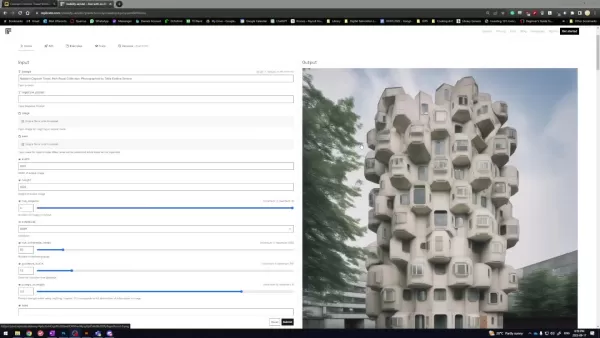
This method excels at tasks like removing unwanted elements, adding new features, or refining details.
It acts like digital restoration, filling in missing or unwanted areas with content that blends seamlessly with the surroundings. Its strength lies in creating cohesive, realistic outcomes, making it ideal for artists, designers, and image enhancement enthusiasts.
Why Stable Diffusion XL Stands Out
Stable Diffusion XL, a cutting-edge generative AI model, excels at producing high-quality images from text prompts. Its advanced architecture and training enable it to interpret complex instructions and create detailed, lifelike visuals.
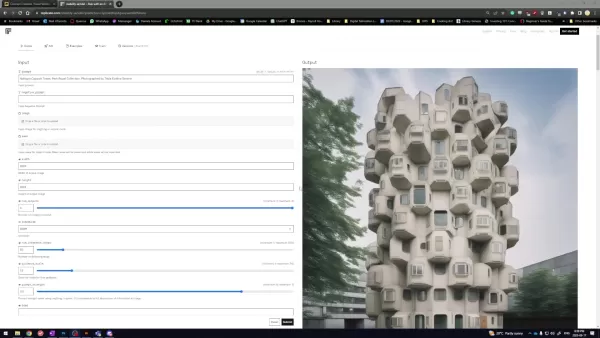
When paired with inpainting, Stable Diffusion XL transforms into a versatile tool, allowing users to refine and enhance existing images alongside generating new ones.
Its key strength is maintaining visual consistency. By analyzing the context around masked areas, it generates content that integrates naturally, delivering professional-grade results. This makes it a top choice for sophisticated image editing.
Benefits of Using Replicate with Stable Diffusion XL
Replicate streamlines Stable Diffusion XL usage with a user-friendly interface, eliminating the need for complex setups. Users can access the model via a web browser or API with ease.
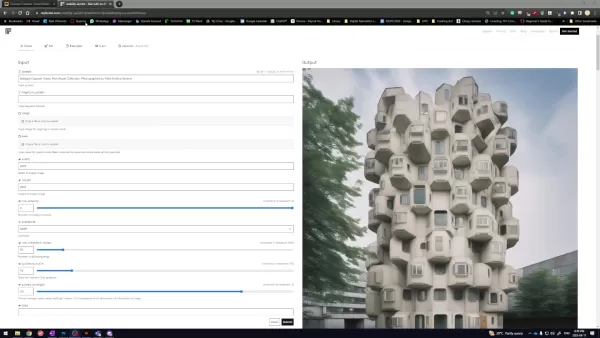
This accessibility broadens the reach of advanced AI tools, catering to users regardless of technical expertise.
Replicate frees users to focus on creative inpainting tasks, handling technical complexities in the background. It enables quick experimentation with prompts and settings, making it ideal for both beginners and seasoned users exploring Stable Diffusion XL’s potential.
Image Inpainting Process with Replicate
Step 1: Preparing the Image and Prompt
Start by selecting an initial image—be it a photo or digital artwork—as the foundation for your edits.
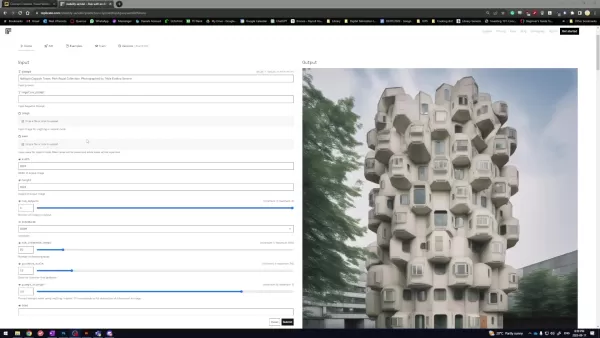
Pair the image with a text prompt to guide the inpainting. Prompts can range from simple, like “add a vibrant sunset,” to complex, such as “replace the old bridge with a futuristic structure.”
The prompt shapes the inpainting direction, influencing the generated content. Specific, detailed prompts ensure the model aligns closely with your creative vision.
Step 2: Perfecting the Mask
Masking involves creating a black-and-white image to mark areas for inpainting (white) and preservation (black).
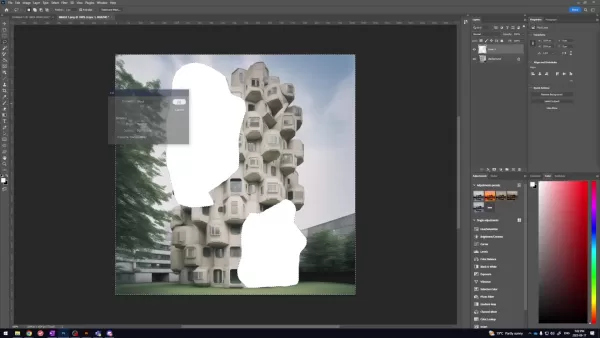
The mask directs Stable Diffusion XL’s focus during content generation.
Precise masks are critical for seamless results. Inaccurate masks may cause artifacts or inconsistencies. Tools like Adobe Photoshop, GIMP, or online editors help refine masks, with feathered edges ensuring smooth blending of inpainted content.
Step 3: Crafting Effective Prompts
Prompt engineering entails designing clear, descriptive text prompts to steer Stable Diffusion XL toward desired outcomes. This iterative process involves tweaking wording and experimenting with keywords.
Use negative prompts to exclude unwanted elements, like “no clouds” for a clear sky. With practice, prompt engineering unlocks the full potential of Stable Diffusion XL for inpainting.
Step 4: Executing and Reviewing Results
Run Stable Diffusion XL via Replicate with your image, mask, and prompt. Replicate processes the inputs and generates the modified image. Generation time depends on prompt complexity and image size.
Evaluate the output and refine prompts, masks, or model parameters as needed. This iterative process hones the image to meet your expectations, with parameter adjustments enhancing outcomes over time.
Creating a Mask for Inpainting in Photoshop
Step 1: Load Your Image
Open your target image in Adobe Photoshop via File > Open.
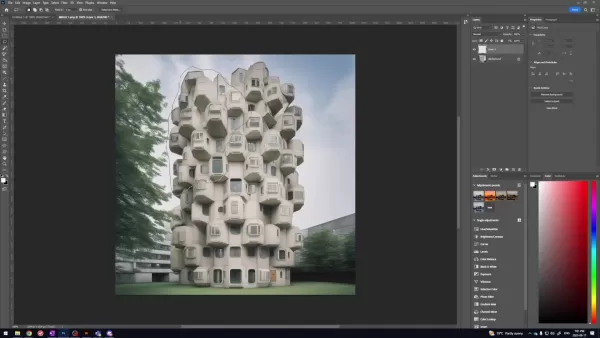
Ensure the image is high quality for optimal results.
Step 2: Add a New Layer
Create a new layer above the original image for masking.
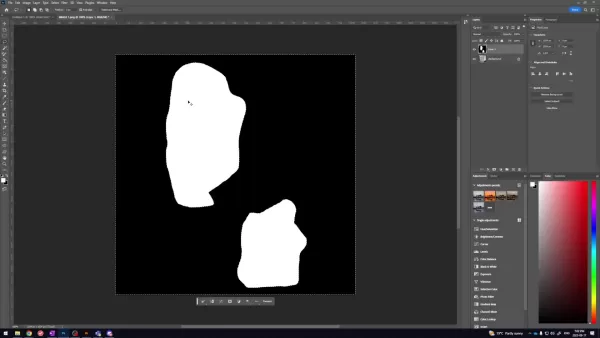
Go to Layer > New > Layer or use the Layers panel’s new layer icon.
Step 3: Choose the Lasso Tool
Select the Lasso Tool (or preferred selection tool) from the toolbar.
The Lasso Tool is ideal for freehand selections around areas to edit.
Step 4: Outline the Inpainting Area
Carefully trace the area to inpaint. Hold Shift to add multiple selections.
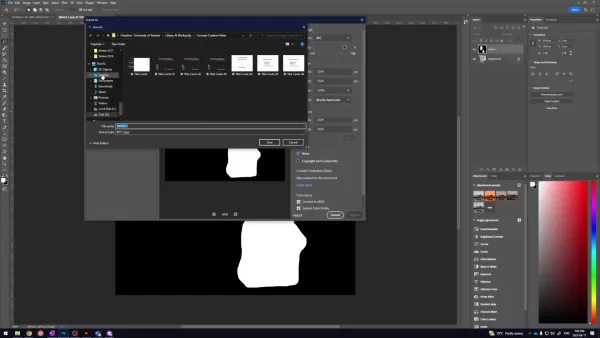
Precision is key for accurate results.
Step 5: Invert the Selection
Invert the selection via Select > Inverse to target all areas except the outlined region.
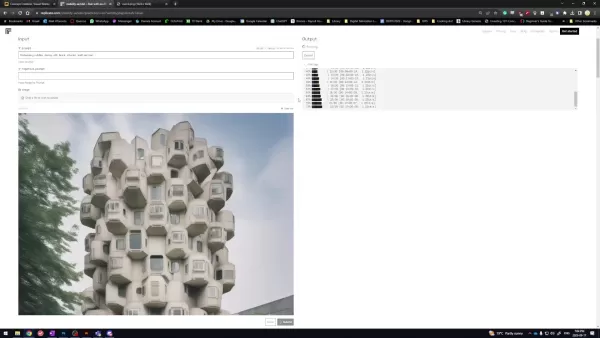
This isolates the non-inpainting areas.
Step 6: Fill with Black
On the new layer, fill the selected area with black via Edit > Fill, choosing Black.
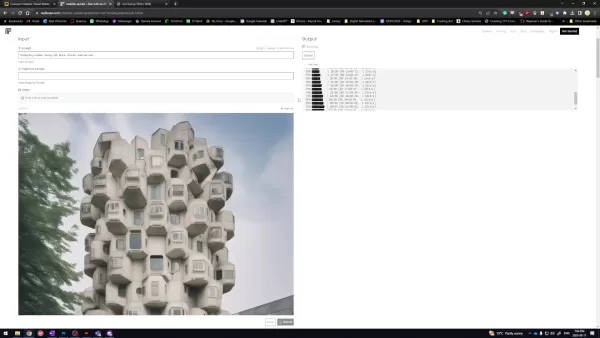
This creates a mask preserving the original image.
Step 7: Finalize the Mask
Fill the inverted selection with white using Edit > Fill.
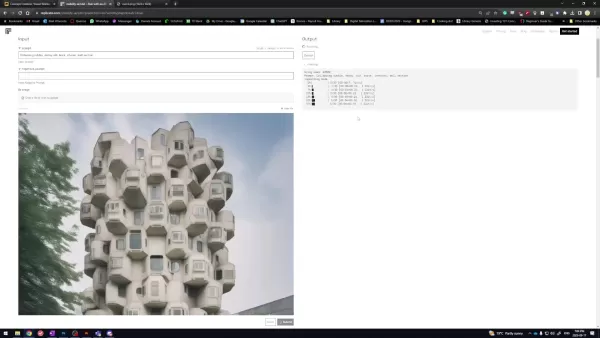
Ensure the white mask is visible over the base image. Deselect with Ctrl+D.
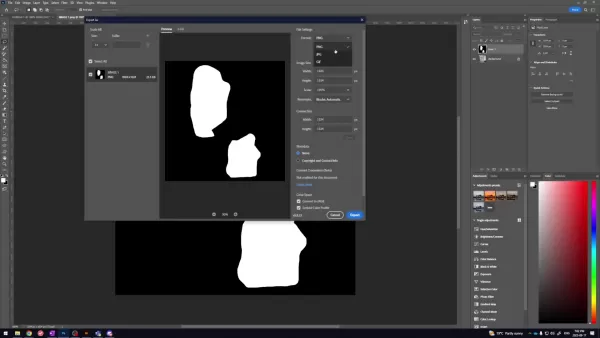
Step 8: Save the Mask
Export the masked image as a JPG for use alongside the original.
Stable Diffusion XL Pricing on Replicate
Replicate’s Billing Model
Replicate uses a pay-as-you-go model, charging based on computational resources used. Pricing for Stable Diffusion XL varies by model version, prompt complexity, and image size. Check Replicate’s pricing estimator for accurate costs.
Pros and Cons of Stable Diffusion XL for Inpainting
Pros
Exceptional image generation quality
Replicate’s intuitive interface
Precise control over edits
Automated content creation
Cons
Potential limits on image size and runtime with Replicate
Prompt engineering may require trial and error
Relies on computational resources
Frequently Asked Questions
Which File Formats Are Supported?
Stable Diffusion XL supports JPEG, PNG, and WebP. Check Replicate’s documentation for specifics.
What’s the Ideal Image Resolution?
High-resolution images (1024x1024 pixels or higher) yield the best results. Lower resolutions may reduce output quality. Ensure mask and image resolutions match.
How Can I Enhance Mask Accuracy?
Refine rough selections with tools like Photoshop’s Pen Tool or Refine Edge. Feathering edges ensures smoother blending of inpainted content.
Are There Limitations with Replicate?
Replicate simplifies access but may limit image size, concurrent executions, or model versions based on your plan. Self-hosting removes these restrictions.
Related Questions
How Does Inpainting Compare to Traditional Editing?
AI-driven inpainting generates seamless content, surpassing traditional manual editing. It offers a faster, automated approach, simplifying complex modifications with minimal effort.
Related article
 How to fix Core Web Vitals for better SEO rankings
Streamline Report Card Comments with AI ToolsIntroductionAI Tools for Generating Report Card CommentsMagic SchoolAlmanac AIChat GPTUsing Magic School to Generate Report Card CommentsLogging into Magic SchoolSelecting the Report Card Comments ToolCust
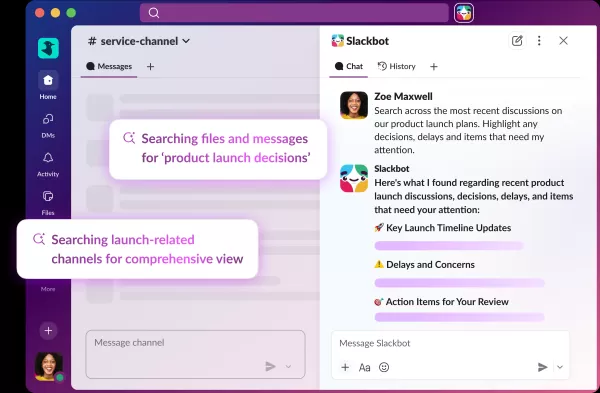
Slackbot Becomes an AI Agent
Slackbot, the automated assistant embedded in Salesforce’s corporate messaging platform Slack, is evolving into an AI agent. Salesforce CTO Parker Harris envisions it achieving viral status comparable to OpenAI’s ChatGPT.The cloud software giant laun
ByteDance Boosts Core AI Incentives as Doubao Surges 14.6%
ByteDance recently convened a DouBao equity briefing to unveil fresh incentive policies for staff involved in the DouBao division. The strike price for DouBao shares has been lifted from $14.85 in June 2026 to $17.02, marking an approximate 14.6% inc
Related Special Topic Recommendations
Education and Learning
How to fix Core Web Vitals for better SEO rankings
Streamline Report Card Comments with AI ToolsIntroductionAI Tools for Generating Report Card CommentsMagic SchoolAlmanac AIChat GPTUsing Magic School to Generate Report Card CommentsLogging into Magic SchoolSelecting the Report Card Comments ToolCust
Slackbot Becomes an AI Agent
Slackbot, the automated assistant embedded in Salesforce’s corporate messaging platform Slack, is evolving into an AI agent. Salesforce CTO Parker Harris envisions it achieving viral status comparable to OpenAI’s ChatGPT.The cloud software giant laun
ByteDance Boosts Core AI Incentives as Doubao Surges 14.6%
ByteDance recently convened a DouBao equity briefing to unveil fresh incentive policies for staff involved in the DouBao division. The strike price for DouBao shares has been lifted from $14.85 in June 2026 to $17.02, marking an approximate 14.6% inc
Related Special Topic Recommendations
Education and Learning
 AI Study Tools for Homework and Exam Prep
2026 Latest Best AI Study Tools for Homework and Exam Prep! XIX.AI curates a top-rated list of powerful, game-changing tools that help students boost productivity, streamline homework completion, and ace exams through real-world tests. Get a free vs paid comparison, detailed rankings, and must-try options to unlock your AI edge. Explore now!
 10 tools
 xix.ai
Music composition
AI Vocal Demo Tools for Songwriters, Hooks, Toplines, and Multilingual Draft Sessions
xix.ai
Music composition
AI Vocal Demo Tools for Songwriters, Hooks, Toplines, and Multilingual Draft Sessions
2026 Latest Best AI Vocal Demo Tools for Songwriters, Hook Creators, and Multi-Language Content Teams! XIX.AI has curated a top-rated list of powerful game-changing tools that go through rigorous real-world tests. You’ll find detailed free vs paid comparison data, comprehensive rankings, and must-try options to help you boost writing efficiency and unlock your creative potential. Explore now to discover your perfect tool for all your content needs!
9 tools
xix.ai
Business
Best AI Competitive Research Tools for Small Businesses
2026 Latest Best Top-rated AI Competitive Research Tools for Small Businesses! XIX.AI has curated a highly powerful game-changing collection, updated weekly with rigorous real-world tests and detailed rankings. You can find a comprehensive free vs paid comparison to help you identify the must-try tools that boost your productivity and give you a competitive edge. Explore now to discover your perfect tool!
9 tools
xix.ai
Image editing
Photoshop AI Retouch Tools for Ecommerce Apparel, Skin Cleanup, and Color Consistency
2026 Latest Best Photoshop AI retouch tools for ecommerce apparel, skin cleanup, and color consistency! This top-rated curated list features powerful game-changing solutions that help you boost writing efficiency, streamline content creation, and achieve perfect visual results effortlessly. Each tool has undergone real-world tests through weekly updated rankings, complete with free vs paid comparison details. Backed by XIX.AI, it’s the must-try guide for anyone aiming to unlock your AI edge. Explore now!
10 tools
xix.ai
Prompt
Best AI Prompt Libraries for ChatGPT Workflows
2026 Latest Best Top-Rated AI Prompt Libraries for optimizing all types of ChatGPT workflows. XIX.AI has curated a powerful, game-changing collection that goes through rigorous real-world tests to ensure top performance. You can find detailed free vs paid comparisons and expert rankings to help you choose the must-try tools that boost your productivity and unlock your AI edge. Explore now!
11 tools
xix.ai
Education and Learning
AI Quiz Builder Platforms for Teachers, Tutors, and Cohort-Based Learning Programs
2026 Latest Best AI Quiz Builder Platforms for Teachers, Tutors, and Cohort-Based Learning Programs! XIX.AI has curated a top-rated list of powerful game-changing tools that go through real-world tests to deliver accurate rankings. These must-try platforms help boost writing efficiency, streamline content creation, and simplify quiz design across all learning scenarios. Explore now to discover your perfect tool for unlocking your AI edge in teaching!
13 tools
xix.ai

 Comments (0)
0/500
Comments (0)
0/500
Image inpainting is a transformative technique in generative AI, enabling precise image modifications with exceptional control. This guide explores the nuances of image inpainting using Stable Diffusion XL, offering insights into its powerful capabilities for seamless image enhancement. Learn how to master this tool for professional-grade results.
Key Highlights
Image inpainting provides precise control over targeted image edits.
Stable Diffusion XL delivers superior inpainting performance.
Replicate offers an intuitive platform for using Stable Diffusion XL.
Accurate masking defines areas for modification in inpainting.
Effective prompt engineering guides the inpainting process.
Advanced tools boost the precision and quality of inpainting results.
Exploring Image Inpainting
What Is Image Inpainting?
Image inpainting, a generative AI technique, enables targeted edits to specific image areas. Unlike broad edits affecting the entire image, inpainting focuses on precise regions, offering unmatched control over the final result.
This method excels at tasks like removing unwanted elements, adding new features, or refining details.
It acts like digital restoration, filling in missing or unwanted areas with content that blends seamlessly with the surroundings. Its strength lies in creating cohesive, realistic outcomes, making it ideal for artists, designers, and image enhancement enthusiasts.
Why Stable Diffusion XL Stands Out
Stable Diffusion XL, a cutting-edge generative AI model, excels at producing high-quality images from text prompts. Its advanced architecture and training enable it to interpret complex instructions and create detailed, lifelike visuals.
When paired with inpainting, Stable Diffusion XL transforms into a versatile tool, allowing users to refine and enhance existing images alongside generating new ones.
Its key strength is maintaining visual consistency. By analyzing the context around masked areas, it generates content that integrates naturally, delivering professional-grade results. This makes it a top choice for sophisticated image editing.
Benefits of Using Replicate with Stable Diffusion XL
Replicate streamlines Stable Diffusion XL usage with a user-friendly interface, eliminating the need for complex setups. Users can access the model via a web browser or API with ease.
This accessibility broadens the reach of advanced AI tools, catering to users regardless of technical expertise.
Replicate frees users to focus on creative inpainting tasks, handling technical complexities in the background. It enables quick experimentation with prompts and settings, making it ideal for both beginners and seasoned users exploring Stable Diffusion XL’s potential.
Image Inpainting Process with Replicate
Step 1: Preparing the Image and Prompt
Start by selecting an initial image—be it a photo or digital artwork—as the foundation for your edits.
Pair the image with a text prompt to guide the inpainting. Prompts can range from simple, like “add a vibrant sunset,” to complex, such as “replace the old bridge with a futuristic structure.”
The prompt shapes the inpainting direction, influencing the generated content. Specific, detailed prompts ensure the model aligns closely with your creative vision.
Step 2: Perfecting the Mask
Masking involves creating a black-and-white image to mark areas for inpainting (white) and preservation (black).
The mask directs Stable Diffusion XL’s focus during content generation.
Precise masks are critical for seamless results. Inaccurate masks may cause artifacts or inconsistencies. Tools like Adobe Photoshop, GIMP, or online editors help refine masks, with feathered edges ensuring smooth blending of inpainted content.
Step 3: Crafting Effective Prompts
Prompt engineering entails designing clear, descriptive text prompts to steer Stable Diffusion XL toward desired outcomes. This iterative process involves tweaking wording and experimenting with keywords.
Use negative prompts to exclude unwanted elements, like “no clouds” for a clear sky. With practice, prompt engineering unlocks the full potential of Stable Diffusion XL for inpainting.
Step 4: Executing and Reviewing Results
Run Stable Diffusion XL via Replicate with your image, mask, and prompt. Replicate processes the inputs and generates the modified image. Generation time depends on prompt complexity and image size.
Evaluate the output and refine prompts, masks, or model parameters as needed. This iterative process hones the image to meet your expectations, with parameter adjustments enhancing outcomes over time.
Creating a Mask for Inpainting in Photoshop
Step 1: Load Your Image
Open your target image in Adobe Photoshop via File > Open.
Ensure the image is high quality for optimal results.
Step 2: Add a New Layer
Create a new layer above the original image for masking.
Go to Layer > New > Layer or use the Layers panel’s new layer icon.
Step 3: Choose the Lasso Tool
Select the Lasso Tool (or preferred selection tool) from the toolbar.
The Lasso Tool is ideal for freehand selections around areas to edit.
Step 4: Outline the Inpainting Area
Carefully trace the area to inpaint. Hold Shift to add multiple selections.
Precision is key for accurate results.
Step 5: Invert the Selection
Invert the selection via Select > Inverse to target all areas except the outlined region.
This isolates the non-inpainting areas.
Step 6: Fill with Black
On the new layer, fill the selected area with black via Edit > Fill, choosing Black.
This creates a mask preserving the original image.
Step 7: Finalize the Mask
Fill the inverted selection with white using Edit > Fill.
Ensure the white mask is visible over the base image. Deselect with Ctrl+D.
Step 8: Save the Mask
Export the masked image as a JPG for use alongside the original.
Stable Diffusion XL Pricing on Replicate
Replicate’s Billing Model
Replicate uses a pay-as-you-go model, charging based on computational resources used. Pricing for Stable Diffusion XL varies by model version, prompt complexity, and image size. Check Replicate’s pricing estimator for accurate costs.
Pros and Cons of Stable Diffusion XL for Inpainting
Pros
Exceptional image generation quality
Replicate’s intuitive interface
Precise control over edits
Automated content creation
Cons
Potential limits on image size and runtime with Replicate
Prompt engineering may require trial and error
Relies on computational resources
Frequently Asked Questions
Which File Formats Are Supported?
Stable Diffusion XL supports JPEG, PNG, and WebP. Check Replicate’s documentation for specifics.
What’s the Ideal Image Resolution?
High-resolution images (1024x1024 pixels or higher) yield the best results. Lower resolutions may reduce output quality. Ensure mask and image resolutions match.
How Can I Enhance Mask Accuracy?
Refine rough selections with tools like Photoshop’s Pen Tool or Refine Edge. Feathering edges ensures smoother blending of inpainted content.
Are There Limitations with Replicate?
Replicate simplifies access but may limit image size, concurrent executions, or model versions based on your plan. Self-hosting removes these restrictions.
Related Questions
How Does Inpainting Compare to Traditional Editing?
AI-driven inpainting generates seamless content, surpassing traditional manual editing. It offers a faster, automated approach, simplifying complex modifications with minimal effort.








 How to fix Core Web Vitals for better SEO rankings
Streamline Report Card Comments with AI ToolsIntroductionAI Tools for Generating Report Card CommentsMagic SchoolAlmanac AIChat GPTUsing Magic School to Generate Report Card CommentsLogging into Magic SchoolSelecting the Report Card Comments ToolCust
How to fix Core Web Vitals for better SEO rankings
Streamline Report Card Comments with AI ToolsIntroductionAI Tools for Generating Report Card CommentsMagic SchoolAlmanac AIChat GPTUsing Magic School to Generate Report Card CommentsLogging into Magic SchoolSelecting the Report Card Comments ToolCust
 Slackbot Becomes an AI Agent
Slackbot, the automated assistant embedded in Salesforce’s corporate messaging platform Slack, is evolving into an AI agent. Salesforce CTO Parker Harris envisions it achieving viral status comparable to OpenAI’s ChatGPT.The cloud software giant laun
Slackbot Becomes an AI Agent
Slackbot, the automated assistant embedded in Salesforce’s corporate messaging platform Slack, is evolving into an AI agent. Salesforce CTO Parker Harris envisions it achieving viral status comparable to OpenAI’s ChatGPT.The cloud software giant laun
 ByteDance Boosts Core AI Incentives as Doubao Surges 14.6%
ByteDance recently convened a DouBao equity briefing to unveil fresh incentive policies for staff involved in the DouBao division. The strike price for DouBao shares has been lifted from $14.85 in June 2026 to $17.02, marking an approximate 14.6% inc
ByteDance Boosts Core AI Incentives as Doubao Surges 14.6%
ByteDance recently convened a DouBao equity briefing to unveil fresh incentive policies for staff involved in the DouBao division. The strike price for DouBao shares has been lifted from $14.85 in June 2026 to $17.02, marking an approximate 14.6% inc
2026 Latest Best AI Study Tools for Homework and Exam Prep! XIX.AI curates a top-rated list of powerful, game-changing tools that help students boost productivity, streamline homework completion, and ace exams through real-world tests. Get a free vs paid comparison, detailed rankings, and must-try options to unlock your AI edge. Explore now!
10 tools
xix.ai
2026 Latest Best AI Vocal Demo Tools for Songwriters, Hook Creators, and Multi-Language Content Teams! XIX.AI has curated a top-rated list of powerful game-changing tools that go through rigorous real-world tests. You’ll find detailed free vs paid comparison data, comprehensive rankings, and must-try options to help you boost writing efficiency and unlock your creative potential. Explore now to discover your perfect tool for all your content needs!
9 tools
xix.ai

2026 Latest Best Top-rated AI Competitive Research Tools for Small Businesses! XIX.AI has curated a highly powerful game-changing collection, updated weekly with rigorous real-world tests and detailed rankings. You can find a comprehensive free vs paid comparison to help you identify the must-try tools that boost your productivity and give you a competitive edge. Explore now to discover your perfect tool!
9 tools
xix.ai

2026 Latest Best Photoshop AI retouch tools for ecommerce apparel, skin cleanup, and color consistency! This top-rated curated list features powerful game-changing solutions that help you boost writing efficiency, streamline content creation, and achieve perfect visual results effortlessly. Each tool has undergone real-world tests through weekly updated rankings, complete with free vs paid comparison details. Backed by XIX.AI, it’s the must-try guide for anyone aiming to unlock your AI edge. Explore now!
10 tools
xix.ai
2026 Latest Best Top-Rated AI Prompt Libraries for optimizing all types of ChatGPT workflows. XIX.AI has curated a powerful, game-changing collection that goes through rigorous real-world tests to ensure top performance. You can find detailed free vs paid comparisons and expert rankings to help you choose the must-try tools that boost your productivity and unlock your AI edge. Explore now!
11 tools
xix.ai

2026 Latest Best AI Quiz Builder Platforms for Teachers, Tutors, and Cohort-Based Learning Programs! XIX.AI has curated a top-rated list of powerful game-changing tools that go through real-world tests to deliver accurate rankings. These must-try platforms help boost writing efficiency, streamline content creation, and simplify quiz design across all learning scenarios. Explore now to discover your perfect tool for unlocking your AI edge in teaching!
13 tools
xix.ai












