


 Home
HomeMaster Google Photos' AI Editing Tools for Stunning Results
Google Photos excels in photo storage and organization, yet its AI-powered editing features often remain underutilized. This guide uncovers the hidden capabilities of Google Photos, showcasing tools that make enhancing images effortless. From refining portraits to erasing unwanted objects, discover how Google Photos can elevate your snapshots into captivating visuals. Unlock a new level of creativity and transform your photos with these expert AI editing tips designed for everyday users.
Key Highlights
Discover the AI-driven editing tools in Google Photos.
Improve portraits with portrait light and blur effects.
Eliminate distractions using the Magic Eraser.
Transform skies with the Sky Replacement feature.
Enhance visuals with selective color focus.
Fine-tune brightness, contrast, and other settings manually.
Apply creative filters to stylize your images.
Transform Your Photos with Google Photos' AI Tools
Why Google Photos Stands Out for Editing
Google Photos delivers powerful AI-driven editing tools that simplify sophisticated image enhancements. Often overlooked, these features can significantly elevate your photos’ quality and appeal with minimal effort. More than just a storage platform, it’s an intuitive, pocket-sized photo editor. While many users overlook Google Photos, its features are regularly updated to rival competitors. Learn how to enhance your images in just a few clicks.
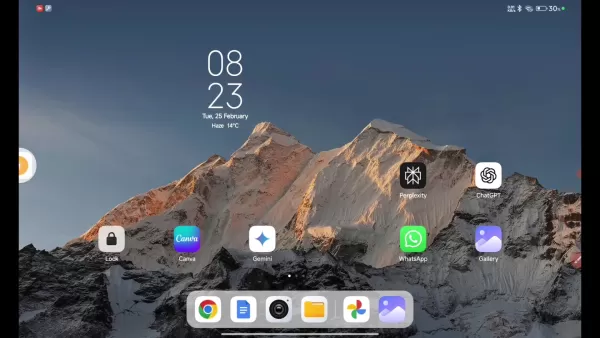
Designed for accessibility, these tools make professional-grade editing available to everyone, regardless of expertise. By harnessing artificial intelligence, Google Photos automates complex tasks like adjusting lighting, enhancing colors, and removing distractions, which would typically require advanced software.
In addition to AI automation, Google Photos offers manual tools for precise control over elements like brightness, contrast, and saturation, allowing you to achieve your desired aesthetic. Whether you seek subtle refinements or bold transformations, Google Photos provides the versatility to bring your vision to life.
Moreover, Google Photos includes a variety of filters to instantly stylize your images. These filters evoke distinct moods, from vintage charm to modern vibrancy, letting you experiment with diverse aesthetics. With these options, you can enhance the emotional impact of your photos effortlessly.
In essence, Google Photos combines AI automation with manual precision to deliver a seamless editing experience. This blend empowers both novice and experienced users to create stunning, professional-quality images. With these AI-driven tips, your photos can shine in just a few simple steps.
AI-Powered Features: Dynamic, Portrait, and Enhance
Google Photos offers a suite of AI enhancements to instantly elevate your images. Explore the Dynamic, Portrait, and Enhance tools for quick, impactful results.
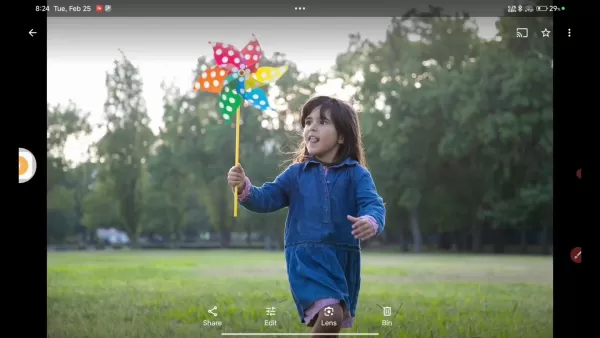
Dynamic
The Dynamic tool intelligently optimizes lighting and color balance, enhancing details and vibrancy with a single tap. Ideal for photos taken in challenging conditions, like dim indoor settings or overcast days, it subtly refines the image for a polished look.
Portrait
For portraits, the Portrait tool sharpens focus on the subject by softly blurring the background, creating a professional depth-of-field effect. Adjust the blur intensity to achieve the perfect balance, keeping the subject prominent against distractions.
Enhance
The Enhance feature automatically improves clarity, color, and overall appeal, offering a one-tap solution for quick touch-ups. It’s perfect for images needing subtle corrections, addressing issues you might not even notice.
Color Pop and Creative Effects
The Color Pop feature converts the background to black and white while preserving the subject’s colors, creating a striking, dramatic effect.
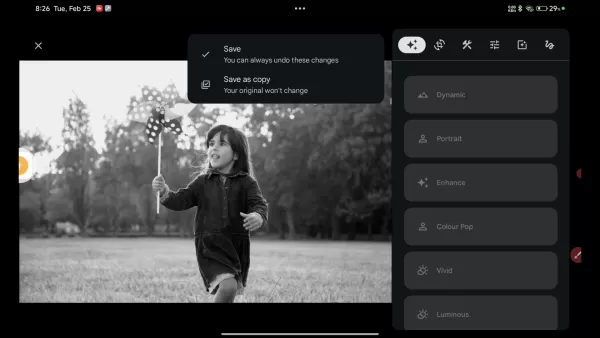
This tool draws attention to the focal point of your image, making it stand out vividly.
Beyond Color Pop, Google Photos offers a range of filters and effects to spark creativity. From black-and-white classics to vibrant modern styles, experiment to find the perfect look for your photos.
With Color Pop and other effects, you can infuse personality and visual flair into your images, turning them into captivating works of art. The possibilities are vast, limited only by your imagination.
Manual Adjustments for Precision Editing
While AI tools offer quick fixes, manual adjustments provide detailed control over your photo’s appearance. Google Photos supports tweaks to brightness, contrast, HDR effect, white point, highlights, shadows, black point, saturation, warmth, tint, skin tone, blue tone, pop, sharpen, denoise, and vignette, letting you craft your images exactly as envisioned.
Here’s a breakdown of each adjustment:
- Brightness: Control the photo’s overall lightness or darkness.
- Contrast: Adjust the difference between light and dark areas for added depth.
- HDR Effect: Enhance details in shadows and highlights for a high dynamic range look.
- White Point: Fine-tune color balance by adjusting the white point.
- Highlights: Modify the brightness of the brightest areas.
- Shadows: Adjust the brightness of darker areas.
- Black Point: Alter the black point to shift color dynamics.
- Saturation: Intensify or mute color vibrancy.
- Warmth: Shift tones toward warm (yellow) or cool (blue) hues.
- Tint: Add subtle green or magenta casts.
- Skin Tone: Refine skin tones for natural results.
- Blue Tone: Adjust the overall blue hue.
- Pop: Amplify colors for a vibrant effect.
- Sharpen: Enhance image clarity and detail.
- Denoise: Reduce noise for cleaner images.
- Vignette: Create a focal point with a subtle framing effect.
Step-by-Step Guide to Editing in Google Photos
Step 1: Select Your Photo
Open the Google Photos app and choose the image you want to edit from your library.
Step 2: Access Editing Options
Tap the 'Edit' icon at the bottom of the screen.
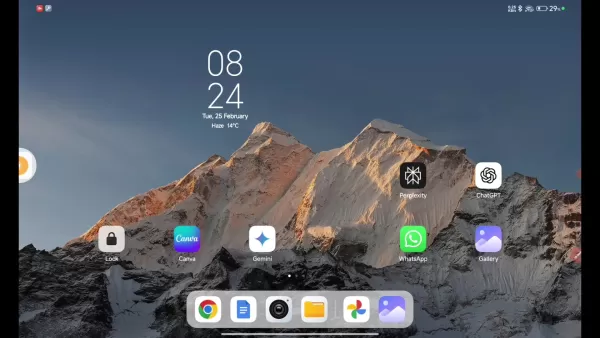
This reveals a suite of editing tools.
- Automatic Adjustments: Use 'Enhance,' 'Dynamic,' or 'Portrait' for instant AI improvements.
- Manual Adjustments: Tweak brightness, contrast, and saturation for precise control.
- Filters: Apply creative styles to transform your image.
Step 3: Apply AI Enhancements
Explore AI suggestions at the bottom of the screen. Tap 'Dynamic' or 'Portrait' to preview and apply instant enhancements that make your photos pop.
Step 4: Fine-Tune with Manual Adjustments
For greater control, use sliders to adjust brightness, contrast, highlights, shadows, and more, tailoring the image to your preferences.
- Brightness Slider: Modify overall light levels.
- Contrast Slider: Adjust the contrast for a bolder look.
- Highlight Slider: Fine-tune bright areas.
- Shadow Slider: Enhance or soften darker areas.
Explore additional tools for further customization.
Step 5: Save Your Work
When satisfied, tap 'Save copy' to preserve your edits, keeping the original photo intact.
Pros and Cons of Google Photos Editing
Pros
Intuitive, user-friendly interface.
AI-driven tools for fast enhancements.
Free and available across multiple devices.
Automatic backup and sync capabilities.
Magic Eraser for seamless object removal.
Cons
Fewer advanced features compared to specialized software.
Some tools require a Google One subscription.
M-agic Eraser may not match competitors’ precision.
Reliance on cloud storage.
Frequently Asked Questions
Are Google Photos’ editing tools free?
Most editing features are free, though some advanced tools may require a Google One subscription.
Can I undo edits and revert to the original photo?
Yes, Google Photos saves edited versions separately or allows you to undo changes, preserving the original.
Does Google Photos support RAW image editing?
Limited RAW editing is available, but dedicated software is better for extensive RAW processing.
How does the Magic Eraser function?
Magic Eraser uses AI to detect and remove unwanted objects or people, blending the background naturally.
Related Questions
What are top alternatives to Google Photos for editing?
Alternatives like Adobe Photoshop Express, PicsArt, Snapseed, VSCO, and Fotor offer robust photo editing features.
Can I edit videos in Google Photos?
Google Photos provides basic video editing tools, such as trimming, stabilization, and filters, though less comprehensive than its photo editing suite.
How can I improve old or low-quality photos?
Use the 'Enhance' tool, adjust brightness and contrast manually, and apply sharpening to revitalize old or low-quality images.
Related article
 Suno to Watermark Songs Amid Legal Battles
Suno, the platform enabling users to generate AI-created music, has unveiled new features to label platform-produced tracks, restrict downloads, and update community standards to curb unauthorized replicas. These updates arrive as Suno confronts mult
Musk Admits Grok Build Leaked User Code, Promises to Erase All Historical Data
Elon Musk directly addressed the privacy controversy surrounding Grok Build, beginning with a simple "True" to confirm the incident's validity. He pledged that all user data previously uploaded to SpaceXAI would be permanently erased, stating, "not a
U.S. Stocks Hit Historic Milestone as AI and Aerospace Giants Prepare for Trillion-Dollar Debut
Elon Musk, Sam Altman, and Dario Amodei, three titans of the technology sector, are advancing toward initial public offerings for their respective ventures. With SpaceX, OpenAI, and Anthropic—three industry behemoths nearing trillion-dollar valuation
Related Special Topic Recommendations
SEO
Suno to Watermark Songs Amid Legal Battles
Suno, the platform enabling users to generate AI-created music, has unveiled new features to label platform-produced tracks, restrict downloads, and update community standards to curb unauthorized replicas. These updates arrive as Suno confronts mult
Musk Admits Grok Build Leaked User Code, Promises to Erase All Historical Data
Elon Musk directly addressed the privacy controversy surrounding Grok Build, beginning with a simple "True" to confirm the incident's validity. He pledged that all user data previously uploaded to SpaceXAI would be permanently erased, stating, "not a
U.S. Stocks Hit Historic Milestone as AI and Aerospace Giants Prepare for Trillion-Dollar Debut
Elon Musk, Sam Altman, and Dario Amodei, three titans of the technology sector, are advancing toward initial public offerings for their respective ventures. With SpaceX, OpenAI, and Anthropic—three industry behemoths nearing trillion-dollar valuation
Related Special Topic Recommendations
SEO
 Best AI SERP Analysis Tools for Search Strategy
2026 Latest Best Top-rated AI SERP Analysis Tools for Search Strategy are curated by XIX.AI through rigorous real-world tests and weekly updated rankings. These powerful tools help you unlock hidden optimization opportunities, boost content performance, and gain a competitive edge in search. Discover your perfect tool to elevate your search strategy today. Explore now!
 13 tools
 xix.ai
Data Analysis
Best AI Anomaly Detection Tools for KPI Monitoring across SaaS and Ecommerce Teams
xix.ai
Data Analysis
Best AI Anomaly Detection Tools for KPI Monitoring across SaaS and Ecommerce Teams
2026 Latest Best Top-rated AI Anomaly Detection Tools for KPI Monitoring in SaaS and Ecommerce teams! XIX.AI has curated a powerful, game-changing collection based on rigorous real-world tests and weekly updated rankings. You’ll find detailed free vs paid comparison insights to help you identify the must-try solution that boosts productivity and unlocks your AI edge. Explore now!
10 tools
xix.ai
writing
Best AI Outline Generators for Long-Form SEO Articles
2026 Latest Best Top-Rated AI Outline Generators for Long-Form SEO Articles, meticulously curated by XIX.AI. These powerful tools offer game-changing assistance in creating high-quality content quickly, boosting writing efficiency significantly. Get a free vs paid comparison along with real-world tests and detailed rankings to help you find the must-try option that suits your needs. Explore now to unlock your AI edge.
8 tools
xix.ai
Education and Learning
AI Study Tools for Homework and Exam Prep
2026 Latest Best AI Study Tools for Homework and Exam Prep! XIX.AI curates a top-rated list of powerful, game-changing tools that help students boost productivity, streamline homework completion, and ace exams through real-world tests. Get a free vs paid comparison, detailed rankings, and must-try options to unlock your AI edge. Explore now!
10 tools
xix.ai
Music composition
AI Vocal Demo Tools for Songwriters, Hooks, Toplines, and Multilingual Draft Sessions
2026 Latest Best AI Vocal Demo Tools for Songwriters, Hook Creators, and Multi-Language Content Teams! XIX.AI has curated a top-rated list of powerful game-changing tools that go through rigorous real-world tests. You’ll find detailed free vs paid comparison data, comprehensive rankings, and must-try options to help you boost writing efficiency and unlock your creative potential. Explore now to discover your perfect tool for all your content needs!
9 tools
xix.ai
Business
Best AI Competitive Research Tools for Small Businesses
2026 Latest Best Top-rated AI Competitive Research Tools for Small Businesses! XIX.AI has curated a highly powerful game-changing collection, updated weekly with rigorous real-world tests and detailed rankings. You can find a comprehensive free vs paid comparison to help you identify the must-try tools that boost your productivity and give you a competitive edge. Explore now to discover your perfect tool!
9 tools
xix.ai

 Comments (5)
0/500
Comments (5)
0/500
![NicholasNelson]()
原來Google相簿的AI編輯這麼強大!之前都只用來備份照片,沒想到自動調色和修復老照片功能這麼好用,尤其是那個魔術橡皮擦,簡直是救星啊~下次旅行照片終於可以輕鬆處理了😌
![PeterSanchez]()
Je ne me doutais pas que Google Photos cachait autant de fonctionnalités intelligentes ! Ce guide est très utile, surtout le truc pour améliorer les vieilles photos 👍 Ça fait vraiment du bien de pouvoir retoucher mes souvenirs sans avoir besoin d'Photoshop compliqué. Bon, après, ça donne encore plus de pouvoir à Google sur nos photos perso... un peu flippant quand même 😅
![JeffreyClark]()
Wait, is it just me or does everyone treat Google Photos like a glorified iCloud Drive? Those AI tools are low-key powerful—especially the 'Magic Eraser' for clearing photobombers. Still creeped out that Google knows EXACTLY how to brighten my uncle’s shady BBQ pics though 😬
![MarkScott]()
How have I been using Google Photos for years but totally missed these AI editing features? 😲 Just tried the 'Color Pop' on my vacation pics and it's like magic! The auto-enhance actually does a decent job compared to other apps I've tried. Though I wonder if Google's collecting more data from our editing choices... 🤔
![JohnRoberts]()
Google Photos' AI tools are a game-changer! I tried the background blur and it made my pics look pro-level. Anyone else obsessed with these edits? 😍
Google Photos excels in photo storage and organization, yet its AI-powered editing features often remain underutilized. This guide uncovers the hidden capabilities of Google Photos, showcasing tools that make enhancing images effortless. From refining portraits to erasing unwanted objects, discover how Google Photos can elevate your snapshots into captivating visuals. Unlock a new level of creativity and transform your photos with these expert AI editing tips designed for everyday users.
Key Highlights
Discover the AI-driven editing tools in Google Photos.
Improve portraits with portrait light and blur effects.
Eliminate distractions using the Magic Eraser.
Transform skies with the Sky Replacement feature.
Enhance visuals with selective color focus.
Fine-tune brightness, contrast, and other settings manually.
Apply creative filters to stylize your images.
Transform Your Photos with Google Photos' AI Tools
Why Google Photos Stands Out for Editing
Google Photos delivers powerful AI-driven editing tools that simplify sophisticated image enhancements. Often overlooked, these features can significantly elevate your photos’ quality and appeal with minimal effort. More than just a storage platform, it’s an intuitive, pocket-sized photo editor. While many users overlook Google Photos, its features are regularly updated to rival competitors. Learn how to enhance your images in just a few clicks.
Designed for accessibility, these tools make professional-grade editing available to everyone, regardless of expertise. By harnessing artificial intelligence, Google Photos automates complex tasks like adjusting lighting, enhancing colors, and removing distractions, which would typically require advanced software.
In addition to AI automation, Google Photos offers manual tools for precise control over elements like brightness, contrast, and saturation, allowing you to achieve your desired aesthetic. Whether you seek subtle refinements or bold transformations, Google Photos provides the versatility to bring your vision to life.
Moreover, Google Photos includes a variety of filters to instantly stylize your images. These filters evoke distinct moods, from vintage charm to modern vibrancy, letting you experiment with diverse aesthetics. With these options, you can enhance the emotional impact of your photos effortlessly.
In essence, Google Photos combines AI automation with manual precision to deliver a seamless editing experience. This blend empowers both novice and experienced users to create stunning, professional-quality images. With these AI-driven tips, your photos can shine in just a few simple steps.
AI-Powered Features: Dynamic, Portrait, and Enhance
Google Photos offers a suite of AI enhancements to instantly elevate your images. Explore the Dynamic, Portrait, and Enhance tools for quick, impactful results.
Dynamic
The Dynamic tool intelligently optimizes lighting and color balance, enhancing details and vibrancy with a single tap. Ideal for photos taken in challenging conditions, like dim indoor settings or overcast days, it subtly refines the image for a polished look.
Portrait
For portraits, the Portrait tool sharpens focus on the subject by softly blurring the background, creating a professional depth-of-field effect. Adjust the blur intensity to achieve the perfect balance, keeping the subject prominent against distractions.
Enhance
The Enhance feature automatically improves clarity, color, and overall appeal, offering a one-tap solution for quick touch-ups. It’s perfect for images needing subtle corrections, addressing issues you might not even notice.
Color Pop and Creative Effects
The Color Pop feature converts the background to black and white while preserving the subject’s colors, creating a striking, dramatic effect.
This tool draws attention to the focal point of your image, making it stand out vividly.
Beyond Color Pop, Google Photos offers a range of filters and effects to spark creativity. From black-and-white classics to vibrant modern styles, experiment to find the perfect look for your photos.
With Color Pop and other effects, you can infuse personality and visual flair into your images, turning them into captivating works of art. The possibilities are vast, limited only by your imagination.
Manual Adjustments for Precision Editing
While AI tools offer quick fixes, manual adjustments provide detailed control over your photo’s appearance. Google Photos supports tweaks to brightness, contrast, HDR effect, white point, highlights, shadows, black point, saturation, warmth, tint, skin tone, blue tone, pop, sharpen, denoise, and vignette, letting you craft your images exactly as envisioned.
Here’s a breakdown of each adjustment:
- Brightness: Control the photo’s overall lightness or darkness.
- Contrast: Adjust the difference between light and dark areas for added depth.
- HDR Effect: Enhance details in shadows and highlights for a high dynamic range look.
- White Point: Fine-tune color balance by adjusting the white point.
- Highlights: Modify the brightness of the brightest areas.
- Shadows: Adjust the brightness of darker areas.
- Black Point: Alter the black point to shift color dynamics.
- Saturation: Intensify or mute color vibrancy.
- Warmth: Shift tones toward warm (yellow) or cool (blue) hues.
- Tint: Add subtle green or magenta casts.
- Skin Tone: Refine skin tones for natural results.
- Blue Tone: Adjust the overall blue hue.
- Pop: Amplify colors for a vibrant effect.
- Sharpen: Enhance image clarity and detail.
- Denoise: Reduce noise for cleaner images.
- Vignette: Create a focal point with a subtle framing effect.
Step-by-Step Guide to Editing in Google Photos
Step 1: Select Your Photo
Open the Google Photos app and choose the image you want to edit from your library.
Step 2: Access Editing Options
Tap the 'Edit' icon at the bottom of the screen.
This reveals a suite of editing tools.
- Automatic Adjustments: Use 'Enhance,' 'Dynamic,' or 'Portrait' for instant AI improvements.
- Manual Adjustments: Tweak brightness, contrast, and saturation for precise control.
- Filters: Apply creative styles to transform your image.
Step 3: Apply AI Enhancements
Explore AI suggestions at the bottom of the screen. Tap 'Dynamic' or 'Portrait' to preview and apply instant enhancements that make your photos pop.
Step 4: Fine-Tune with Manual Adjustments
For greater control, use sliders to adjust brightness, contrast, highlights, shadows, and more, tailoring the image to your preferences.
- Brightness Slider: Modify overall light levels.
- Contrast Slider: Adjust the contrast for a bolder look.
- Highlight Slider: Fine-tune bright areas.
- Shadow Slider: Enhance or soften darker areas.
Explore additional tools for further customization.
Step 5: Save Your Work
When satisfied, tap 'Save copy' to preserve your edits, keeping the original photo intact.
Pros and Cons of Google Photos Editing
Pros
Intuitive, user-friendly interface.
AI-driven tools for fast enhancements.
Free and available across multiple devices.
Automatic backup and sync capabilities.
Magic Eraser for seamless object removal.
Cons
Fewer advanced features compared to specialized software.
Some tools require a Google One subscription.
M-agic Eraser may not match competitors’ precision.
Reliance on cloud storage.
Frequently Asked Questions
Are Google Photos’ editing tools free?
Most editing features are free, though some advanced tools may require a Google One subscription.
Can I undo edits and revert to the original photo?
Yes, Google Photos saves edited versions separately or allows you to undo changes, preserving the original.
Does Google Photos support RAW image editing?
Limited RAW editing is available, but dedicated software is better for extensive RAW processing.
How does the Magic Eraser function?
Magic Eraser uses AI to detect and remove unwanted objects or people, blending the background naturally.
Related Questions
What are top alternatives to Google Photos for editing?
Alternatives like Adobe Photoshop Express, PicsArt, Snapseed, VSCO, and Fotor offer robust photo editing features.
Can I edit videos in Google Photos?
Google Photos provides basic video editing tools, such as trimming, stabilization, and filters, though less comprehensive than its photo editing suite.
How can I improve old or low-quality photos?
Use the 'Enhance' tool, adjust brightness and contrast manually, and apply sharpening to revitalize old or low-quality images.








 Suno to Watermark Songs Amid Legal Battles
Suno, the platform enabling users to generate AI-created music, has unveiled new features to label platform-produced tracks, restrict downloads, and update community standards to curb unauthorized replicas. These updates arrive as Suno confronts mult
Suno to Watermark Songs Amid Legal Battles
Suno, the platform enabling users to generate AI-created music, has unveiled new features to label platform-produced tracks, restrict downloads, and update community standards to curb unauthorized replicas. These updates arrive as Suno confronts mult
 Musk Admits Grok Build Leaked User Code, Promises to Erase All Historical Data
Elon Musk directly addressed the privacy controversy surrounding Grok Build, beginning with a simple "True" to confirm the incident's validity. He pledged that all user data previously uploaded to SpaceXAI would be permanently erased, stating, "not a
Musk Admits Grok Build Leaked User Code, Promises to Erase All Historical Data
Elon Musk directly addressed the privacy controversy surrounding Grok Build, beginning with a simple "True" to confirm the incident's validity. He pledged that all user data previously uploaded to SpaceXAI would be permanently erased, stating, "not a
 U.S. Stocks Hit Historic Milestone as AI and Aerospace Giants Prepare for Trillion-Dollar Debut
Elon Musk, Sam Altman, and Dario Amodei, three titans of the technology sector, are advancing toward initial public offerings for their respective ventures. With SpaceX, OpenAI, and Anthropic—three industry behemoths nearing trillion-dollar valuation
U.S. Stocks Hit Historic Milestone as AI and Aerospace Giants Prepare for Trillion-Dollar Debut
Elon Musk, Sam Altman, and Dario Amodei, three titans of the technology sector, are advancing toward initial public offerings for their respective ventures. With SpaceX, OpenAI, and Anthropic—three industry behemoths nearing trillion-dollar valuation

2026 Latest Best Top-rated AI SERP Analysis Tools for Search Strategy are curated by XIX.AI through rigorous real-world tests and weekly updated rankings. These powerful tools help you unlock hidden optimization opportunities, boost content performance, and gain a competitive edge in search. Discover your perfect tool to elevate your search strategy today. Explore now!
13 tools
xix.ai

2026 Latest Best Top-rated AI Anomaly Detection Tools for KPI Monitoring in SaaS and Ecommerce teams! XIX.AI has curated a powerful, game-changing collection based on rigorous real-world tests and weekly updated rankings. You’ll find detailed free vs paid comparison insights to help you identify the must-try solution that boosts productivity and unlocks your AI edge. Explore now!
10 tools
xix.ai

2026 Latest Best Top-Rated AI Outline Generators for Long-Form SEO Articles, meticulously curated by XIX.AI. These powerful tools offer game-changing assistance in creating high-quality content quickly, boosting writing efficiency significantly. Get a free vs paid comparison along with real-world tests and detailed rankings to help you find the must-try option that suits your needs. Explore now to unlock your AI edge.
8 tools
xix.ai

2026 Latest Best AI Study Tools for Homework and Exam Prep! XIX.AI curates a top-rated list of powerful, game-changing tools that help students boost productivity, streamline homework completion, and ace exams through real-world tests. Get a free vs paid comparison, detailed rankings, and must-try options to unlock your AI edge. Explore now!
10 tools
xix.ai

2026 Latest Best AI Vocal Demo Tools for Songwriters, Hook Creators, and Multi-Language Content Teams! XIX.AI has curated a top-rated list of powerful game-changing tools that go through rigorous real-world tests. You’ll find detailed free vs paid comparison data, comprehensive rankings, and must-try options to help you boost writing efficiency and unlock your creative potential. Explore now to discover your perfect tool for all your content needs!
9 tools
xix.ai

2026 Latest Best Top-rated AI Competitive Research Tools for Small Businesses! XIX.AI has curated a highly powerful game-changing collection, updated weekly with rigorous real-world tests and detailed rankings. You can find a comprehensive free vs paid comparison to help you identify the must-try tools that boost your productivity and give you a competitive edge. Explore now to discover your perfect tool!
9 tools
xix.ai

原來Google相簿的AI編輯這麼強大!之前都只用來備份照片,沒想到自動調色和修復老照片功能這麼好用,尤其是那個魔術橡皮擦,簡直是救星啊~下次旅行照片終於可以輕鬆處理了😌
Je ne me doutais pas que Google Photos cachait autant de fonctionnalités intelligentes ! Ce guide est très utile, surtout le truc pour améliorer les vieilles photos 👍 Ça fait vraiment du bien de pouvoir retoucher mes souvenirs sans avoir besoin d'Photoshop compliqué. Bon, après, ça donne encore plus de pouvoir à Google sur nos photos perso... un peu flippant quand même 😅
Wait, is it just me or does everyone treat Google Photos like a glorified iCloud Drive? Those AI tools are low-key powerful—especially the 'Magic Eraser' for clearing photobombers. Still creeped out that Google knows EXACTLY how to brighten my uncle’s shady BBQ pics though 😬
How have I been using Google Photos for years but totally missed these AI editing features? 😲 Just tried the 'Color Pop' on my vacation pics and it's like magic! The auto-enhance actually does a decent job compared to other apps I've tried. Though I wonder if Google's collecting more data from our editing choices... 🤔
Google Photos' AI tools are a game-changer! I tried the background blur and it made my pics look pro-level. Anyone else obsessed with these edits? 😍












