


 Home
HomeHitPaw Photo Enhancer Uses AI to Maximize Image Quality
In today's digital world, high-quality images are essential. Whether you're a professional photographer or just looking to improve your personal photos, the right tools can significantly elevate your results. HitPaw Photo Enhancer is an AI-powered tool that upscales, denoises, and colorizes your photos, enhancing their clarity and detail to bring them to life. This article explores its features, benefits, and practical uses, demonstrating how to maximize this innovative photo enhancement software. Learn how HitPaw can transform your images, ensuring they look their absolute best for any purpose.
Key Points
HitPaw Photo Enhancer utilizes artificial intelligence to automatically improve image quality.
The software delivers outstanding upscaling results while preserving quality.
It features a simple, intuitive interface that's easy to use.
HitPaw supports multiple languages to cater to a global audience.
Users can preview all enhancements free of watermarks.
Batch processing enables efficient editing of multiple photos.
The application works fully offline, guaranteeing privacy and user convenience.
It includes four dedicated AI models: General, Denoise, Face, and Colorize.
Introduction to HitPaw Photo Enhancer
What is HitPaw Photo Enhancer?
HitPaw Photo Enhancer is an AI-powered software designed to elevate the quality of your photographs. Its suite of features includes upscaling, denoising, face enhancement, and colorization. Built with a user-friendly design, the tool is accessible to novices and experienced users alike. Unlike many web-based services, HitPaw operates offline, offering a secure and convenient method for image enhancement. Powered by advanced AI algorithms, it can dramatically improve the clarity, detail, and overall visual appeal of your photos. This makes it an invaluable resource for restoring cherished old memories or simply upgrading your digital image collection.
Specializing in AI technology, HitPaw aims to deliver effective tools for everyone. The AI Photo Enhancer is compatible with both Windows and macOS and offers one-click automatic enhancement. It effortlessly reduces blur and removes noise from pictures. Furthermore, it allows you to enlarge and upscale images without any loss in quality.
Key Features of HitPaw Photo Enhancer
HitPaw Photo Enhancer is equipped with a comprehensive set of features to address diverse photo enhancement requirements. These include:
- AI Auto Enhancement: Instantly improves image quality with a single click.
- Superior Upscaling: Increases image resolution while maintaining fine details.
- Denoising: Effectively reduces noise and grain in photographs.
- Face Enhancement: Optimizes facial details in portrait photos.
- Colorization: Adds vibrant, realistic color to black and white images.
- Batch Processing: Allows simultaneous editing of numerous photos.
- Offline Functionality: Operates without an internet connection, ensuring data privacy.
- Multi-Language Support: Available in several languages for users worldwide.
- Preview Without Watermark: Enables users to review changes without any watermark
.
This robust feature set makes HitPaw Photo Enhancer a versatile solution for anyone seeking to improve their photo quality. Whether you're restoring vintage family pictures or polishing images for social media, HitPaw provides the necessary tools.
Maximizing Efficiency with HitPaw Photo Enhancer
Batch Processing for Enhanced Productivity
HitPaw Photo Enhancer excels at handling large volumes of images. The batch processing feature allows you to enhance multiple photos at once, saving significant time and effort. Follow these steps to utilize it effectively:
- Import Multiple Photos: Select and import an entire batch of images into the software, rather than adding them individually.
- Apply Settings: Choose your preferred AI model and configure the settings. These adjustments will apply to all selected photos in the batch.
- Batch Preview: Preview the effects on a few sample images to ensure the settings work well for the entire group.
- Export All: Once satisfied, click export, and HitPaw will automatically process and save all the enhanced photos. This feature is especially beneficial for photographers managing large sets of images from events or professional shoots.
How to Use HitPaw Photo Enhancer
Step-by-Step Guide to Enhancing Your Photos
Using HitPaw Photo Enhancer is a simple process. Follow this step-by-step guide:
Installation: Visit the official HitPaw Photo Enhancer website to download the installer. Run the installer and follow the on-screen instructions to complete setup.

Import Photos: Launch the software and import the photo you wish to enhance.
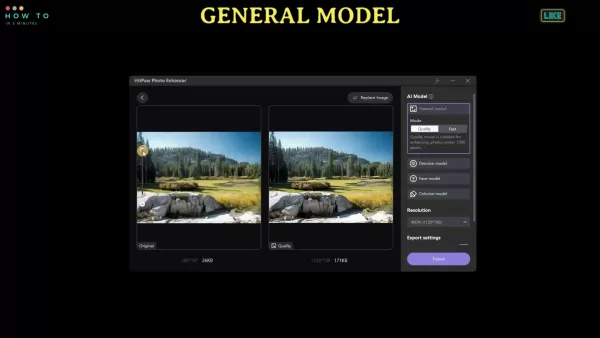
Choose AI Model: Select the most suitable AI model for your task: General, Denoise, Face, or Colorize.
Adjust Settings: Fine-tune parameters like resolution and quality according to your preferences.
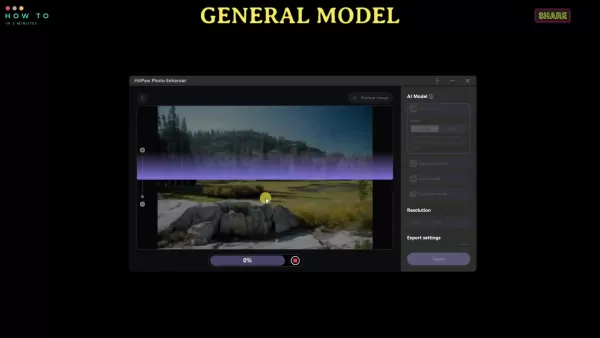
Preview: Click the preview button to compare the original and enhanced versions.
Export: If happy with the result, click export to save your newly enhanced photo. To begin enhancing or upscaling, click the 'Choose file' button. You can also use the built-in sample photos.
Understanding HitPaw Photo Enhancer Pricing
Affordable Options for Every User
HitPaw Photo Enhancer provides flexible pricing plans to accommodate different needs and budgets. A free trial is available with limited features. To access the software's full capabilities, a subscription is required. Here is an overview of the available plans:
Plan Price Features Monthly Plan $17.99 Unlimited access to all AI models and features for one month. Yearly Plan $39.99 Unlimited access to all AI models and features for one year. Lifetime Plan $69.99 One-time payment for lifetime access to all AI models and features.
These options offer great flexibility, letting you choose the plan that best matches your usage patterns and budget. Whether you need a short-term solution or a permanent tool, HitPaw has a suitable plan.
50% Off Discount: The video references a 50% discount available via a link in the description. Check for current promotions to secure savings on your purchase.
Weighing the Pros and Cons of HitPaw Photo Enhancer
Pros
Intuitive, user-friendly interface
Outstanding image upscaling capabilities
Powerful noise reduction
Realistic photo colorization
Fully functional offline mode
Batch processing for improved workflow efficiency
Cons
Requires a subscription for full feature access
Processing speed can be slow for very large images
AI enhancement may not produce perfect results for every single image
Detailed Exploration of HitPaw's Core Features
AI-Powered Enhancement Models
HitPaw Photo Enhancer includes multiple specialized AI models for different enhancement tasks. Here is a closer look at each one:
- General Model: Best for overall image improvement, boosting clarity and detail.
- Denoise Model: Targets and reduces noise in photos taken in low light or with high ISO settings, delivering cleaner results.
- Face Model: Tailored for portraits, it enhances facial details and smooths imperfections.
- Colorize Model: Applies realistic colors to black and white photographs, reviving historical images.
This model is excellent for restoring old photos and making them vibrant.
Frequently Asked Questions About HitPaw Photo Enhancer
Is HitPaw Photo Enhancer free to use?
HitPaw Photo Enhancer offers a free trial with limited features. To unlock all capabilities and AI models, a paid subscription is required.
Does HitPaw Photo Enhancer work offline?
Yes, HitPaw Photo Enhancer functions completely offline, safeguarding your privacy and offering added convenience.
Can I enhance multiple photos at once?
Yes, the software supports batch processing, allowing you to enhance numerous photos at the same time.
What AI models are available in HitPaw Photo Enhancer?
HitPaw Photo Enhancer provides four AI models: the General Model, Denoise Model, Face Model, and Colorize Model.
Is HitPaw Photo Enhancer available for Mac?
Yes, HitPaw Photo Enhancer is compatible with both Windows and macOS operating systems.
Where can I find discount for HitPaw Photo Enhancer?
Discounts may be available on the official HitPaw website, its social media channels, or through partner sites. You can search for terms like "HitPaw coupon" on search engines such as Google.
Related Questions
What are the system requirements for HitPaw Photo Enhancer?
The system requirements for HitPaw Photo Enhancer are as follows: Operating System: Windows 11/10/8/7 (64-bit) or macOS 10.13 and later. Processor: 1 GHz or faster. RAM: 2 GB or more. Disk Space: 200 MB of available storage. Meeting these requirements ensures the software runs smoothly on your computer. For the most current specifications, it's advisable to check the official HitPaw website.
Related article
 Swedish AI Startup Lovable Eyes $13.2 Billion Valuation After Major Funding Round
As AI-driven coding tools gain traction, Swedish startup Lovable has secured a major funding round. The company aims to raise $3 billion, potentially boosting its valuation to $13.2 billion—double the $6.6 billion recorded last December. Menlo Ventur
Google Tests Remy AI Agent for Gemini as Focus Shifts to User Control
According to Business Insider, Google is testing Remy, a new AI personal agent for Gemini. This tool aims to execute tasks on behalf of users, streamlining both professional workflows and daily routines.Currently, Remy is undergoing testing in an int
How to fix Core Web Vitals for better SEO rankings
Streamline Report Card Comments with AI ToolsIntroductionAI Tools for Generating Report Card CommentsMagic SchoolAlmanac AIChat GPTUsing Magic School to Generate Report Card CommentsLogging into Magic SchoolSelecting the Report Card Comments ToolCust
Related Special Topic Recommendations
writing
Swedish AI Startup Lovable Eyes $13.2 Billion Valuation After Major Funding Round
As AI-driven coding tools gain traction, Swedish startup Lovable has secured a major funding round. The company aims to raise $3 billion, potentially boosting its valuation to $13.2 billion—double the $6.6 billion recorded last December. Menlo Ventur
Google Tests Remy AI Agent for Gemini as Focus Shifts to User Control
According to Business Insider, Google is testing Remy, a new AI personal agent for Gemini. This tool aims to execute tasks on behalf of users, streamlining both professional workflows and daily routines.Currently, Remy is undergoing testing in an int
How to fix Core Web Vitals for better SEO rankings
Streamline Report Card Comments with AI ToolsIntroductionAI Tools for Generating Report Card CommentsMagic SchoolAlmanac AIChat GPTUsing Magic School to Generate Report Card CommentsLogging into Magic SchoolSelecting the Report Card Comments ToolCust
Related Special Topic Recommendations
writing
 Best AI Outline Generators for Long-Form SEO Articles
2026 Latest Best Top-Rated AI Outline Generators for Long-Form SEO Articles, meticulously curated by XIX.AI. These powerful tools offer game-changing assistance in creating high-quality content quickly, boosting writing efficiency significantly. Get a free vs paid comparison along with real-world tests and detailed rankings to help you find the must-try option that suits your needs. Explore now to unlock your AI edge.
 8 tools
 xix.ai
Education and Learning
AI Study Tools for Homework and Exam Prep
xix.ai
Education and Learning
AI Study Tools for Homework and Exam Prep
2026 Latest Best AI Study Tools for Homework and Exam Prep! XIX.AI curates a top-rated list of powerful, game-changing tools that help students boost productivity, streamline homework completion, and ace exams through real-world tests. Get a free vs paid comparison, detailed rankings, and must-try options to unlock your AI edge. Explore now!
10 tools
xix.ai
Music composition
AI Vocal Demo Tools for Songwriters, Hooks, Toplines, and Multilingual Draft Sessions
2026 Latest Best AI Vocal Demo Tools for Songwriters, Hook Creators, and Multi-Language Content Teams! XIX.AI has curated a top-rated list of powerful game-changing tools that go through rigorous real-world tests. You’ll find detailed free vs paid comparison data, comprehensive rankings, and must-try options to help you boost writing efficiency and unlock your creative potential. Explore now to discover your perfect tool for all your content needs!
9 tools
xix.ai
Business
Best AI Competitive Research Tools for Small Businesses
2026 Latest Best Top-rated AI Competitive Research Tools for Small Businesses! XIX.AI has curated a highly powerful game-changing collection, updated weekly with rigorous real-world tests and detailed rankings. You can find a comprehensive free vs paid comparison to help you identify the must-try tools that boost your productivity and give you a competitive edge. Explore now to discover your perfect tool!
9 tools
xix.ai
Image editing
Photoshop AI Retouch Tools for Ecommerce Apparel, Skin Cleanup, and Color Consistency
2026 Latest Best Photoshop AI retouch tools for ecommerce apparel, skin cleanup, and color consistency! This top-rated curated list features powerful game-changing solutions that help you boost writing efficiency, streamline content creation, and achieve perfect visual results effortlessly. Each tool has undergone real-world tests through weekly updated rankings, complete with free vs paid comparison details. Backed by XIX.AI, it’s the must-try guide for anyone aiming to unlock your AI edge. Explore now!
10 tools
xix.ai
Prompt
Best AI Prompt Libraries for ChatGPT Workflows
2026 Latest Best Top-Rated AI Prompt Libraries for optimizing all types of ChatGPT workflows. XIX.AI has curated a powerful, game-changing collection that goes through rigorous real-world tests to ensure top performance. You can find detailed free vs paid comparisons and expert rankings to help you choose the must-try tools that boost your productivity and unlock your AI edge. Explore now!
11 tools
xix.ai

 Comments (1)
0/500
Comments (1)
0/500
![AnthonyGonzalez]()
I've tried a few AI photo enhancers, and HitPaw seems promising. But I'm skeptical about how well it handles low-res images. Anyone tested it on old family photos? 🧐
In today's digital world, high-quality images are essential. Whether you're a professional photographer or just looking to improve your personal photos, the right tools can significantly elevate your results. HitPaw Photo Enhancer is an AI-powered tool that upscales, denoises, and colorizes your photos, enhancing their clarity and detail to bring them to life. This article explores its features, benefits, and practical uses, demonstrating how to maximize this innovative photo enhancement software. Learn how HitPaw can transform your images, ensuring they look their absolute best for any purpose.
Key Points
HitPaw Photo Enhancer utilizes artificial intelligence to automatically improve image quality.
The software delivers outstanding upscaling results while preserving quality.
It features a simple, intuitive interface that's easy to use.
HitPaw supports multiple languages to cater to a global audience.
Users can preview all enhancements free of watermarks.
Batch processing enables efficient editing of multiple photos.
The application works fully offline, guaranteeing privacy and user convenience.
It includes four dedicated AI models: General, Denoise, Face, and Colorize.
Introduction to HitPaw Photo Enhancer
What is HitPaw Photo Enhancer?
HitPaw Photo Enhancer is an AI-powered software designed to elevate the quality of your photographs. Its suite of features includes upscaling, denoising, face enhancement, and colorization. Built with a user-friendly design, the tool is accessible to novices and experienced users alike. Unlike many web-based services, HitPaw operates offline, offering a secure and convenient method for image enhancement. Powered by advanced AI algorithms, it can dramatically improve the clarity, detail, and overall visual appeal of your photos. This makes it an invaluable resource for restoring cherished old memories or simply upgrading your digital image collection.
Specializing in AI technology, HitPaw aims to deliver effective tools for everyone. The AI Photo Enhancer is compatible with both Windows and macOS and offers one-click automatic enhancement. It effortlessly reduces blur and removes noise from pictures. Furthermore, it allows you to enlarge and upscale images without any loss in quality.
Key Features of HitPaw Photo Enhancer
HitPaw Photo Enhancer is equipped with a comprehensive set of features to address diverse photo enhancement requirements. These include:
- AI Auto Enhancement: Instantly improves image quality with a single click.
- Superior Upscaling: Increases image resolution while maintaining fine details.
- Denoising: Effectively reduces noise and grain in photographs.
- Face Enhancement: Optimizes facial details in portrait photos.
- Colorization: Adds vibrant, realistic color to black and white images.
- Batch Processing: Allows simultaneous editing of numerous photos.
- Offline Functionality: Operates without an internet connection, ensuring data privacy.
- Multi-Language Support: Available in several languages for users worldwide.
- Preview Without Watermark: Enables users to review changes without any watermark
.
This robust feature set makes HitPaw Photo Enhancer a versatile solution for anyone seeking to improve their photo quality. Whether you're restoring vintage family pictures or polishing images for social media, HitPaw provides the necessary tools.
Maximizing Efficiency with HitPaw Photo Enhancer
Batch Processing for Enhanced Productivity
HitPaw Photo Enhancer excels at handling large volumes of images. The batch processing feature allows you to enhance multiple photos at once, saving significant time and effort. Follow these steps to utilize it effectively:
- Import Multiple Photos: Select and import an entire batch of images into the software, rather than adding them individually.
- Apply Settings: Choose your preferred AI model and configure the settings. These adjustments will apply to all selected photos in the batch.
- Batch Preview: Preview the effects on a few sample images to ensure the settings work well for the entire group.
- Export All: Once satisfied, click export, and HitPaw will automatically process and save all the enhanced photos. This feature is especially beneficial for photographers managing large sets of images from events or professional shoots.
How to Use HitPaw Photo Enhancer
Step-by-Step Guide to Enhancing Your Photos
Using HitPaw Photo Enhancer is a simple process. Follow this step-by-step guide:
Installation: Visit the official HitPaw Photo Enhancer website to download the installer. Run the installer and follow the on-screen instructions to complete setup.
Import Photos: Launch the software and import the photo you wish to enhance.
Choose AI Model: Select the most suitable AI model for your task: General, Denoise, Face, or Colorize.
Adjust Settings: Fine-tune parameters like resolution and quality according to your preferences.
Preview: Click the preview button to compare the original and enhanced versions.
Export: If happy with the result, click export to save your newly enhanced photo. To begin enhancing or upscaling, click the 'Choose file' button. You can also use the built-in sample photos.
Understanding HitPaw Photo Enhancer Pricing
Affordable Options for Every User
HitPaw Photo Enhancer provides flexible pricing plans to accommodate different needs and budgets. A free trial is available with limited features. To access the software's full capabilities, a subscription is required. Here is an overview of the available plans:
| Plan | Price | Features |
|---|---|---|
| Monthly Plan | $17.99 | Unlimited access to all AI models and features for one month. |
| Yearly Plan | $39.99 | Unlimited access to all AI models and features for one year. |
| Lifetime Plan | $69.99 | One-time payment for lifetime access to all AI models and features. |
These options offer great flexibility, letting you choose the plan that best matches your usage patterns and budget. Whether you need a short-term solution or a permanent tool, HitPaw has a suitable plan.
50% Off Discount: The video references a 50% discount available via a link in the description. Check for current promotions to secure savings on your purchase.
Weighing the Pros and Cons of HitPaw Photo Enhancer
Pros
Intuitive, user-friendly interface
Outstanding image upscaling capabilities
Powerful noise reduction
Realistic photo colorization
Fully functional offline mode
Batch processing for improved workflow efficiency
Cons
Requires a subscription for full feature access
Processing speed can be slow for very large images
AI enhancement may not produce perfect results for every single image
Detailed Exploration of HitPaw's Core Features
AI-Powered Enhancement Models
HitPaw Photo Enhancer includes multiple specialized AI models for different enhancement tasks. Here is a closer look at each one:
- General Model: Best for overall image improvement, boosting clarity and detail.
- Denoise Model: Targets and reduces noise in photos taken in low light or with high ISO settings, delivering cleaner results.
- Face Model: Tailored for portraits, it enhances facial details and smooths imperfections.
- Colorize Model: Applies realistic colors to black and white photographs, reviving historical images.
This model is excellent for restoring old photos and making them vibrant.
Frequently Asked Questions About HitPaw Photo Enhancer
Is HitPaw Photo Enhancer free to use?
HitPaw Photo Enhancer offers a free trial with limited features. To unlock all capabilities and AI models, a paid subscription is required.
Does HitPaw Photo Enhancer work offline?
Yes, HitPaw Photo Enhancer functions completely offline, safeguarding your privacy and offering added convenience.
Can I enhance multiple photos at once?
Yes, the software supports batch processing, allowing you to enhance numerous photos at the same time.
What AI models are available in HitPaw Photo Enhancer?
HitPaw Photo Enhancer provides four AI models: the General Model, Denoise Model, Face Model, and Colorize Model.
Is HitPaw Photo Enhancer available for Mac?
Yes, HitPaw Photo Enhancer is compatible with both Windows and macOS operating systems.
Where can I find discount for HitPaw Photo Enhancer?
Discounts may be available on the official HitPaw website, its social media channels, or through partner sites. You can search for terms like "HitPaw coupon" on search engines such as Google.
Related Questions
What are the system requirements for HitPaw Photo Enhancer?
The system requirements for HitPaw Photo Enhancer are as follows: Operating System: Windows 11/10/8/7 (64-bit) or macOS 10.13 and later. Processor: 1 GHz or faster. RAM: 2 GB or more. Disk Space: 200 MB of available storage. Meeting these requirements ensures the software runs smoothly on your computer. For the most current specifications, it's advisable to check the official HitPaw website.








 Swedish AI Startup Lovable Eyes $13.2 Billion Valuation After Major Funding Round
As AI-driven coding tools gain traction, Swedish startup Lovable has secured a major funding round. The company aims to raise $3 billion, potentially boosting its valuation to $13.2 billion—double the $6.6 billion recorded last December. Menlo Ventur
Google Tests Remy AI Agent for Gemini as Focus Shifts to User Control
According to Business Insider, Google is testing Remy, a new AI personal agent for Gemini. This tool aims to execute tasks on behalf of users, streamlining both professional workflows and daily routines.Currently, Remy is undergoing testing in an int
Swedish AI Startup Lovable Eyes $13.2 Billion Valuation After Major Funding Round
As AI-driven coding tools gain traction, Swedish startup Lovable has secured a major funding round. The company aims to raise $3 billion, potentially boosting its valuation to $13.2 billion—double the $6.6 billion recorded last December. Menlo Ventur
Google Tests Remy AI Agent for Gemini as Focus Shifts to User Control
According to Business Insider, Google is testing Remy, a new AI personal agent for Gemini. This tool aims to execute tasks on behalf of users, streamlining both professional workflows and daily routines.Currently, Remy is undergoing testing in an int
 How to fix Core Web Vitals for better SEO rankings
Streamline Report Card Comments with AI ToolsIntroductionAI Tools for Generating Report Card CommentsMagic SchoolAlmanac AIChat GPTUsing Magic School to Generate Report Card CommentsLogging into Magic SchoolSelecting the Report Card Comments ToolCust
How to fix Core Web Vitals for better SEO rankings
Streamline Report Card Comments with AI ToolsIntroductionAI Tools for Generating Report Card CommentsMagic SchoolAlmanac AIChat GPTUsing Magic School to Generate Report Card CommentsLogging into Magic SchoolSelecting the Report Card Comments ToolCust

2026 Latest Best Top-Rated AI Outline Generators for Long-Form SEO Articles, meticulously curated by XIX.AI. These powerful tools offer game-changing assistance in creating high-quality content quickly, boosting writing efficiency significantly. Get a free vs paid comparison along with real-world tests and detailed rankings to help you find the must-try option that suits your needs. Explore now to unlock your AI edge.
8 tools
xix.ai

2026 Latest Best AI Study Tools for Homework and Exam Prep! XIX.AI curates a top-rated list of powerful, game-changing tools that help students boost productivity, streamline homework completion, and ace exams through real-world tests. Get a free vs paid comparison, detailed rankings, and must-try options to unlock your AI edge. Explore now!
10 tools
xix.ai

2026 Latest Best AI Vocal Demo Tools for Songwriters, Hook Creators, and Multi-Language Content Teams! XIX.AI has curated a top-rated list of powerful game-changing tools that go through rigorous real-world tests. You’ll find detailed free vs paid comparison data, comprehensive rankings, and must-try options to help you boost writing efficiency and unlock your creative potential. Explore now to discover your perfect tool for all your content needs!
9 tools
xix.ai

2026 Latest Best Top-rated AI Competitive Research Tools for Small Businesses! XIX.AI has curated a highly powerful game-changing collection, updated weekly with rigorous real-world tests and detailed rankings. You can find a comprehensive free vs paid comparison to help you identify the must-try tools that boost your productivity and give you a competitive edge. Explore now to discover your perfect tool!
9 tools
xix.ai

2026 Latest Best Photoshop AI retouch tools for ecommerce apparel, skin cleanup, and color consistency! This top-rated curated list features powerful game-changing solutions that help you boost writing efficiency, streamline content creation, and achieve perfect visual results effortlessly. Each tool has undergone real-world tests through weekly updated rankings, complete with free vs paid comparison details. Backed by XIX.AI, it’s the must-try guide for anyone aiming to unlock your AI edge. Explore now!
10 tools
xix.ai
2026 Latest Best Top-Rated AI Prompt Libraries for optimizing all types of ChatGPT workflows. XIX.AI has curated a powerful, game-changing collection that goes through rigorous real-world tests to ensure top performance. You can find detailed free vs paid comparisons and expert rankings to help you choose the must-try tools that boost your productivity and unlock your AI edge. Explore now!
11 tools
xix.ai

I've tried a few AI photo enhancers, and HitPaw seems promising. But I'm skeptical about how well it handles low-res images. Anyone tested it on old family photos? 🧐












