


 Home
HomeGemini AI Integration with Google Sheets: In-Depth Review
Supercharge Your Google Sheets with Gemini AI: A Game-Changer for Data Analysis
Google Sheets has long been a go-to tool for organizing data, crunching numbers, and collaborating on projects. But now, with Gemini AI integration, it’s evolving into something even more powerful—an intelligent assistant that can automate tasks, generate insights, and simplify complex analysis.
Whether you're a spreadsheet pro or just getting started, Gemini AI can save time, reduce errors, and uncover hidden patterns in your data. In this guide, we’ll explore:
✅ What Gemini AI brings to Google Sheets
✅ Real-world examples of AI-powered automation
✅ Step-by-step instructions for using Gemini AI
✅ Pricing, pros & cons, and key features
Let’s dive in!
What is Gemini AI?
Gemini AI is Google’s latest large language model (LLM), designed to understand and process text, images, audio, and even code. Its integration into Google Workspace—including Google Sheets—means you can now ask it questions, generate formulas, and analyze data in plain English.
How Does It Enhance Google Sheets?
🔹 Smart Formula Creation – No more memorizing complex functions! Just describe what you need, and Gemini AI writes the formula for you.
🔹 Data Optimization – It spots errors, suggests improvements, and helps clean up messy spreadsheets.
🔹 Automated Summaries – Quickly extract key insights from large datasets.
🔹 Cost-Saving Insights – Identifies unnecessary expenses and suggests budget-friendly alternatives.
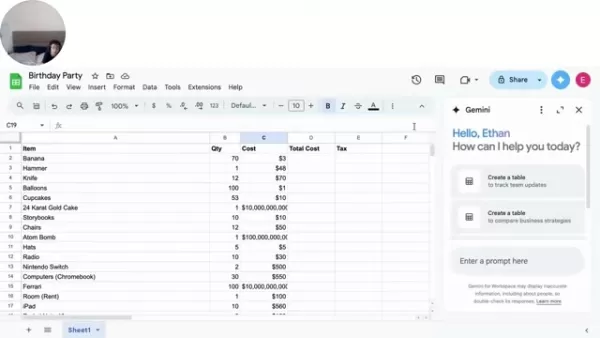
Gemini AI transforms Google Sheets from a simple spreadsheet into an intelligent data assistant.
Real-World Examples: Gemini AI in Action
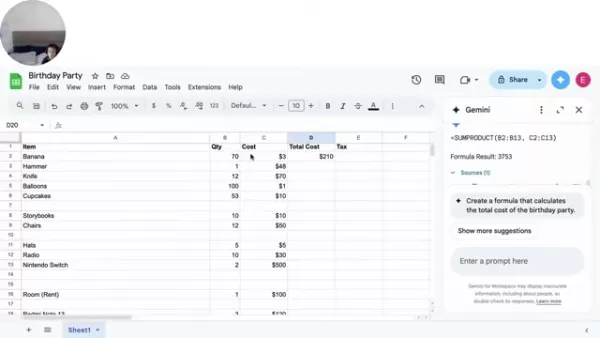
1. Birthday Party Budgeting
Imagine planning a party and tracking expenses in Google Sheets. With Gemini AI, you can:
✔ Calculate Total Costs – Just type "Multiply quantity by cost for each item", and it generates the formula (=B2*C2).
✔ Find Cost-Cutting Opportunities – Ask "What items can we remove to save money?" and it flags unnecessary expenses (like a Ferrari or 24K gold cake).
✔ Summarize Data – Request "Summarize this file", and it instantly provides a breakdown of sales, totals, and averages.
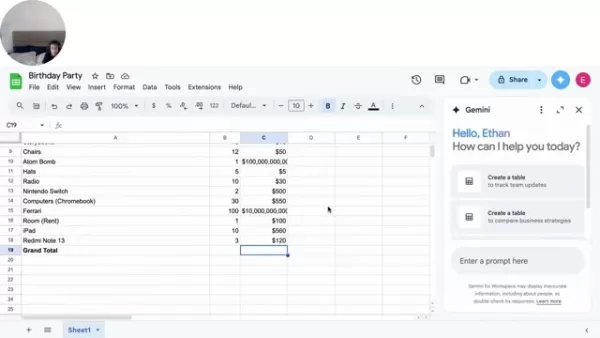
Gemini AI helps optimize spending—so you don’t accidentally budget for an atom bomb in your party plans.
2. Sales Data Analysis
If you’re tracking product sales, Gemini AI can:
✔ Calculate revenue (=Units Sold * Price)
✔ Highlight top-performing products
✔ Predict future trends based on past data
How to Use Gemini AI in Google Sheets
Step 1: Enable Gemini AI
- Open Google Sheets.
- Go to Extensions > Gemini AI (or check your Google Workspace settings).
Step 2: Generate Formulas with AI
- Select a cell where you want the result.
- Type a prompt like "Calculate total revenue".
- Review the suggested formula (
=SUM(D2:D10)). - Hit Apply.
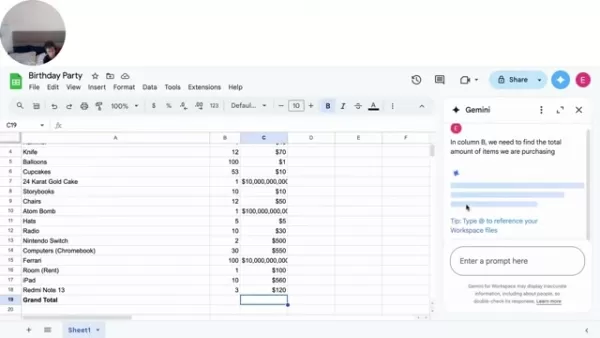
No more guessing formulas—just ask Gemini AI!
Step 3: Optimize & Clean Data
- Highlight your data range.
- Ask "Are there any errors in this data?"
- Gemini AI flags duplicates, missing values, or inconsistencies.
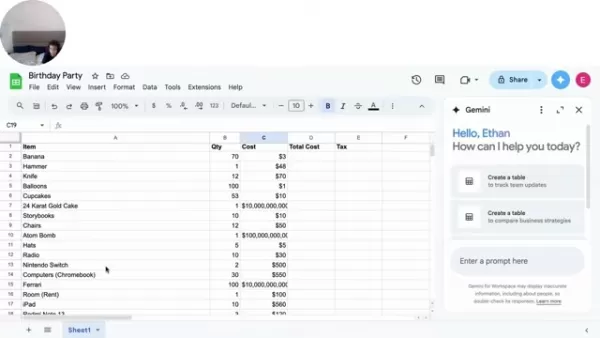
Step 4: Get Cost-Saving Suggestions
- Select expense columns.
- Type "Where can we cut costs?"
- It highlights unnecessary or overpriced items.
Pricing & Availability
Gemini AI is available in paid Google Workspace plans, with limited features in the free version.
Plan AI Features Free Basic formula help Business Standard/Plus Advanced AI insights Enterprise Full AI integration
Check Google’s latest pricing for details.
Pros & Cons of Gemini AI in Google Sheets
✅ Pros
✔ Saves time – No more manual formula writing.
✔ Reduces errors – AI catches mistakes you might miss.
✔ Makes data analysis accessible – Even beginners can get insights.
❌ Cons
✖ Requires a paid plan for full features.
✖ Not 100% accurate – Always double-check AI suggestions.
✖ Privacy concerns – Some businesses may hesitate to upload sensitive data.
Final Verdict: Should You Use Gemini AI?
If you work with data daily, Gemini AI is a game-changer. It makes Google Sheets smarter, faster, and more intuitive—whether you're budgeting, analyzing sales, or managing projects.
Try it out and see how much time you can save!
Got Questions?
Drop them in the comments, or join our Discord for more tips on AI-powered productivity! 🚀
Related article
 How to fix Core Web Vitals for better SEO rankings
Streamline Report Card Comments with AI ToolsIntroductionAI Tools for Generating Report Card CommentsMagic SchoolAlmanac AIChat GPTUsing Magic School to Generate Report Card CommentsLogging into Magic SchoolSelecting the Report Card Comments ToolCust
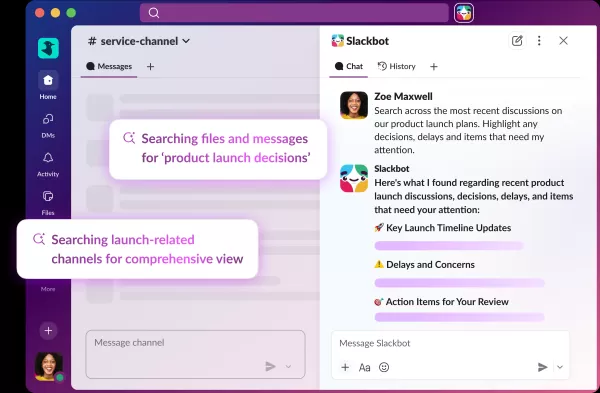
Slackbot Becomes an AI Agent
Slackbot, the automated assistant embedded in Salesforce’s corporate messaging platform Slack, is evolving into an AI agent. Salesforce CTO Parker Harris envisions it achieving viral status comparable to OpenAI’s ChatGPT.The cloud software giant laun
ByteDance Boosts Core AI Incentives as Doubao Surges 14.6%
ByteDance recently convened a DouBao equity briefing to unveil fresh incentive policies for staff involved in the DouBao division. The strike price for DouBao shares has been lifted from $14.85 in June 2026 to $17.02, marking an approximate 14.6% inc
Related Special Topic Recommendations
writing
How to fix Core Web Vitals for better SEO rankings
Streamline Report Card Comments with AI ToolsIntroductionAI Tools for Generating Report Card CommentsMagic SchoolAlmanac AIChat GPTUsing Magic School to Generate Report Card CommentsLogging into Magic SchoolSelecting the Report Card Comments ToolCust
Slackbot Becomes an AI Agent
Slackbot, the automated assistant embedded in Salesforce’s corporate messaging platform Slack, is evolving into an AI agent. Salesforce CTO Parker Harris envisions it achieving viral status comparable to OpenAI’s ChatGPT.The cloud software giant laun
ByteDance Boosts Core AI Incentives as Doubao Surges 14.6%
ByteDance recently convened a DouBao equity briefing to unveil fresh incentive policies for staff involved in the DouBao division. The strike price for DouBao shares has been lifted from $14.85 in June 2026 to $17.02, marking an approximate 14.6% inc
Related Special Topic Recommendations
writing
 Best AI Outline Generators for Long-Form SEO Articles
2026 Latest Best Top-Rated AI Outline Generators for Long-Form SEO Articles, meticulously curated by XIX.AI. These powerful tools offer game-changing assistance in creating high-quality content quickly, boosting writing efficiency significantly. Get a free vs paid comparison along with real-world tests and detailed rankings to help you find the must-try option that suits your needs. Explore now to unlock your AI edge.
 8 tools
 xix.ai
Education and Learning
AI Study Tools for Homework and Exam Prep
xix.ai
Education and Learning
AI Study Tools for Homework and Exam Prep
2026 Latest Best AI Study Tools for Homework and Exam Prep! XIX.AI curates a top-rated list of powerful, game-changing tools that help students boost productivity, streamline homework completion, and ace exams through real-world tests. Get a free vs paid comparison, detailed rankings, and must-try options to unlock your AI edge. Explore now!
10 tools
xix.ai
Music composition
AI Vocal Demo Tools for Songwriters, Hooks, Toplines, and Multilingual Draft Sessions
2026 Latest Best AI Vocal Demo Tools for Songwriters, Hook Creators, and Multi-Language Content Teams! XIX.AI has curated a top-rated list of powerful game-changing tools that go through rigorous real-world tests. You’ll find detailed free vs paid comparison data, comprehensive rankings, and must-try options to help you boost writing efficiency and unlock your creative potential. Explore now to discover your perfect tool for all your content needs!
9 tools
xix.ai
Business
Best AI Competitive Research Tools for Small Businesses
2026 Latest Best Top-rated AI Competitive Research Tools for Small Businesses! XIX.AI has curated a highly powerful game-changing collection, updated weekly with rigorous real-world tests and detailed rankings. You can find a comprehensive free vs paid comparison to help you identify the must-try tools that boost your productivity and give you a competitive edge. Explore now to discover your perfect tool!
9 tools
xix.ai
Image editing
Photoshop AI Retouch Tools for Ecommerce Apparel, Skin Cleanup, and Color Consistency
2026 Latest Best Photoshop AI retouch tools for ecommerce apparel, skin cleanup, and color consistency! This top-rated curated list features powerful game-changing solutions that help you boost writing efficiency, streamline content creation, and achieve perfect visual results effortlessly. Each tool has undergone real-world tests through weekly updated rankings, complete with free vs paid comparison details. Backed by XIX.AI, it’s the must-try guide for anyone aiming to unlock your AI edge. Explore now!
10 tools
xix.ai
Prompt
Best AI Prompt Libraries for ChatGPT Workflows
2026 Latest Best Top-Rated AI Prompt Libraries for optimizing all types of ChatGPT workflows. XIX.AI has curated a powerful, game-changing collection that goes through rigorous real-world tests to ensure top performance. You can find detailed free vs paid comparisons and expert rankings to help you choose the must-try tools that boost your productivity and unlock your AI edge. Explore now!
11 tools
xix.ai

 Comments (1)
0/500
Comments (1)
0/500
![HarryLewis]()
GoogleスプレッドシートにAI統合か…これで深夜の帳簿作業から解放されるかも?でもAIが間違った数値を生成したら逆に地獄になりそうで怖い 😅 まずは簡単なタスクで試してみるのが良さそう
Supercharge Your Google Sheets with Gemini AI: A Game-Changer for Data Analysis
Google Sheets has long been a go-to tool for organizing data, crunching numbers, and collaborating on projects. But now, with Gemini AI integration, it’s evolving into something even more powerful—an intelligent assistant that can automate tasks, generate insights, and simplify complex analysis.
Whether you're a spreadsheet pro or just getting started, Gemini AI can save time, reduce errors, and uncover hidden patterns in your data. In this guide, we’ll explore:
✅ What Gemini AI brings to Google Sheets
✅ Real-world examples of AI-powered automation
✅ Step-by-step instructions for using Gemini AI
✅ Pricing, pros & cons, and key features
Let’s dive in!
What is Gemini AI?
Gemini AI is Google’s latest large language model (LLM), designed to understand and process text, images, audio, and even code. Its integration into Google Workspace—including Google Sheets—means you can now ask it questions, generate formulas, and analyze data in plain English.
How Does It Enhance Google Sheets?
🔹 Smart Formula Creation – No more memorizing complex functions! Just describe what you need, and Gemini AI writes the formula for you.
🔹 Data Optimization – It spots errors, suggests improvements, and helps clean up messy spreadsheets.
🔹 Automated Summaries – Quickly extract key insights from large datasets.
🔹 Cost-Saving Insights – Identifies unnecessary expenses and suggests budget-friendly alternatives.
Gemini AI transforms Google Sheets from a simple spreadsheet into an intelligent data assistant.
Real-World Examples: Gemini AI in Action
1. Birthday Party Budgeting
Imagine planning a party and tracking expenses in Google Sheets. With Gemini AI, you can:
✔ Calculate Total Costs – Just type "Multiply quantity by cost for each item", and it generates the formula (=B2*C2).
✔ Find Cost-Cutting Opportunities – Ask "What items can we remove to save money?" and it flags unnecessary expenses (like a Ferrari or 24K gold cake).
✔ Summarize Data – Request "Summarize this file", and it instantly provides a breakdown of sales, totals, and averages.
Gemini AI helps optimize spending—so you don’t accidentally budget for an atom bomb in your party plans.
2. Sales Data Analysis
If you’re tracking product sales, Gemini AI can:
✔ Calculate revenue (=Units Sold * Price)
✔ Highlight top-performing products
✔ Predict future trends based on past data
How to Use Gemini AI in Google Sheets
Step 1: Enable Gemini AI
- Open Google Sheets.
- Go to Extensions > Gemini AI (or check your Google Workspace settings).
Step 2: Generate Formulas with AI
- Select a cell where you want the result.
- Type a prompt like "Calculate total revenue".
- Review the suggested formula (
=SUM(D2:D10)). - Hit Apply.
No more guessing formulas—just ask Gemini AI!
Step 3: Optimize & Clean Data
- Highlight your data range.
- Ask "Are there any errors in this data?"
- Gemini AI flags duplicates, missing values, or inconsistencies.
Step 4: Get Cost-Saving Suggestions
- Select expense columns.
- Type "Where can we cut costs?"
- It highlights unnecessary or overpriced items.
Pricing & Availability
Gemini AI is available in paid Google Workspace plans, with limited features in the free version.
| Plan | AI Features |
|---|---|
| Free | Basic formula help |
| Business Standard/Plus | Advanced AI insights |
| Enterprise | Full AI integration |
Check Google’s latest pricing for details.
Pros & Cons of Gemini AI in Google Sheets
✅ Pros
✔ Saves time – No more manual formula writing.
✔ Reduces errors – AI catches mistakes you might miss.
✔ Makes data analysis accessible – Even beginners can get insights.
❌ Cons
✖ Requires a paid plan for full features.
✖ Not 100% accurate – Always double-check AI suggestions.
✖ Privacy concerns – Some businesses may hesitate to upload sensitive data.
Final Verdict: Should You Use Gemini AI?
If you work with data daily, Gemini AI is a game-changer. It makes Google Sheets smarter, faster, and more intuitive—whether you're budgeting, analyzing sales, or managing projects.
Try it out and see how much time you can save!
Got Questions?
Drop them in the comments, or join our Discord for more tips on AI-powered productivity! 🚀








 How to fix Core Web Vitals for better SEO rankings
Streamline Report Card Comments with AI ToolsIntroductionAI Tools for Generating Report Card CommentsMagic SchoolAlmanac AIChat GPTUsing Magic School to Generate Report Card CommentsLogging into Magic SchoolSelecting the Report Card Comments ToolCust
How to fix Core Web Vitals for better SEO rankings
Streamline Report Card Comments with AI ToolsIntroductionAI Tools for Generating Report Card CommentsMagic SchoolAlmanac AIChat GPTUsing Magic School to Generate Report Card CommentsLogging into Magic SchoolSelecting the Report Card Comments ToolCust
 Slackbot Becomes an AI Agent
Slackbot, the automated assistant embedded in Salesforce’s corporate messaging platform Slack, is evolving into an AI agent. Salesforce CTO Parker Harris envisions it achieving viral status comparable to OpenAI’s ChatGPT.The cloud software giant laun
Slackbot Becomes an AI Agent
Slackbot, the automated assistant embedded in Salesforce’s corporate messaging platform Slack, is evolving into an AI agent. Salesforce CTO Parker Harris envisions it achieving viral status comparable to OpenAI’s ChatGPT.The cloud software giant laun
 ByteDance Boosts Core AI Incentives as Doubao Surges 14.6%
ByteDance recently convened a DouBao equity briefing to unveil fresh incentive policies for staff involved in the DouBao division. The strike price for DouBao shares has been lifted from $14.85 in June 2026 to $17.02, marking an approximate 14.6% inc
ByteDance Boosts Core AI Incentives as Doubao Surges 14.6%
ByteDance recently convened a DouBao equity briefing to unveil fresh incentive policies for staff involved in the DouBao division. The strike price for DouBao shares has been lifted from $14.85 in June 2026 to $17.02, marking an approximate 14.6% inc

2026 Latest Best Top-Rated AI Outline Generators for Long-Form SEO Articles, meticulously curated by XIX.AI. These powerful tools offer game-changing assistance in creating high-quality content quickly, boosting writing efficiency significantly. Get a free vs paid comparison along with real-world tests and detailed rankings to help you find the must-try option that suits your needs. Explore now to unlock your AI edge.
8 tools
xix.ai

2026 Latest Best AI Study Tools for Homework and Exam Prep! XIX.AI curates a top-rated list of powerful, game-changing tools that help students boost productivity, streamline homework completion, and ace exams through real-world tests. Get a free vs paid comparison, detailed rankings, and must-try options to unlock your AI edge. Explore now!
10 tools
xix.ai

2026 Latest Best AI Vocal Demo Tools for Songwriters, Hook Creators, and Multi-Language Content Teams! XIX.AI has curated a top-rated list of powerful game-changing tools that go through rigorous real-world tests. You’ll find detailed free vs paid comparison data, comprehensive rankings, and must-try options to help you boost writing efficiency and unlock your creative potential. Explore now to discover your perfect tool for all your content needs!
9 tools
xix.ai

2026 Latest Best Top-rated AI Competitive Research Tools for Small Businesses! XIX.AI has curated a highly powerful game-changing collection, updated weekly with rigorous real-world tests and detailed rankings. You can find a comprehensive free vs paid comparison to help you identify the must-try tools that boost your productivity and give you a competitive edge. Explore now to discover your perfect tool!
9 tools
xix.ai

2026 Latest Best Photoshop AI retouch tools for ecommerce apparel, skin cleanup, and color consistency! This top-rated curated list features powerful game-changing solutions that help you boost writing efficiency, streamline content creation, and achieve perfect visual results effortlessly. Each tool has undergone real-world tests through weekly updated rankings, complete with free vs paid comparison details. Backed by XIX.AI, it’s the must-try guide for anyone aiming to unlock your AI edge. Explore now!
10 tools
xix.ai

2026 Latest Best Top-Rated AI Prompt Libraries for optimizing all types of ChatGPT workflows. XIX.AI has curated a powerful, game-changing collection that goes through rigorous real-world tests to ensure top performance. You can find detailed free vs paid comparisons and expert rankings to help you choose the must-try tools that boost your productivity and unlock your AI edge. Explore now!
11 tools
xix.ai

GoogleスプレッドシートにAI統合か…これで深夜の帳簿作業から解放されるかも?でもAIが間違った数値を生成したら逆に地獄になりそうで怖い 😅 まずは簡単なタスクで試してみるのが良さそう












