


 Home
HomeElevate Your Images with HitPaw AI Photo Enhancer: A Comprehensive Guide
Want to transform your photo editing experience? Thanks to cutting-edge artificial intelligence, improving your images is now effortless. This detailed guide explores the HitPaw AI Photo Enhancer, an offline AI tool that automatically boosts image quality and resolution. Whether you're a seasoned photographer or an enthusiast looking to refine personal snapshots, the HitPaw AI Photo Enhancer delivers powerful features for stunning results.
Key Highlights
HitPaw AI Photo Enhancer is an AI-driven solution for Windows and Mac, crafted to elevate image quality.
It enhances images and resolution automatically with a single click.
The tool effectively minimizes blur and eliminates noise from photos.
It supports enlarging and upscaling images without compromising quality.
The enhancer offers various AI models, including General, Denoise, Face, and Colorize Models.
Getting Started with HitPaw AI Photo Enhancer
What is HitPaw AI Photo Enhancer?
HitPaw AI Photo Enhancer is a professional-grade, AI-powered tool designed to effortlessly improve photo quality and resolution. Operating offline, it prioritizes data privacy and security. Available for both Windows and Mac, it caters to a broad audience. Its advanced AI algorithms, trained on extensive datasets, excel at restoring details in blurry or low-quality images.
Core features of HitPaw AI Photo Enhancer include:
- One-click enhancement: Instantly improve image quality with minimal effort.
- AI-driven upscaling: Enlarge images while preserving clarity and detail.
- Noise reduction: Remove graininess, especially in low-light photos.
- Blur reduction: Sharpen images for crisp, clear details.
- Multiple AI models: Select from specialized models for tailored enhancements.
Installation Process
To begin enhancing photos, you’ll need to install HitPaw AI Photo Enhancer. The process is simple and intuitive.

Follow these steps:
- Visit the HitPaw Website: Navigate to the official HitPaw Photo Enhancer site using the link in the video description or a Google search.
- Download the Installer: Click the "Try It Free" button to download the installer file.
- Run the Installer: Open the downloaded file (photo-enhancer.exe) and follow the on-screen prompts.
- Accept the License Agreement: Review and agree to the HitPaw License Agreement to continue.
- Complete the Installation: Click "Install" and wait for the process to complete, including necessary components and AI models.
- Launch the Application: Click "Start" to open HitPaw AI Photo Enhancer.
If you have a serial key, activate it via the key button at the top of the application window. Without a serial key, explore discount offers for significant savings.
Enhancement Process Explained
How the AI Works
HitPaw AI Photo Enhancer leverages sophisticated AI algorithms trained on vast image datasets to analyze and enhance photos intelligently.
Here’s how each model functions:
- General Model: Enhances overall image aspects like sharpness, contrast, and detail.
- Denoise Model: Removes noise patterns while preserving key details, reducing graininess.
- Face Model: Detects faces and refines skin texture, removes blemishes, and sharpens features.
- Colorize Model: Adds realistic colors to black-and-white photos, revitalizing grayscale images.
Processing images locally ensures privacy and security while delivering high-quality results. Each model is optimized for ease of use, making professional-grade enhancement accessible to all.
How to Use the Different AI Models in HitPaw
Using the General Model
The General Model is ideal for broad image enhancement, improving clarity, sharpness, and overall quality across various photo types.
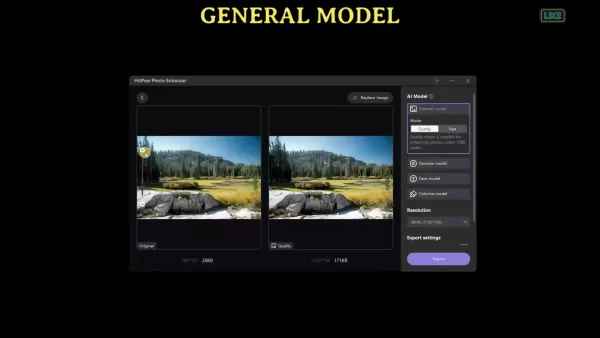
Steps to use the General Model:
- Open HitPaw AI Photo Enhancer: Launch the application post-installation.
- Choose Files: Click "Choose Files" or drag and drop your photo into the app.
- Select General Model: Ensure the "General Model" is selected in the AI Model section.
- Select Mode: Choose "Quality" for superior output or "Fast" for quicker results, ideal for photos under 1000 pixels.
- Adjust Resolution: Pick an upscaling resolution (200%, 400%, 600%, or 800%).
- Preview the Result: Click "Preview" to process the image, which may take a moment based on size and complexity.
- Compare Before and After: Use the slider to view original vs. enhanced images.
- Export the Enhanced Photo: Save the result by clicking "Export" to your chosen folder.
The General Model excels for landscapes and general detail enhancement, with the preview feature ensuring satisfaction before saving.
Using the Denoise Model
The Denoise Model targets noise removal, perfect for low-light or high-ISO images.
Steps to use the Denoise Model:
- Open HitPaw AI Photo Enhancer: Start the application.
- Choose Files: Select your photo via the "Choose Files" button.
- Select Denoise Model: Choose the "Denoise Model" in the AI Model section.
- Adjust Settings (Optional): The model works automatically, but resolution tweaks are available.
- Preview the Result: Click "Preview" to process the image.
- Compare Before and After: Use the slider to assess noise reduction.
- Export the Denoised Photo: Save the enhanced image by clicking "Export".
This model effectively reduces graininess, enhancing clarity in noisy images.
Using the Face Model
The Face Model specializes in portrait enhancement, smoothing blemishes and refining facial details for polished results.
Steps to use the Face Model:
- Open HitPaw AI Photo Enhancer: Launch the program.
- Choose Files: Select a portrait via the "Choose Files" button.
- Select Face Model: Choose the "Face Model" in the AI Model section.
- Select Mode: Opt for "Sharp" or "Soft" modes based on desired enhancement level.
- Adjust Resolution: Set your preferred upscaling resolution.
- Preview the Result: Click "Preview" to view enhancements.
- Compare and Export: Save the enhanced portrait by clicking "Export" if satisfied.
This model is perfect for refining skin texture and creating professional portraits.
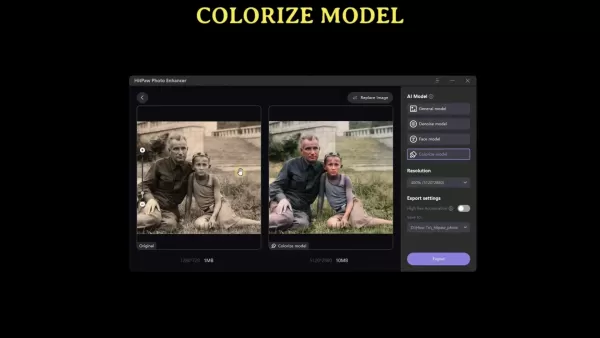
Using the Colorize Model
The Colorize Model revives black-and-white photos by adding vibrant, realistic colors.
Steps to use the Colorize Model:
- Open HitPaw AI Photo Enhancer: Start the application.
- Choose Files: Select a black-and-white photo.
- Select Colorize Model: Choose the "Colorize Model" in the AI Model section.
- Preview the Result: Click "Preview" to process the image.
- Export the Colorized Photo: Save the vibrant result by clicking "Export".
Ideal for family or historical photos, this model brings monochrome images to life.
Pricing
Cost and Subscription Options
HitPaw AI Photo Enhancer offers a free trial with limited features and paid subscriptions for full access to all models.
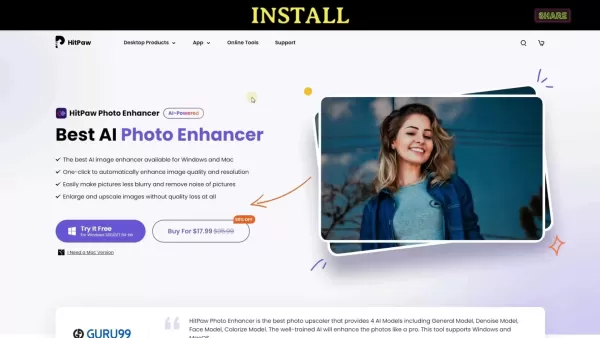
Purchase options are available at discounted rates. Visit the official website for current pricing and promotions, including a 50% discount offer, making it a cost-effective choice for advanced AI photo enhancement.
Plan Price Features Benefits Free Trial $0 Limited AI models, watermarked output Explore basic functionality Monthly Plan Check website Full access to all AI models Ideal for short-term use Annual Plan Check website Full access to all AI models Cost-effective for frequent use Lifetime Plan Check website Full access to all AI models One-time payment for unlimited access
Pros and Cons of HitPaw AI Photo Enhancer
Pros
Intuitive user interface
Powerful AI-driven enhancements
Offline processing for data privacy
Variety of AI models for specific needs
One-click image improvement
Cons
Limited features in the free trial
Processing large images may take time
Results depend on source image quality
Frequently Asked Questions
Is HitPaw AI Photo Enhancer user-friendly?
Yes, HitPaw AI Photo Enhancer features an intuitive interface, making it accessible for users of all skill levels. The one-click enhancement simplifies the process, and its diverse models cater to various editing needs.
Can HitPaw AI Photo Enhancer upscale images without quality loss?
Yes, its AI-powered upscaling algorithms add details to enlarged images, minimizing quality loss. However, results vary based on the original image’s clarity, with very blurry or low-resolution photos potentially retaining minor imperfections.
What images work best with the Colorize Model?
The Colorize Model excels with clear, high-contrast black-and-white photos, producing vibrant, realistic results. Faded or damaged images may yield less optimal outcomes.
Related Questions
What are the system requirements for HitPaw AI Photo Enhancer?
For smooth operation, ensure your system meets these minimum requirements: Operating System: Windows 10/8/7 (64-bit) or macOS 10.13 and later; Processor: Intel i3 or higher; RAM: 4GB or more; Graphics Card: NVIDIA GeForce GTX 600 or better; Disk Space: 200MB free for installation. A robust GPU speeds up AI processing, and regular driver updates optimize performance.
Related article
 Google Tests Remy AI Agent for Gemini as Focus Shifts to User Control
According to Business Insider, Google is testing Remy, a new AI personal agent for Gemini. This tool aims to execute tasks on behalf of users, streamlining both professional workflows and daily routines.Currently, Remy is undergoing testing in an int
How to fix Core Web Vitals for better SEO rankings
Streamline Report Card Comments with AI ToolsIntroductionAI Tools for Generating Report Card CommentsMagic SchoolAlmanac AIChat GPTUsing Magic School to Generate Report Card CommentsLogging into Magic SchoolSelecting the Report Card Comments ToolCust
Slackbot Becomes an AI Agent
Slackbot, the automated assistant embedded in Salesforce’s corporate messaging platform Slack, is evolving into an AI agent. Salesforce CTO Parker Harris envisions it achieving viral status comparable to OpenAI’s ChatGPT.The cloud software giant laun
Related Special Topic Recommendations
writing
Google Tests Remy AI Agent for Gemini as Focus Shifts to User Control
According to Business Insider, Google is testing Remy, a new AI personal agent for Gemini. This tool aims to execute tasks on behalf of users, streamlining both professional workflows and daily routines.Currently, Remy is undergoing testing in an int
How to fix Core Web Vitals for better SEO rankings
Streamline Report Card Comments with AI ToolsIntroductionAI Tools for Generating Report Card CommentsMagic SchoolAlmanac AIChat GPTUsing Magic School to Generate Report Card CommentsLogging into Magic SchoolSelecting the Report Card Comments ToolCust
Slackbot Becomes an AI Agent
Slackbot, the automated assistant embedded in Salesforce’s corporate messaging platform Slack, is evolving into an AI agent. Salesforce CTO Parker Harris envisions it achieving viral status comparable to OpenAI’s ChatGPT.The cloud software giant laun
Related Special Topic Recommendations
writing
 Best AI Outline Generators for Long-Form SEO Articles
2026 Latest Best Top-Rated AI Outline Generators for Long-Form SEO Articles, meticulously curated by XIX.AI. These powerful tools offer game-changing assistance in creating high-quality content quickly, boosting writing efficiency significantly. Get a free vs paid comparison along with real-world tests and detailed rankings to help you find the must-try option that suits your needs. Explore now to unlock your AI edge.
 8 tools
 xix.ai
Education and Learning
AI Study Tools for Homework and Exam Prep
xix.ai
Education and Learning
AI Study Tools for Homework and Exam Prep
2026 Latest Best AI Study Tools for Homework and Exam Prep! XIX.AI curates a top-rated list of powerful, game-changing tools that help students boost productivity, streamline homework completion, and ace exams through real-world tests. Get a free vs paid comparison, detailed rankings, and must-try options to unlock your AI edge. Explore now!
10 tools
xix.ai
Music composition
AI Vocal Demo Tools for Songwriters, Hooks, Toplines, and Multilingual Draft Sessions
2026 Latest Best AI Vocal Demo Tools for Songwriters, Hook Creators, and Multi-Language Content Teams! XIX.AI has curated a top-rated list of powerful game-changing tools that go through rigorous real-world tests. You’ll find detailed free vs paid comparison data, comprehensive rankings, and must-try options to help you boost writing efficiency and unlock your creative potential. Explore now to discover your perfect tool for all your content needs!
9 tools
xix.ai
Business
Best AI Competitive Research Tools for Small Businesses
2026 Latest Best Top-rated AI Competitive Research Tools for Small Businesses! XIX.AI has curated a highly powerful game-changing collection, updated weekly with rigorous real-world tests and detailed rankings. You can find a comprehensive free vs paid comparison to help you identify the must-try tools that boost your productivity and give you a competitive edge. Explore now to discover your perfect tool!
9 tools
xix.ai
Image editing
Photoshop AI Retouch Tools for Ecommerce Apparel, Skin Cleanup, and Color Consistency
2026 Latest Best Photoshop AI retouch tools for ecommerce apparel, skin cleanup, and color consistency! This top-rated curated list features powerful game-changing solutions that help you boost writing efficiency, streamline content creation, and achieve perfect visual results effortlessly. Each tool has undergone real-world tests through weekly updated rankings, complete with free vs paid comparison details. Backed by XIX.AI, it’s the must-try guide for anyone aiming to unlock your AI edge. Explore now!
10 tools
xix.ai
Prompt
Best AI Prompt Libraries for ChatGPT Workflows
2026 Latest Best Top-Rated AI Prompt Libraries for optimizing all types of ChatGPT workflows. XIX.AI has curated a powerful, game-changing collection that goes through rigorous real-world tests to ensure top performance. You can find detailed free vs paid comparisons and expert rankings to help you choose the must-try tools that boost your productivity and unlock your AI edge. Explore now!
11 tools
xix.ai

 Comments (4)
0/500
Comments (4)
0/500
![StevenAdams]()
Honestly, tried many AI enhancers and they often make faces look plastic. 😬 Hope this one's different. The guide seems helpful for beginners who just want a quick fix without diving into Photoshop.
![EricRoberts]()
사진 편집이 이렇게 쉬워질 줄이야! HitPaw AI 사진 보정기를 처음 봤는데, 진짜 '쉼표 없는 편집'이 가능해지겠네요. 하지만 이런 AI 도구가 너무 많아지면 나중에 '진짜 사진'과 'AI 보정 사진'의 경계가 흐려질까 봐 조금 걱정되기도 하네요. 🤔 그래도 지금 써보기엔 매력적인 툴인 것 같아요!
![JosephScott]()
Interesting guide, but I'm always a bit skeptical about 'one-click AI enhancer' claims. The sample images look promising, but how does it perform on really noisy low-light shots? Also, the subscription model for this type of tool is getting so common that it's hard to keep track. I'd probably try the free trial before committing. 🤔
![WillieRamirez]()
HitPaw scheint echt praktisch zu sein, aber ich frage mich, ob solche KI-Tools irgendwann unsere echten Erinnerungen verfälschen werden. Das ist ein bisschen unheimlich! 😅
Want to transform your photo editing experience? Thanks to cutting-edge artificial intelligence, improving your images is now effortless. This detailed guide explores the HitPaw AI Photo Enhancer, an offline AI tool that automatically boosts image quality and resolution. Whether you're a seasoned photographer or an enthusiast looking to refine personal snapshots, the HitPaw AI Photo Enhancer delivers powerful features for stunning results.
Key Highlights
HitPaw AI Photo Enhancer is an AI-driven solution for Windows and Mac, crafted to elevate image quality.
It enhances images and resolution automatically with a single click.
The tool effectively minimizes blur and eliminates noise from photos.
It supports enlarging and upscaling images without compromising quality.
The enhancer offers various AI models, including General, Denoise, Face, and Colorize Models.
Getting Started with HitPaw AI Photo Enhancer
What is HitPaw AI Photo Enhancer?
HitPaw AI Photo Enhancer is a professional-grade, AI-powered tool designed to effortlessly improve photo quality and resolution. Operating offline, it prioritizes data privacy and security. Available for both Windows and Mac, it caters to a broad audience. Its advanced AI algorithms, trained on extensive datasets, excel at restoring details in blurry or low-quality images.
Core features of HitPaw AI Photo Enhancer include:
- One-click enhancement: Instantly improve image quality with minimal effort.
- AI-driven upscaling: Enlarge images while preserving clarity and detail.
- Noise reduction: Remove graininess, especially in low-light photos.
- Blur reduction: Sharpen images for crisp, clear details.
- Multiple AI models: Select from specialized models for tailored enhancements.
Installation Process
To begin enhancing photos, you’ll need to install HitPaw AI Photo Enhancer. The process is simple and intuitive.
Follow these steps:
- Visit the HitPaw Website: Navigate to the official HitPaw Photo Enhancer site using the link in the video description or a Google search.
- Download the Installer: Click the "Try It Free" button to download the installer file.
- Run the Installer: Open the downloaded file (photo-enhancer.exe) and follow the on-screen prompts.
- Accept the License Agreement: Review and agree to the HitPaw License Agreement to continue.
- Complete the Installation: Click "Install" and wait for the process to complete, including necessary components and AI models.
- Launch the Application: Click "Start" to open HitPaw AI Photo Enhancer.
If you have a serial key, activate it via the key button at the top of the application window. Without a serial key, explore discount offers for significant savings.
Enhancement Process Explained
How the AI Works
HitPaw AI Photo Enhancer leverages sophisticated AI algorithms trained on vast image datasets to analyze and enhance photos intelligently.
Here’s how each model functions:
- General Model: Enhances overall image aspects like sharpness, contrast, and detail.
- Denoise Model: Removes noise patterns while preserving key details, reducing graininess.
- Face Model: Detects faces and refines skin texture, removes blemishes, and sharpens features.
- Colorize Model: Adds realistic colors to black-and-white photos, revitalizing grayscale images.
Processing images locally ensures privacy and security while delivering high-quality results. Each model is optimized for ease of use, making professional-grade enhancement accessible to all.
How to Use the Different AI Models in HitPaw
Using the General Model
The General Model is ideal for broad image enhancement, improving clarity, sharpness, and overall quality across various photo types.
Steps to use the General Model:
- Open HitPaw AI Photo Enhancer: Launch the application post-installation.
- Choose Files: Click "Choose Files" or drag and drop your photo into the app.
- Select General Model: Ensure the "General Model" is selected in the AI Model section.
- Select Mode: Choose "Quality" for superior output or "Fast" for quicker results, ideal for photos under 1000 pixels.
- Adjust Resolution: Pick an upscaling resolution (200%, 400%, 600%, or 800%).
- Preview the Result: Click "Preview" to process the image, which may take a moment based on size and complexity.
- Compare Before and After: Use the slider to view original vs. enhanced images.
- Export the Enhanced Photo: Save the result by clicking "Export" to your chosen folder.
The General Model excels for landscapes and general detail enhancement, with the preview feature ensuring satisfaction before saving.
Using the Denoise Model
The Denoise Model targets noise removal, perfect for low-light or high-ISO images.
Steps to use the Denoise Model:
- Open HitPaw AI Photo Enhancer: Start the application.
- Choose Files: Select your photo via the "Choose Files" button.
- Select Denoise Model: Choose the "Denoise Model" in the AI Model section.
- Adjust Settings (Optional): The model works automatically, but resolution tweaks are available.
- Preview the Result: Click "Preview" to process the image.
- Compare Before and After: Use the slider to assess noise reduction.
- Export the Denoised Photo: Save the enhanced image by clicking "Export".
This model effectively reduces graininess, enhancing clarity in noisy images.
Using the Face Model
The Face Model specializes in portrait enhancement, smoothing blemishes and refining facial details for polished results.
Steps to use the Face Model:
- Open HitPaw AI Photo Enhancer: Launch the program.
- Choose Files: Select a portrait via the "Choose Files" button.
- Select Face Model: Choose the "Face Model" in the AI Model section.
- Select Mode: Opt for "Sharp" or "Soft" modes based on desired enhancement level.
- Adjust Resolution: Set your preferred upscaling resolution.
- Preview the Result: Click "Preview" to view enhancements.
- Compare and Export: Save the enhanced portrait by clicking "Export" if satisfied.
This model is perfect for refining skin texture and creating professional portraits.
Using the Colorize Model
The Colorize Model revives black-and-white photos by adding vibrant, realistic colors.
Steps to use the Colorize Model:
- Open HitPaw AI Photo Enhancer: Start the application.
- Choose Files: Select a black-and-white photo.
- Select Colorize Model: Choose the "Colorize Model" in the AI Model section.
- Preview the Result: Click "Preview" to process the image.
- Export the Colorized Photo: Save the vibrant result by clicking "Export".
Ideal for family or historical photos, this model brings monochrome images to life.
Pricing
Cost and Subscription Options
HitPaw AI Photo Enhancer offers a free trial with limited features and paid subscriptions for full access to all models.
Purchase options are available at discounted rates. Visit the official website for current pricing and promotions, including a 50% discount offer, making it a cost-effective choice for advanced AI photo enhancement.
| Plan | Price | Features | Benefits |
|---|---|---|---|
| Free Trial | $0 | Limited AI models, watermarked output | Explore basic functionality |
| Monthly Plan | Check website | Full access to all AI models | Ideal for short-term use |
| Annual Plan | Check website | Full access to all AI models | Cost-effective for frequent use |
| Lifetime Plan | Check website | Full access to all AI models | One-time payment for unlimited access |
Pros and Cons of HitPaw AI Photo Enhancer
Pros
Intuitive user interface
Powerful AI-driven enhancements
Offline processing for data privacy
Variety of AI models for specific needs
One-click image improvement
Cons
Limited features in the free trial
Processing large images may take time
Results depend on source image quality
Frequently Asked Questions
Is HitPaw AI Photo Enhancer user-friendly?
Yes, HitPaw AI Photo Enhancer features an intuitive interface, making it accessible for users of all skill levels. The one-click enhancement simplifies the process, and its diverse models cater to various editing needs.
Can HitPaw AI Photo Enhancer upscale images without quality loss?
Yes, its AI-powered upscaling algorithms add details to enlarged images, minimizing quality loss. However, results vary based on the original image’s clarity, with very blurry or low-resolution photos potentially retaining minor imperfections.
What images work best with the Colorize Model?
The Colorize Model excels with clear, high-contrast black-and-white photos, producing vibrant, realistic results. Faded or damaged images may yield less optimal outcomes.
Related Questions
What are the system requirements for HitPaw AI Photo Enhancer?
For smooth operation, ensure your system meets these minimum requirements: Operating System: Windows 10/8/7 (64-bit) or macOS 10.13 and later; Processor: Intel i3 or higher; RAM: 4GB or more; Graphics Card: NVIDIA GeForce GTX 600 or better; Disk Space: 200MB free for installation. A robust GPU speeds up AI processing, and regular driver updates optimize performance.







 Google Tests Remy AI Agent for Gemini as Focus Shifts to User Control
According to Business Insider, Google is testing Remy, a new AI personal agent for Gemini. This tool aims to execute tasks on behalf of users, streamlining both professional workflows and daily routines.Currently, Remy is undergoing testing in an int
Google Tests Remy AI Agent for Gemini as Focus Shifts to User Control
According to Business Insider, Google is testing Remy, a new AI personal agent for Gemini. This tool aims to execute tasks on behalf of users, streamlining both professional workflows and daily routines.Currently, Remy is undergoing testing in an int
 How to fix Core Web Vitals for better SEO rankings
Streamline Report Card Comments with AI ToolsIntroductionAI Tools for Generating Report Card CommentsMagic SchoolAlmanac AIChat GPTUsing Magic School to Generate Report Card CommentsLogging into Magic SchoolSelecting the Report Card Comments ToolCust
How to fix Core Web Vitals for better SEO rankings
Streamline Report Card Comments with AI ToolsIntroductionAI Tools for Generating Report Card CommentsMagic SchoolAlmanac AIChat GPTUsing Magic School to Generate Report Card CommentsLogging into Magic SchoolSelecting the Report Card Comments ToolCust
 Slackbot Becomes an AI Agent
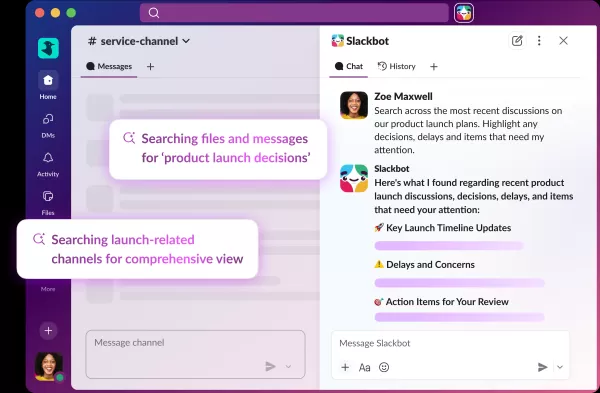
Slackbot, the automated assistant embedded in Salesforce’s corporate messaging platform Slack, is evolving into an AI agent. Salesforce CTO Parker Harris envisions it achieving viral status comparable to OpenAI’s ChatGPT.The cloud software giant laun
Slackbot Becomes an AI Agent
Slackbot, the automated assistant embedded in Salesforce’s corporate messaging platform Slack, is evolving into an AI agent. Salesforce CTO Parker Harris envisions it achieving viral status comparable to OpenAI’s ChatGPT.The cloud software giant laun

2026 Latest Best Top-Rated AI Outline Generators for Long-Form SEO Articles, meticulously curated by XIX.AI. These powerful tools offer game-changing assistance in creating high-quality content quickly, boosting writing efficiency significantly. Get a free vs paid comparison along with real-world tests and detailed rankings to help you find the must-try option that suits your needs. Explore now to unlock your AI edge.
8 tools
xix.ai

2026 Latest Best AI Study Tools for Homework and Exam Prep! XIX.AI curates a top-rated list of powerful, game-changing tools that help students boost productivity, streamline homework completion, and ace exams through real-world tests. Get a free vs paid comparison, detailed rankings, and must-try options to unlock your AI edge. Explore now!
10 tools
xix.ai

2026 Latest Best AI Vocal Demo Tools for Songwriters, Hook Creators, and Multi-Language Content Teams! XIX.AI has curated a top-rated list of powerful game-changing tools that go through rigorous real-world tests. You’ll find detailed free vs paid comparison data, comprehensive rankings, and must-try options to help you boost writing efficiency and unlock your creative potential. Explore now to discover your perfect tool for all your content needs!
9 tools
xix.ai

2026 Latest Best Top-rated AI Competitive Research Tools for Small Businesses! XIX.AI has curated a highly powerful game-changing collection, updated weekly with rigorous real-world tests and detailed rankings. You can find a comprehensive free vs paid comparison to help you identify the must-try tools that boost your productivity and give you a competitive edge. Explore now to discover your perfect tool!
9 tools
xix.ai

2026 Latest Best Photoshop AI retouch tools for ecommerce apparel, skin cleanup, and color consistency! This top-rated curated list features powerful game-changing solutions that help you boost writing efficiency, streamline content creation, and achieve perfect visual results effortlessly. Each tool has undergone real-world tests through weekly updated rankings, complete with free vs paid comparison details. Backed by XIX.AI, it’s the must-try guide for anyone aiming to unlock your AI edge. Explore now!
10 tools
xix.ai
2026 Latest Best Top-Rated AI Prompt Libraries for optimizing all types of ChatGPT workflows. XIX.AI has curated a powerful, game-changing collection that goes through rigorous real-world tests to ensure top performance. You can find detailed free vs paid comparisons and expert rankings to help you choose the must-try tools that boost your productivity and unlock your AI edge. Explore now!
11 tools
xix.ai

Honestly, tried many AI enhancers and they often make faces look plastic. 😬 Hope this one's different. The guide seems helpful for beginners who just want a quick fix without diving into Photoshop.
사진 편집이 이렇게 쉬워질 줄이야! HitPaw AI 사진 보정기를 처음 봤는데, 진짜 '쉼표 없는 편집'이 가능해지겠네요. 하지만 이런 AI 도구가 너무 많아지면 나중에 '진짜 사진'과 'AI 보정 사진'의 경계가 흐려질까 봐 조금 걱정되기도 하네요. 🤔 그래도 지금 써보기엔 매력적인 툴인 것 같아요!
Interesting guide, but I'm always a bit skeptical about 'one-click AI enhancer' claims. The sample images look promising, but how does it perform on really noisy low-light shots? Also, the subscription model for this type of tool is getting so common that it's hard to keep track. I'd probably try the free trial before committing. 🤔
HitPaw scheint echt praktisch zu sein, aber ich frage mich, ob solche KI-Tools irgendwann unsere echten Erinnerungen verfälschen werden. Das ist ein bisschen unheimlich! 😅












