


 Home
HomeEffortless Video Captions: Your AI Guide
In the current digital landscape, video content dominates. To reach a broader audience, it's essential to make your videos accessible to all, including those who are deaf or hard of hearing. Integrating captions not only enhances accessibility but also drives engagement and improves search engine optimization. The emergence of advanced AI technology has simplified and accelerated the captioning process. This guide provides practical steps to use AI for creating effective video captions with ease.
Key Points
AI-powered captioning tools automate subtitle generation, saving valuable time and effort.
Captions make videos accessible for viewers with hearing impairments.
Enhanced SEO from captions boosts video visibility in search results.
Viewer engagement increases as captions accommodate different viewing situations.
Multi-language capabilities help expand your global audience.
Built-in editing features enable customization to correct any transcription errors.
The Importance of Video Captions
What are Video Captions?
Video captions, or subtitles, are textual versions of a video's audio. They represent spoken dialogue and often incorporate sound descriptions and speaker identification. Captions are vital for making videos inclusive, particularly for deaf or hard of hearing viewers. In our visually-oriented world, captions prevent anyone from missing out. They close communication divides and promote inclusivity, ensuring your content is understood by all, regardless of hearing ability. Besides accessibility, captions deliver advantages like better audience retention and enhanced search engine performance. In loud settings or when viewers watch without sound, captions offer a smooth viewing experience. For creators, this results in more views, extended watch duration, and stronger audience loyalty.
Captions also contribute significantly to SEO. Search engines such as Google analyze caption text to comprehend video content. By incorporating relevant keywords into your captions, you can improve your video's ranking in search outcomes, attracting more organic visitors to your channel. Essentially, captions are an indispensable resource for creators aiming to widen their influence. Whether for education, entertainment, or marketing, captions help your message connect with a varied and active viewership. Adopt captioning to turn your videos into inclusive, search-friendly content that makes a meaningful impact.
Why Add Captions to Your Videos?
Including captions in your videos offers multiple important benefits:
- Accessibility: Captions allow deaf or hard of hearing individuals to access and enjoy your content fully.
- Engagement: Many people watch videos silently in public spaces. Captions help them follow the content and remain interested.
- SEO: Search engines can scan and index caption text, boosting your video's search presence. Using targeted keywords in captions further enhances SEO.
- Comprehension: Captions assist understanding, particularly for viewers who aren't fluent in the video's language.
- Professionalism: Captions enhance your video's polished appearance, showing care for detail and respect for your audience.
Harnessing the Power of AI for Video Captioning
AI-Powered Captioning: An Overview
Artificial intelligence has transformed video captioning, providing speed, precision, and affordability. AI-based captioning tools employ speech recognition to automatically convert spoken audio into text, producing captions quickly. These solutions drastically cut down the manual effort involved in captioning, giving creators more time for content development.
Primary advantages of AI-driven video captioning include:
- Speed: AI produces captions far quicker than manual transcription, enabling faster video publication.
- Accuracy: Contemporary AI systems deliver high accuracy, often reaching over 95% in transcription reliability for minimal errors.
- Cost-Effectiveness: Automated AI captioning is often cheaper than professional transcribers, especially for high-volume projects.
Adopting AI allows creators to optimize video workflows and concentrate on quality content. From independent artists to business professionals, AI-powered captioning brings professional results within everyone's reach.
Key Features to Look for in an AI Captioning Tool
When choosing an AI captioning tool, prioritize the following features:
- Accuracy: Select tools with high transcription accuracy to reduce caption mistakes.
- Speed: Pick solutions that generate captions rapidly for efficient production cycles.
- Multi-Language Support: Confirm the tool works with the languages your audience uses for worldwide reach.
- Customization Options: Choose tools that allow editing, timing adjustments, and style changes for captions.
- Integration Capabilities: Opt for tools that work smoothly with your current editing software and platforms.
- Affordability: Evaluate pricing options and select a tool that matches your budget and requirements.
- Automatic Caption Generation: The software should automatically produce captions from video audio.

This functionality drastically cuts down the time needed versus typing captions manually.
- Customizable Styles: You should be able to modify caption appearance, including font, size, color, and background, ensuring they fit your video's look and are legible.
- Subtitle Translation: The tool should offer translation into different languages, crucial for international audiences and non-native speakers.
Step-by-Step Guide to Using Blink for Video Captioning
Step 1: Download and Install Blink
Start by downloading and installing the Blink app on your mobile device. Blink works on iOS and Android, catering to a diverse user base. The app is named Blink and is downloadable from the Apple App Store and Google Play Store.
Step 2: Create an Account
After installation, register for a new account or sign in if you're an existing user. This step unlocks all features and lets you save your work.
Step 3: Upload Your Video
Once logged in, press the '+' icon to initiate a new project. Select 'Auto Captions' to automatically generate subtitles for your video. Pick the video file you wish to caption from your device's media library.
Step 4: Generate Captions
After uploading, Blink will immediately begin creating captions. The duration depends on your video's length. Blink applies artificial intelligence for precise audio-to-text conversion.
Step 5: Review and Edit Captions
After generation, check the captions for accuracy. Blink includes a user-friendly editor for making adjustments. Tap any caption to edit the text or change its timing.
- Edit Text: Fix any transcription mistakes by tapping the text and revising it.
- Adjust Timing: Align captions with the audio by modifying the start and end points for each.
Step 6: Customize Your Captions
Blink includes multiple customization features to improve caption visuals.
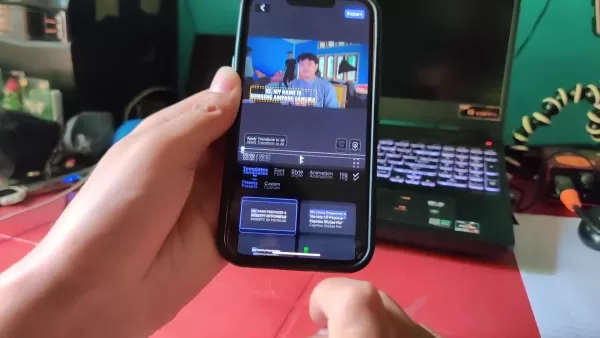
You can adjust the font, size, color, and background of captions to fit your video's style. Access the 'Style' menu to explore these options. Styling adjustments make your video more appealing.
Step 7: Export Your Video
When your captions meet your standards, export the video to save or share on social platforms. Click the 'Export' button at the screen's top right. Choose your preferred video quality and export parameters. Decide whether to save locally or post directly to social networks.
Blink Pricing Plans
Available Options
Blink provides multiple pricing tiers to match various needs and budgets.
- Free Plan: Includes basic functions like auto-captioning for brief videos and simple styling choices.
- Pro Plan: Grants full access to premium features, including advanced customization, multi-language assistance, and priority support.
For full pricing details and plan comparisons, check the Blink website.
Pros and Cons of Using Blink
Pros
Highly accurate caption creation
Intuitive user interface
Support for multiple languages
Flexible options for font, size, and color
Compatible with iOS and Android
Cloud storage conserves device space
Cons
Free plan has restricted capabilities
Advanced features may need a paid subscription
Occasional transcription inaccuracies might need manual fixes
Blink Core Features
Main Features
Blink includes numerous features to streamline and improve video captioning.
- Automatic Captioning: Produce captions for videos automatically in seconds.
- Multi-Language Support: Translate captions into various languages for international viewership.
- Customization Options: Personalize caption fonts, sizes, colors, and backgrounds.
- Video editing: Provides fundamental editing tools to trim, crop, and combine clips.
- Teleprompter: Incorporates a built-in teleprompter for smooth script reading during recording.
Use Cases for Blink
Various applications
Blink is applicable in many contexts to boost video accessibility and interaction.
- Social Media: Incorporate captions into social media videos to grow viewership and engagement.
- Online Courses: Caption educational videos to support deaf or hard of hearing students.
- Marketing Videos: Strengthen the effect and reach of promotional videos with captions.
- Educational Content: Use captions to improve learning and understanding for all students.
- Corporate Communications: Caption internal training or announcement videos to guarantee all staff comprehend the content.
FAQ
How accurate are the captions generated by Blink?
Blink's advanced AI algorithms generate captions with high precision, typically above 95% accuracy. Results may differ based on your video's audio clarity.
Can I edit the captions generated by Blink?
Absolutely, Blink offers a straightforward editor for caption modifications. You can update text, refine timing, and personalize caption appearance.
Does Blink support multiple languages?
Yes, Blink accommodates numerous languages for both caption creation and translation.
Is Blink available for both iOS and Android devices?
Yes, Blink is accessible on iOS and Android platforms.
Does Blink offer a free plan?
Yes, Blink provides a free tier with basic functions. For complete access to all capabilities, the Pro plan is available.
Related Questions
What other tools can I use to improve my video content?
Apart from captioning tools like Blink, numerous other resources can elevate your video content. Below is a summary table of some options:CategoryToolDescriptionVideo EditingAdobe Premiere ProProfessional-grade editing software with advanced tools for high-quality video production.FilmoraEasy-to-use editing software offering a variety of effects, transitions, and templates.DaVinci ResolveRobust editing platform with sophisticated color grading and visual effects.Audio EditingAudacityFree, open-source editor for recording, editing, and mixing audio tracks.Adobe AuditionProfessional audio workstation with features for restoration, mixing, and mastering.Logic ProComplete digital audio workstation (DAW) for music creation and audio editing.Graphics & AnimationAdobe After EffectsMotion graphics and visual effects software for creating dynamic animations and visuals.CanvaOnline design platform with templates for compelling social media graphics, presentations, and videos.BlenderFree, open-source 3D suite for modeling, animation, rendering, and compositing.Stock Footage & MusicShutterstockSource for premium stock footage, music, and imagery for creative endeavors.Envato ElementsSubscription service with unlimited downloads of stock footage, music, graphics, and templates.PexelsWebsite providing free stock photos and videos for commercial and non-commercial purposes.Screen RecordingOBS StudioFree, open-source application for video capture and live streaming.CamtasiaScreen recording and video editing tool for producing tutorials, presentations, and demonstrations.CollaborationGoogle DriveCloud storage and teamwork platform for file sharing and collaborative video work.DropboxCloud storage and file sharing service for team collaboration on video projects.Frame.ioOnline video review and collaboration platform for efficient video workflow management.AccessibilitySubtitle EditFree, open-source subtitle editor for creating and adjusting video subtitles.Otter.aiAI-based transcription service that converts audio and video into text.DescriptComprehensive audio and video editing platform with transcription, recording, and collaboration utilities.Using these tools, you can produce professional videos that engage your audience and meet your objectives. This helps consumers achieve a polished final product, which is increasingly important as video becomes a primary content format. These tools promote equal access to information, benefiting SEO, understanding, professionalism, and viewer involvement.
Related article
 U.S. Stocks Hit Historic Milestone as AI and Aerospace Giants Prepare for Trillion-Dollar Debut
Elon Musk, Sam Altman, and Dario Amodei, three titans of the technology sector, are advancing toward initial public offerings for their respective ventures. With SpaceX, OpenAI, and Anthropic—three industry behemoths nearing trillion-dollar valuation
Swedish AI Startup Lovable Eyes $13.2 Billion Valuation After Major Funding Round
As AI-driven coding tools gain traction, Swedish startup Lovable has secured a major funding round. The company aims to raise $3 billion, potentially boosting its valuation to $13.2 billion—double the $6.6 billion recorded last December. Menlo Ventur
Google Tests Remy AI Agent for Gemini as Focus Shifts to User Control
According to Business Insider, Google is testing Remy, a new AI personal agent for Gemini. This tool aims to execute tasks on behalf of users, streamlining both professional workflows and daily routines.Currently, Remy is undergoing testing in an int
Related Special Topic Recommendations
Data Analysis
U.S. Stocks Hit Historic Milestone as AI and Aerospace Giants Prepare for Trillion-Dollar Debut
Elon Musk, Sam Altman, and Dario Amodei, three titans of the technology sector, are advancing toward initial public offerings for their respective ventures. With SpaceX, OpenAI, and Anthropic—three industry behemoths nearing trillion-dollar valuation
Swedish AI Startup Lovable Eyes $13.2 Billion Valuation After Major Funding Round
As AI-driven coding tools gain traction, Swedish startup Lovable has secured a major funding round. The company aims to raise $3 billion, potentially boosting its valuation to $13.2 billion—double the $6.6 billion recorded last December. Menlo Ventur
Google Tests Remy AI Agent for Gemini as Focus Shifts to User Control
According to Business Insider, Google is testing Remy, a new AI personal agent for Gemini. This tool aims to execute tasks on behalf of users, streamlining both professional workflows and daily routines.Currently, Remy is undergoing testing in an int
Related Special Topic Recommendations
Data Analysis
 Best AI Anomaly Detection Tools for KPI Monitoring across SaaS and Ecommerce Teams
2026 Latest Best Top-rated AI Anomaly Detection Tools for KPI Monitoring in SaaS and Ecommerce teams! XIX.AI has curated a powerful, game-changing collection based on rigorous real-world tests and weekly updated rankings. You’ll find detailed free vs paid comparison insights to help you identify the must-try solution that boosts productivity and unlocks your AI edge. Explore now!
 10 tools
 xix.ai
writing
Best AI Outline Generators for Long-Form SEO Articles
xix.ai
writing
Best AI Outline Generators for Long-Form SEO Articles
2026 Latest Best Top-Rated AI Outline Generators for Long-Form SEO Articles, meticulously curated by XIX.AI. These powerful tools offer game-changing assistance in creating high-quality content quickly, boosting writing efficiency significantly. Get a free vs paid comparison along with real-world tests and detailed rankings to help you find the must-try option that suits your needs. Explore now to unlock your AI edge.
8 tools
xix.ai
Education and Learning
AI Study Tools for Homework and Exam Prep
2026 Latest Best AI Study Tools for Homework and Exam Prep! XIX.AI curates a top-rated list of powerful, game-changing tools that help students boost productivity, streamline homework completion, and ace exams through real-world tests. Get a free vs paid comparison, detailed rankings, and must-try options to unlock your AI edge. Explore now!
10 tools
xix.ai
Music composition
AI Vocal Demo Tools for Songwriters, Hooks, Toplines, and Multilingual Draft Sessions
2026 Latest Best AI Vocal Demo Tools for Songwriters, Hook Creators, and Multi-Language Content Teams! XIX.AI has curated a top-rated list of powerful game-changing tools that go through rigorous real-world tests. You’ll find detailed free vs paid comparison data, comprehensive rankings, and must-try options to help you boost writing efficiency and unlock your creative potential. Explore now to discover your perfect tool for all your content needs!
9 tools
xix.ai
Business
Best AI Competitive Research Tools for Small Businesses
2026 Latest Best Top-rated AI Competitive Research Tools for Small Businesses! XIX.AI has curated a highly powerful game-changing collection, updated weekly with rigorous real-world tests and detailed rankings. You can find a comprehensive free vs paid comparison to help you identify the must-try tools that boost your productivity and give you a competitive edge. Explore now to discover your perfect tool!
9 tools
xix.ai
Image editing
Photoshop AI Retouch Tools for Ecommerce Apparel, Skin Cleanup, and Color Consistency
2026 Latest Best Photoshop AI retouch tools for ecommerce apparel, skin cleanup, and color consistency! This top-rated curated list features powerful game-changing solutions that help you boost writing efficiency, streamline content creation, and achieve perfect visual results effortlessly. Each tool has undergone real-world tests through weekly updated rankings, complete with free vs paid comparison details. Backed by XIX.AI, it’s the must-try guide for anyone aiming to unlock your AI edge. Explore now!
10 tools
xix.ai

 Comments (0)
0/500
Comments (0)
0/500
In the current digital landscape, video content dominates. To reach a broader audience, it's essential to make your videos accessible to all, including those who are deaf or hard of hearing. Integrating captions not only enhances accessibility but also drives engagement and improves search engine optimization. The emergence of advanced AI technology has simplified and accelerated the captioning process. This guide provides practical steps to use AI for creating effective video captions with ease.
Key Points
AI-powered captioning tools automate subtitle generation, saving valuable time and effort.
Captions make videos accessible for viewers with hearing impairments.
Enhanced SEO from captions boosts video visibility in search results.
Viewer engagement increases as captions accommodate different viewing situations.
Multi-language capabilities help expand your global audience.
Built-in editing features enable customization to correct any transcription errors.
The Importance of Video Captions
What are Video Captions?
Video captions, or subtitles, are textual versions of a video's audio. They represent spoken dialogue and often incorporate sound descriptions and speaker identification. Captions are vital for making videos inclusive, particularly for deaf or hard of hearing viewers. In our visually-oriented world, captions prevent anyone from missing out. They close communication divides and promote inclusivity, ensuring your content is understood by all, regardless of hearing ability. Besides accessibility, captions deliver advantages like better audience retention and enhanced search engine performance. In loud settings or when viewers watch without sound, captions offer a smooth viewing experience. For creators, this results in more views, extended watch duration, and stronger audience loyalty.
Captions also contribute significantly to SEO. Search engines such as Google analyze caption text to comprehend video content. By incorporating relevant keywords into your captions, you can improve your video's ranking in search outcomes, attracting more organic visitors to your channel. Essentially, captions are an indispensable resource for creators aiming to widen their influence. Whether for education, entertainment, or marketing, captions help your message connect with a varied and active viewership. Adopt captioning to turn your videos into inclusive, search-friendly content that makes a meaningful impact.
Why Add Captions to Your Videos?
Including captions in your videos offers multiple important benefits:
- Accessibility: Captions allow deaf or hard of hearing individuals to access and enjoy your content fully.
- Engagement: Many people watch videos silently in public spaces. Captions help them follow the content and remain interested.
- SEO: Search engines can scan and index caption text, boosting your video's search presence. Using targeted keywords in captions further enhances SEO.
- Comprehension: Captions assist understanding, particularly for viewers who aren't fluent in the video's language.
- Professionalism: Captions enhance your video's polished appearance, showing care for detail and respect for your audience.
Harnessing the Power of AI for Video Captioning
AI-Powered Captioning: An Overview
Artificial intelligence has transformed video captioning, providing speed, precision, and affordability. AI-based captioning tools employ speech recognition to automatically convert spoken audio into text, producing captions quickly. These solutions drastically cut down the manual effort involved in captioning, giving creators more time for content development.
Primary advantages of AI-driven video captioning include:
- Speed: AI produces captions far quicker than manual transcription, enabling faster video publication.
- Accuracy: Contemporary AI systems deliver high accuracy, often reaching over 95% in transcription reliability for minimal errors.
- Cost-Effectiveness: Automated AI captioning is often cheaper than professional transcribers, especially for high-volume projects.
Adopting AI allows creators to optimize video workflows and concentrate on quality content. From independent artists to business professionals, AI-powered captioning brings professional results within everyone's reach.
Key Features to Look for in an AI Captioning Tool
When choosing an AI captioning tool, prioritize the following features:
- Accuracy: Select tools with high transcription accuracy to reduce caption mistakes.
- Speed: Pick solutions that generate captions rapidly for efficient production cycles.
- Multi-Language Support: Confirm the tool works with the languages your audience uses for worldwide reach.
- Customization Options: Choose tools that allow editing, timing adjustments, and style changes for captions.
- Integration Capabilities: Opt for tools that work smoothly with your current editing software and platforms.
- Affordability: Evaluate pricing options and select a tool that matches your budget and requirements.
- Automatic Caption Generation: The software should automatically produce captions from video audio.
This functionality drastically cuts down the time needed versus typing captions manually.
- Customizable Styles: You should be able to modify caption appearance, including font, size, color, and background, ensuring they fit your video's look and are legible.
- Subtitle Translation: The tool should offer translation into different languages, crucial for international audiences and non-native speakers.
Step-by-Step Guide to Using Blink for Video Captioning
Step 1: Download and Install Blink
Start by downloading and installing the Blink app on your mobile device. Blink works on iOS and Android, catering to a diverse user base. The app is named Blink and is downloadable from the Apple App Store and Google Play Store.
Step 2: Create an Account
After installation, register for a new account or sign in if you're an existing user. This step unlocks all features and lets you save your work.
Step 3: Upload Your Video
Once logged in, press the '+' icon to initiate a new project. Select 'Auto Captions' to automatically generate subtitles for your video. Pick the video file you wish to caption from your device's media library.
Step 4: Generate Captions
After uploading, Blink will immediately begin creating captions. The duration depends on your video's length. Blink applies artificial intelligence for precise audio-to-text conversion.
Step 5: Review and Edit Captions
After generation, check the captions for accuracy. Blink includes a user-friendly editor for making adjustments. Tap any caption to edit the text or change its timing.
- Edit Text: Fix any transcription mistakes by tapping the text and revising it.
- Adjust Timing: Align captions with the audio by modifying the start and end points for each.
Step 6: Customize Your Captions
Blink includes multiple customization features to improve caption visuals.
You can adjust the font, size, color, and background of captions to fit your video's style. Access the 'Style' menu to explore these options. Styling adjustments make your video more appealing.
Step 7: Export Your Video
When your captions meet your standards, export the video to save or share on social platforms. Click the 'Export' button at the screen's top right. Choose your preferred video quality and export parameters. Decide whether to save locally or post directly to social networks.
Blink Pricing Plans
Available Options
Blink provides multiple pricing tiers to match various needs and budgets.
- Free Plan: Includes basic functions like auto-captioning for brief videos and simple styling choices.
- Pro Plan: Grants full access to premium features, including advanced customization, multi-language assistance, and priority support.
For full pricing details and plan comparisons, check the Blink website.
Pros and Cons of Using Blink
Pros
Highly accurate caption creation
Intuitive user interface
Support for multiple languages
Flexible options for font, size, and color
Compatible with iOS and Android
Cloud storage conserves device space
Cons
Free plan has restricted capabilities
Advanced features may need a paid subscription
Occasional transcription inaccuracies might need manual fixes
Blink Core Features
Main Features
Blink includes numerous features to streamline and improve video captioning.
- Automatic Captioning: Produce captions for videos automatically in seconds.
- Multi-Language Support: Translate captions into various languages for international viewership.
- Customization Options: Personalize caption fonts, sizes, colors, and backgrounds.
- Video editing: Provides fundamental editing tools to trim, crop, and combine clips.
- Teleprompter: Incorporates a built-in teleprompter for smooth script reading during recording.
Use Cases for Blink
Various applications
Blink is applicable in many contexts to boost video accessibility and interaction.
- Social Media: Incorporate captions into social media videos to grow viewership and engagement.
- Online Courses: Caption educational videos to support deaf or hard of hearing students.
- Marketing Videos: Strengthen the effect and reach of promotional videos with captions.
- Educational Content: Use captions to improve learning and understanding for all students.
- Corporate Communications: Caption internal training or announcement videos to guarantee all staff comprehend the content.
FAQ
How accurate are the captions generated by Blink?
Blink's advanced AI algorithms generate captions with high precision, typically above 95% accuracy. Results may differ based on your video's audio clarity.
Can I edit the captions generated by Blink?
Absolutely, Blink offers a straightforward editor for caption modifications. You can update text, refine timing, and personalize caption appearance.
Does Blink support multiple languages?
Yes, Blink accommodates numerous languages for both caption creation and translation.
Is Blink available for both iOS and Android devices?
Yes, Blink is accessible on iOS and Android platforms.
Does Blink offer a free plan?
Yes, Blink provides a free tier with basic functions. For complete access to all capabilities, the Pro plan is available.
Related Questions
What other tools can I use to improve my video content?
Apart from captioning tools like Blink, numerous other resources can elevate your video content. Below is a summary table of some options:CategoryToolDescriptionVideo EditingAdobe Premiere ProProfessional-grade editing software with advanced tools for high-quality video production.FilmoraEasy-to-use editing software offering a variety of effects, transitions, and templates.DaVinci ResolveRobust editing platform with sophisticated color grading and visual effects.Audio EditingAudacityFree, open-source editor for recording, editing, and mixing audio tracks.Adobe AuditionProfessional audio workstation with features for restoration, mixing, and mastering.Logic ProComplete digital audio workstation (DAW) for music creation and audio editing.Graphics & AnimationAdobe After EffectsMotion graphics and visual effects software for creating dynamic animations and visuals.CanvaOnline design platform with templates for compelling social media graphics, presentations, and videos.BlenderFree, open-source 3D suite for modeling, animation, rendering, and compositing.Stock Footage & MusicShutterstockSource for premium stock footage, music, and imagery for creative endeavors.Envato ElementsSubscription service with unlimited downloads of stock footage, music, graphics, and templates.PexelsWebsite providing free stock photos and videos for commercial and non-commercial purposes.Screen RecordingOBS StudioFree, open-source application for video capture and live streaming.CamtasiaScreen recording and video editing tool for producing tutorials, presentations, and demonstrations.CollaborationGoogle DriveCloud storage and teamwork platform for file sharing and collaborative video work.DropboxCloud storage and file sharing service for team collaboration on video projects.Frame.ioOnline video review and collaboration platform for efficient video workflow management.AccessibilitySubtitle EditFree, open-source subtitle editor for creating and adjusting video subtitles.Otter.aiAI-based transcription service that converts audio and video into text.DescriptComprehensive audio and video editing platform with transcription, recording, and collaboration utilities.Using these tools, you can produce professional videos that engage your audience and meet your objectives. This helps consumers achieve a polished final product, which is increasingly important as video becomes a primary content format. These tools promote equal access to information, benefiting SEO, understanding, professionalism, and viewer involvement.








 U.S. Stocks Hit Historic Milestone as AI and Aerospace Giants Prepare for Trillion-Dollar Debut
Elon Musk, Sam Altman, and Dario Amodei, three titans of the technology sector, are advancing toward initial public offerings for their respective ventures. With SpaceX, OpenAI, and Anthropic—three industry behemoths nearing trillion-dollar valuation
U.S. Stocks Hit Historic Milestone as AI and Aerospace Giants Prepare for Trillion-Dollar Debut
Elon Musk, Sam Altman, and Dario Amodei, three titans of the technology sector, are advancing toward initial public offerings for their respective ventures. With SpaceX, OpenAI, and Anthropic—three industry behemoths nearing trillion-dollar valuation
 Swedish AI Startup Lovable Eyes $13.2 Billion Valuation After Major Funding Round
As AI-driven coding tools gain traction, Swedish startup Lovable has secured a major funding round. The company aims to raise $3 billion, potentially boosting its valuation to $13.2 billion—double the $6.6 billion recorded last December. Menlo Ventur
Google Tests Remy AI Agent for Gemini as Focus Shifts to User Control
According to Business Insider, Google is testing Remy, a new AI personal agent for Gemini. This tool aims to execute tasks on behalf of users, streamlining both professional workflows and daily routines.Currently, Remy is undergoing testing in an int
Swedish AI Startup Lovable Eyes $13.2 Billion Valuation After Major Funding Round
As AI-driven coding tools gain traction, Swedish startup Lovable has secured a major funding round. The company aims to raise $3 billion, potentially boosting its valuation to $13.2 billion—double the $6.6 billion recorded last December. Menlo Ventur
Google Tests Remy AI Agent for Gemini as Focus Shifts to User Control
According to Business Insider, Google is testing Remy, a new AI personal agent for Gemini. This tool aims to execute tasks on behalf of users, streamlining both professional workflows and daily routines.Currently, Remy is undergoing testing in an int
2026 Latest Best Top-rated AI Anomaly Detection Tools for KPI Monitoring in SaaS and Ecommerce teams! XIX.AI has curated a powerful, game-changing collection based on rigorous real-world tests and weekly updated rankings. You’ll find detailed free vs paid comparison insights to help you identify the must-try solution that boosts productivity and unlocks your AI edge. Explore now!
10 tools
xix.ai

2026 Latest Best Top-Rated AI Outline Generators for Long-Form SEO Articles, meticulously curated by XIX.AI. These powerful tools offer game-changing assistance in creating high-quality content quickly, boosting writing efficiency significantly. Get a free vs paid comparison along with real-world tests and detailed rankings to help you find the must-try option that suits your needs. Explore now to unlock your AI edge.
8 tools
xix.ai

2026 Latest Best AI Study Tools for Homework and Exam Prep! XIX.AI curates a top-rated list of powerful, game-changing tools that help students boost productivity, streamline homework completion, and ace exams through real-world tests. Get a free vs paid comparison, detailed rankings, and must-try options to unlock your AI edge. Explore now!
10 tools
xix.ai
2026 Latest Best AI Vocal Demo Tools for Songwriters, Hook Creators, and Multi-Language Content Teams! XIX.AI has curated a top-rated list of powerful game-changing tools that go through rigorous real-world tests. You’ll find detailed free vs paid comparison data, comprehensive rankings, and must-try options to help you boost writing efficiency and unlock your creative potential. Explore now to discover your perfect tool for all your content needs!
9 tools
xix.ai

2026 Latest Best Top-rated AI Competitive Research Tools for Small Businesses! XIX.AI has curated a highly powerful game-changing collection, updated weekly with rigorous real-world tests and detailed rankings. You can find a comprehensive free vs paid comparison to help you identify the must-try tools that boost your productivity and give you a competitive edge. Explore now to discover your perfect tool!
9 tools
xix.ai

2026 Latest Best Photoshop AI retouch tools for ecommerce apparel, skin cleanup, and color consistency! This top-rated curated list features powerful game-changing solutions that help you boost writing efficiency, streamline content creation, and achieve perfect visual results effortlessly. Each tool has undergone real-world tests through weekly updated rankings, complete with free vs paid comparison details. Backed by XIX.AI, it’s the must-try guide for anyone aiming to unlock your AI edge. Explore now!
10 tools
xix.ai












