


 Home
HomeAdobe Firefly AI Guide: Master Thumbnail Design
In today's digital world, eye-catching thumbnails are vital for grabbing viewers' attention. Traditional thumbnail creation can be slow and demands design skills, but AI tools like Adobe Firefly now let anyone craft professional-looking thumbnails quickly and simply. This guide shows you how to use Adobe Firefly's AI features to boost your content and capture your audience's interest.
Key Points
Adobe Firefly uses AI to produce professional-grade thumbnails.
Its Generative Fill feature lets you edit existing images with ease.
You can generate brand-new images from scratch using text descriptions.
The tool works on both desktop computers and mobile devices.
For a refined finish, you can polish thumbnails further with Lightroom.
Introduction to AI-Powered Thumbnail Creation
The Power of AI in Visual Content Creation
Artificial intelligence has transformed content creation, bringing remarkable speed and accessibility. Now, anyone can design engaging thumbnails, even without a design background. Leading tools like Adobe Firefly

empower users to turn creative ideas into reality with minimal effort.
Why are Thumbnails So Important?
A thumbnail is often the first impression your content makes on potential viewers. A well-crafted thumbnail can greatly improve click-through rates and audience growth. It visually signals the value of your content. In busy online spaces, standing out is key, and AI gives you the tools to do exactly that.
Adobe Firefly: A Revolutionary Tool
Adobe Firefly provides a suite of features that streamline and enhance thumbnail design. From generating images from text prompts to editing existing pictures, it offers the flexibility to achieve your desired look. Its AI-driven approach ensures your thumbnails are both visually attractive and optimized for viewer engagement.
Understanding Adobe Firefly and Its Capabilities
Adobe Firefly distinguishes itself with an intuitive interface and powerful capabilities, making it a versatile solution for thumbnail creation. This section explores Adobe Firefly in depth and how its AI technology elevates your thumbnail design process.
Key Features of Adobe Firefly:
Text to Image Generation: Turn your ideas into visuals using simple text prompts.
Generative Fill: Effortlessly remove, add, or change elements within any picture.
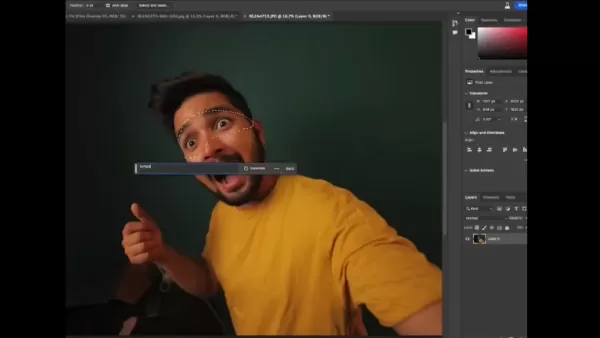
User-Friendly Interface: Its intuitive design is perfect for beginners to start creating immediately.
Accessibility: Use Firefly on desktop or mobile for creativity wherever you are.
How Adobe Firefly Empowers Creators:
With Adobe Firefly, you can design thumbnails that reflect your brand and captivate your audience. Whether you're an experienced designer or just starting, this tool levels the playing field, helping you produce compelling visuals. It encourages experimentation, allowing you to hone your skills and perfect your style.
Step-by-Step Guide to Creating Thumbnails with Adobe Firefly
Accessing and Navigating Adobe Firefly
Getting started with Adobe Firefly is straightforward. Follow these steps to access the tool and get to know its interface.
Visit the Adobe Firefly Website: Go to the official Adobe Firefly website.
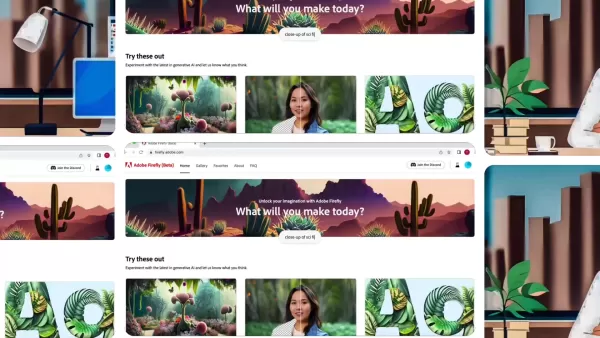
Sign Up or Log In: Create a new account or sign in with your existing Adobe ID.
Explore the Interface: Get familiar with the available tools and features, such as Text to Image, Generative Fill, and Text Effects.
The website layout is easy to navigate, helping you find the right tools quickly. The homepage gives a clear summary of all features, with options to generate images, fill sections, or extend images in just one click.
Using the Generative Fill Feature
The Generative Fill feature is a robust tool for modifying existing images. Here’s how to use it:
- Upload an Image: Click on the Generative Fill option
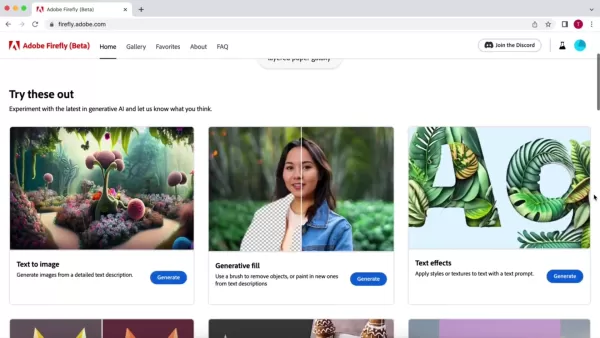
and upload the image you wish to edit.
- Select the Area: Use the brush tool to mark the specific area you want to alter. You can adjust the brush size for more precision.
- Enter a Text Prompt: Describe what you want to add or replace in the selected area. For example, to change a shirt's color, type a prompt like 'green shirt'.
- Generate: Click the generate button, and Adobe Firefly will produce several variations based on your prompt. Select the one that best matches your vision.
Tips for Writing Effective Prompts:
- Use specific and detailed descriptions.
- Keep your language clear and concise.
- Try different prompts to see which yields the best results.
Creating a Thumbnail from Scratch with Text to Image
Adobe Firefly lets you create entirely new images from a text description. Here’s the process:
Select Text to Image: Choose the Text to Image option on the homepage.
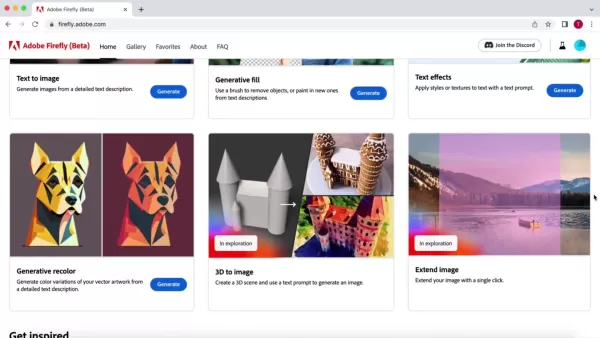
Enter Your Prompt: Describe the image you want the AI to create. The AI will use your text to generate the visual content.
Generate: Click the generate button, and Adobe Firefly will offer several image options based on your prompt. Pick the one that aligns with your vision.
Customize: Refine your image by tweaking settings like aspect ratio, style, and lighting. Generate more variations until you find the perfect thumbnail.
Examples of Effective Prompts:
- 'A giant floating golden dollar sign inside a maze with an exclamation point'
- 'A surprised person looking at the camera in a maze'
- 'A person holding a flashlight in a dark maze'
Enhancing Your Thumbnail with Lightroom
To make your thumbnail even more striking, consider using Adobe Lightroom for post-processing. Lightroom can improve colors, adjust lighting, and add stylistic effects for a polished final product.
Steps to Enhance with Lightroom:
- Import Your Thumbnail: Open your thumbnail image in Adobe Lightroom.
- Adjust Exposure and Contrast: Fine-tune the overall brightness and contrast to make the image stand out.
- Enhance Colors: Use Lightroom's color adjustment tools to make hues more vibrant and appealing.
- Add Effects: Consider applying effects like sharpening or a subtle vignette to give your thumbnail a distinctive look.
- Export: Save your enhanced thumbnail in a high-resolution format for the best quality.
Adobe Firefly: Pros and Cons
Pros
AI-powered generation delivers high-quality results.
An intuitive interface makes it easy for beginners to use.
The text-to-image feature offers great creative freedom.
Generative Fill enables seamless image editing.
Mobile access supports creation on the go.
Cons
Requires an Adobe account to use.
Output quality depends heavily on how well you write your text prompts.
May need extra editing in tools like Lightroom for a fully polished look.
Language options are currently limited.
FAQ
Is Adobe Firefly free to use?
Adobe Firefly is currently in beta and offers a free tier with a limited number of credits. Full access and additional features may require a paid subscription.
Can I use Adobe Firefly on my mobile device?
Yes, Adobe Firefly is accessible on both desktop computers and mobile devices, so you can design thumbnails wherever you are.
What type of prompts work best with Adobe Firefly?
Clear and specific prompts typically produce the best outcomes. Use descriptive, concise language to guide the AI effectively.
Do I need design experience to use Adobe Firefly?
No, Adobe Firefly is built to be user-friendly for everyone, including those with no prior design experience. Its intuitive interface and AI-powered features make it accessible to beginners.
Can I use the generated images for commercial purposes?
Licensing terms for images created with Adobe Firefly can vary. You should review the current licensing agreement to confirm the rules for commercial use.
Related Questions
What other tools can I use to enhance my thumbnails?
Besides Adobe Lightroom, other useful tools for enhancing thumbnails include: Canva: A popular graphic design platform with numerous templates and editing features. Figma: A collaborative design tool offering advanced editing capabilities. Photoshop: Adobe's premier image editing software, providing extensive control and customization. GIMP: A free, open-source image editor with features similar to Photoshop.
How can I optimize my thumbnails for different platforms?
Optimizing thumbnails for various platforms involves adhering to their recommended dimensions and file sizes. Here are some general guidelines: YouTube: 1280x720 pixels (16:9 aspect ratio). Facebook: 1200x630 pixels. Instagram: 1080x1080 pixels for square thumbnails, 1080x1350 pixels for portrait thumbnails. Twitter: 1200x675 pixels. Ensure your thumbnails are clear, readable, and visually appealing on smaller screens. Test them on different devices to guarantee they display correctly.
What makes a good thumbnail?
A good thumbnail captures attention and encourages viewers to click. Key elements include: High-Quality Images: Use sharp, clear, and visually appealing pictures. Compelling Text: Add concise, readable text that summarizes your content and sparks curiosity. Consistent Branding: Maintain consistent colors, fonts, and styles to strengthen your brand identity. Eye-Catching Visuals: Incorporate elements like bright colors, strong shapes, and engaging facial expressions. Relevance: Make sure your thumbnail accurately represents the content of your video.
Related article
 U.S. Stocks Hit Historic Milestone as AI and Aerospace Giants Prepare for Trillion-Dollar Debut
Elon Musk, Sam Altman, and Dario Amodei, three titans of the technology sector, are advancing toward initial public offerings for their respective ventures. With SpaceX, OpenAI, and Anthropic—three industry behemoths nearing trillion-dollar valuation
Swedish AI Startup Lovable Eyes $13.2 Billion Valuation After Major Funding Round
As AI-driven coding tools gain traction, Swedish startup Lovable has secured a major funding round. The company aims to raise $3 billion, potentially boosting its valuation to $13.2 billion—double the $6.6 billion recorded last December. Menlo Ventur
Google Tests Remy AI Agent for Gemini as Focus Shifts to User Control
According to Business Insider, Google is testing Remy, a new AI personal agent for Gemini. This tool aims to execute tasks on behalf of users, streamlining both professional workflows and daily routines.Currently, Remy is undergoing testing in an int
Related Special Topic Recommendations
writing
U.S. Stocks Hit Historic Milestone as AI and Aerospace Giants Prepare for Trillion-Dollar Debut
Elon Musk, Sam Altman, and Dario Amodei, three titans of the technology sector, are advancing toward initial public offerings for their respective ventures. With SpaceX, OpenAI, and Anthropic—three industry behemoths nearing trillion-dollar valuation
Swedish AI Startup Lovable Eyes $13.2 Billion Valuation After Major Funding Round
As AI-driven coding tools gain traction, Swedish startup Lovable has secured a major funding round. The company aims to raise $3 billion, potentially boosting its valuation to $13.2 billion—double the $6.6 billion recorded last December. Menlo Ventur
Google Tests Remy AI Agent for Gemini as Focus Shifts to User Control
According to Business Insider, Google is testing Remy, a new AI personal agent for Gemini. This tool aims to execute tasks on behalf of users, streamlining both professional workflows and daily routines.Currently, Remy is undergoing testing in an int
Related Special Topic Recommendations
writing
 Best AI Outline Generators for Long-Form SEO Articles
2026 Latest Best Top-Rated AI Outline Generators for Long-Form SEO Articles, meticulously curated by XIX.AI. These powerful tools offer game-changing assistance in creating high-quality content quickly, boosting writing efficiency significantly. Get a free vs paid comparison along with real-world tests and detailed rankings to help you find the must-try option that suits your needs. Explore now to unlock your AI edge.
 8 tools
 xix.ai
Education and Learning
AI Study Tools for Homework and Exam Prep
xix.ai
Education and Learning
AI Study Tools for Homework and Exam Prep
2026 Latest Best AI Study Tools for Homework and Exam Prep! XIX.AI curates a top-rated list of powerful, game-changing tools that help students boost productivity, streamline homework completion, and ace exams through real-world tests. Get a free vs paid comparison, detailed rankings, and must-try options to unlock your AI edge. Explore now!
10 tools
xix.ai
Music composition
AI Vocal Demo Tools for Songwriters, Hooks, Toplines, and Multilingual Draft Sessions
2026 Latest Best AI Vocal Demo Tools for Songwriters, Hook Creators, and Multi-Language Content Teams! XIX.AI has curated a top-rated list of powerful game-changing tools that go through rigorous real-world tests. You’ll find detailed free vs paid comparison data, comprehensive rankings, and must-try options to help you boost writing efficiency and unlock your creative potential. Explore now to discover your perfect tool for all your content needs!
9 tools
xix.ai
Business
Best AI Competitive Research Tools for Small Businesses
2026 Latest Best Top-rated AI Competitive Research Tools for Small Businesses! XIX.AI has curated a highly powerful game-changing collection, updated weekly with rigorous real-world tests and detailed rankings. You can find a comprehensive free vs paid comparison to help you identify the must-try tools that boost your productivity and give you a competitive edge. Explore now to discover your perfect tool!
9 tools
xix.ai
Image editing
Photoshop AI Retouch Tools for Ecommerce Apparel, Skin Cleanup, and Color Consistency
2026 Latest Best Photoshop AI retouch tools for ecommerce apparel, skin cleanup, and color consistency! This top-rated curated list features powerful game-changing solutions that help you boost writing efficiency, streamline content creation, and achieve perfect visual results effortlessly. Each tool has undergone real-world tests through weekly updated rankings, complete with free vs paid comparison details. Backed by XIX.AI, it’s the must-try guide for anyone aiming to unlock your AI edge. Explore now!
10 tools
xix.ai
Prompt
Best AI Prompt Libraries for ChatGPT Workflows
2026 Latest Best Top-Rated AI Prompt Libraries for optimizing all types of ChatGPT workflows. XIX.AI has curated a powerful, game-changing collection that goes through rigorous real-world tests to ensure top performance. You can find detailed free vs paid comparisons and expert rankings to help you choose the must-try tools that boost your productivity and unlock your AI edge. Explore now!
11 tools
xix.ai

 Comments (1)
0/500
Comments (1)
0/500
![ThomasHernández]()
Honestly, I'm a bit torn. On one hand, this makes graphic design so accessible, which is awesome for small creators. On the other, it feels like another step towards homogenizing visual content online. Will everything start looking the same? 🤔 Still, the speed is undeniable. Might give it a try for my next video.
In today's digital world, eye-catching thumbnails are vital for grabbing viewers' attention. Traditional thumbnail creation can be slow and demands design skills, but AI tools like Adobe Firefly now let anyone craft professional-looking thumbnails quickly and simply. This guide shows you how to use Adobe Firefly's AI features to boost your content and capture your audience's interest.
Key Points
Adobe Firefly uses AI to produce professional-grade thumbnails.
Its Generative Fill feature lets you edit existing images with ease.
You can generate brand-new images from scratch using text descriptions.
The tool works on both desktop computers and mobile devices.
For a refined finish, you can polish thumbnails further with Lightroom.
Introduction to AI-Powered Thumbnail Creation
The Power of AI in Visual Content Creation
Artificial intelligence has transformed content creation, bringing remarkable speed and accessibility. Now, anyone can design engaging thumbnails, even without a design background. Leading tools like Adobe Firefly
empower users to turn creative ideas into reality with minimal effort.
Why are Thumbnails So Important?
A thumbnail is often the first impression your content makes on potential viewers. A well-crafted thumbnail can greatly improve click-through rates and audience growth. It visually signals the value of your content. In busy online spaces, standing out is key, and AI gives you the tools to do exactly that.
Adobe Firefly: A Revolutionary Tool
Adobe Firefly provides a suite of features that streamline and enhance thumbnail design. From generating images from text prompts to editing existing pictures, it offers the flexibility to achieve your desired look. Its AI-driven approach ensures your thumbnails are both visually attractive and optimized for viewer engagement.
Understanding Adobe Firefly and Its Capabilities
Adobe Firefly distinguishes itself with an intuitive interface and powerful capabilities, making it a versatile solution for thumbnail creation. This section explores Adobe Firefly in depth and how its AI technology elevates your thumbnail design process.
Key Features of Adobe Firefly:
Text to Image Generation: Turn your ideas into visuals using simple text prompts.
Generative Fill: Effortlessly remove, add, or change elements within any picture.
User-Friendly Interface: Its intuitive design is perfect for beginners to start creating immediately.
Accessibility: Use Firefly on desktop or mobile for creativity wherever you are.
How Adobe Firefly Empowers Creators:
With Adobe Firefly, you can design thumbnails that reflect your brand and captivate your audience. Whether you're an experienced designer or just starting, this tool levels the playing field, helping you produce compelling visuals. It encourages experimentation, allowing you to hone your skills and perfect your style.
Step-by-Step Guide to Creating Thumbnails with Adobe Firefly
Accessing and Navigating Adobe Firefly
Getting started with Adobe Firefly is straightforward. Follow these steps to access the tool and get to know its interface.
Visit the Adobe Firefly Website: Go to the official Adobe Firefly website.
Sign Up or Log In: Create a new account or sign in with your existing Adobe ID.
Explore the Interface: Get familiar with the available tools and features, such as Text to Image, Generative Fill, and Text Effects.
The website layout is easy to navigate, helping you find the right tools quickly. The homepage gives a clear summary of all features, with options to generate images, fill sections, or extend images in just one click.
Using the Generative Fill Feature
The Generative Fill feature is a robust tool for modifying existing images. Here’s how to use it:
- Upload an Image: Click on the Generative Fill option
and upload the image you wish to edit.
- Select the Area: Use the brush tool to mark the specific area you want to alter. You can adjust the brush size for more precision.
- Enter a Text Prompt: Describe what you want to add or replace in the selected area. For example, to change a shirt's color, type a prompt like 'green shirt'.
- Generate: Click the generate button, and Adobe Firefly will produce several variations based on your prompt. Select the one that best matches your vision.
Tips for Writing Effective Prompts:
- Use specific and detailed descriptions.
- Keep your language clear and concise.
- Try different prompts to see which yields the best results.
Creating a Thumbnail from Scratch with Text to Image
Adobe Firefly lets you create entirely new images from a text description. Here’s the process:
Select Text to Image: Choose the Text to Image option on the homepage.
Enter Your Prompt: Describe the image you want the AI to create. The AI will use your text to generate the visual content.
Generate: Click the generate button, and Adobe Firefly will offer several image options based on your prompt. Pick the one that aligns with your vision.
Customize: Refine your image by tweaking settings like aspect ratio, style, and lighting. Generate more variations until you find the perfect thumbnail.
Examples of Effective Prompts:
- 'A giant floating golden dollar sign inside a maze with an exclamation point'
- 'A surprised person looking at the camera in a maze'
- 'A person holding a flashlight in a dark maze'
Enhancing Your Thumbnail with Lightroom
To make your thumbnail even more striking, consider using Adobe Lightroom for post-processing. Lightroom can improve colors, adjust lighting, and add stylistic effects for a polished final product.
Steps to Enhance with Lightroom:
- Import Your Thumbnail: Open your thumbnail image in Adobe Lightroom.
- Adjust Exposure and Contrast: Fine-tune the overall brightness and contrast to make the image stand out.
- Enhance Colors: Use Lightroom's color adjustment tools to make hues more vibrant and appealing.
- Add Effects: Consider applying effects like sharpening or a subtle vignette to give your thumbnail a distinctive look.
- Export: Save your enhanced thumbnail in a high-resolution format for the best quality.
Adobe Firefly: Pros and Cons
Pros
AI-powered generation delivers high-quality results.
An intuitive interface makes it easy for beginners to use.
The text-to-image feature offers great creative freedom.
Generative Fill enables seamless image editing.
Mobile access supports creation on the go.
Cons
Requires an Adobe account to use.
Output quality depends heavily on how well you write your text prompts.
May need extra editing in tools like Lightroom for a fully polished look.
Language options are currently limited.
FAQ
Is Adobe Firefly free to use?
Adobe Firefly is currently in beta and offers a free tier with a limited number of credits. Full access and additional features may require a paid subscription.
Can I use Adobe Firefly on my mobile device?
Yes, Adobe Firefly is accessible on both desktop computers and mobile devices, so you can design thumbnails wherever you are.
What type of prompts work best with Adobe Firefly?
Clear and specific prompts typically produce the best outcomes. Use descriptive, concise language to guide the AI effectively.
Do I need design experience to use Adobe Firefly?
No, Adobe Firefly is built to be user-friendly for everyone, including those with no prior design experience. Its intuitive interface and AI-powered features make it accessible to beginners.
Can I use the generated images for commercial purposes?
Licensing terms for images created with Adobe Firefly can vary. You should review the current licensing agreement to confirm the rules for commercial use.
Related Questions
What other tools can I use to enhance my thumbnails?
Besides Adobe Lightroom, other useful tools for enhancing thumbnails include: Canva: A popular graphic design platform with numerous templates and editing features. Figma: A collaborative design tool offering advanced editing capabilities. Photoshop: Adobe's premier image editing software, providing extensive control and customization. GIMP: A free, open-source image editor with features similar to Photoshop.
How can I optimize my thumbnails for different platforms?
Optimizing thumbnails for various platforms involves adhering to their recommended dimensions and file sizes. Here are some general guidelines: YouTube: 1280x720 pixels (16:9 aspect ratio). Facebook: 1200x630 pixels. Instagram: 1080x1080 pixels for square thumbnails, 1080x1350 pixels for portrait thumbnails. Twitter: 1200x675 pixels. Ensure your thumbnails are clear, readable, and visually appealing on smaller screens. Test them on different devices to guarantee they display correctly.
What makes a good thumbnail?
A good thumbnail captures attention and encourages viewers to click. Key elements include: High-Quality Images: Use sharp, clear, and visually appealing pictures. Compelling Text: Add concise, readable text that summarizes your content and sparks curiosity. Consistent Branding: Maintain consistent colors, fonts, and styles to strengthen your brand identity. Eye-Catching Visuals: Incorporate elements like bright colors, strong shapes, and engaging facial expressions. Relevance: Make sure your thumbnail accurately represents the content of your video.








 U.S. Stocks Hit Historic Milestone as AI and Aerospace Giants Prepare for Trillion-Dollar Debut
Elon Musk, Sam Altman, and Dario Amodei, three titans of the technology sector, are advancing toward initial public offerings for their respective ventures. With SpaceX, OpenAI, and Anthropic—three industry behemoths nearing trillion-dollar valuation
U.S. Stocks Hit Historic Milestone as AI and Aerospace Giants Prepare for Trillion-Dollar Debut
Elon Musk, Sam Altman, and Dario Amodei, three titans of the technology sector, are advancing toward initial public offerings for their respective ventures. With SpaceX, OpenAI, and Anthropic—three industry behemoths nearing trillion-dollar valuation
 Swedish AI Startup Lovable Eyes $13.2 Billion Valuation After Major Funding Round
As AI-driven coding tools gain traction, Swedish startup Lovable has secured a major funding round. The company aims to raise $3 billion, potentially boosting its valuation to $13.2 billion—double the $6.6 billion recorded last December. Menlo Ventur
Google Tests Remy AI Agent for Gemini as Focus Shifts to User Control
According to Business Insider, Google is testing Remy, a new AI personal agent for Gemini. This tool aims to execute tasks on behalf of users, streamlining both professional workflows and daily routines.Currently, Remy is undergoing testing in an int
Swedish AI Startup Lovable Eyes $13.2 Billion Valuation After Major Funding Round
As AI-driven coding tools gain traction, Swedish startup Lovable has secured a major funding round. The company aims to raise $3 billion, potentially boosting its valuation to $13.2 billion—double the $6.6 billion recorded last December. Menlo Ventur
Google Tests Remy AI Agent for Gemini as Focus Shifts to User Control
According to Business Insider, Google is testing Remy, a new AI personal agent for Gemini. This tool aims to execute tasks on behalf of users, streamlining both professional workflows and daily routines.Currently, Remy is undergoing testing in an int

2026 Latest Best Top-Rated AI Outline Generators for Long-Form SEO Articles, meticulously curated by XIX.AI. These powerful tools offer game-changing assistance in creating high-quality content quickly, boosting writing efficiency significantly. Get a free vs paid comparison along with real-world tests and detailed rankings to help you find the must-try option that suits your needs. Explore now to unlock your AI edge.
8 tools
xix.ai

2026 Latest Best AI Study Tools for Homework and Exam Prep! XIX.AI curates a top-rated list of powerful, game-changing tools that help students boost productivity, streamline homework completion, and ace exams through real-world tests. Get a free vs paid comparison, detailed rankings, and must-try options to unlock your AI edge. Explore now!
10 tools
xix.ai

2026 Latest Best AI Vocal Demo Tools for Songwriters, Hook Creators, and Multi-Language Content Teams! XIX.AI has curated a top-rated list of powerful game-changing tools that go through rigorous real-world tests. You’ll find detailed free vs paid comparison data, comprehensive rankings, and must-try options to help you boost writing efficiency and unlock your creative potential. Explore now to discover your perfect tool for all your content needs!
9 tools
xix.ai

2026 Latest Best Top-rated AI Competitive Research Tools for Small Businesses! XIX.AI has curated a highly powerful game-changing collection, updated weekly with rigorous real-world tests and detailed rankings. You can find a comprehensive free vs paid comparison to help you identify the must-try tools that boost your productivity and give you a competitive edge. Explore now to discover your perfect tool!
9 tools
xix.ai

2026 Latest Best Photoshop AI retouch tools for ecommerce apparel, skin cleanup, and color consistency! This top-rated curated list features powerful game-changing solutions that help you boost writing efficiency, streamline content creation, and achieve perfect visual results effortlessly. Each tool has undergone real-world tests through weekly updated rankings, complete with free vs paid comparison details. Backed by XIX.AI, it’s the must-try guide for anyone aiming to unlock your AI edge. Explore now!
10 tools
xix.ai

2026 Latest Best Top-Rated AI Prompt Libraries for optimizing all types of ChatGPT workflows. XIX.AI has curated a powerful, game-changing collection that goes through rigorous real-world tests to ensure top performance. You can find detailed free vs paid comparisons and expert rankings to help you choose the must-try tools that boost your productivity and unlock your AI edge. Explore now!
11 tools
xix.ai

Honestly, I'm a bit torn. On one hand, this makes graphic design so accessible, which is awesome for small creators. On the other, it feels like another step towards homogenizing visual content online. Will everything start looking the same? 🤔 Still, the speed is undeniable. Might give it a try for my next video.












