


 Home
Home文字转语音助手



Helps TikTok sellers, brands, MCNs, and TAPs discover winning products and find creators.

HelpLook is an AI-powered all-in-one knowledge base tool that helps businesses quickly build knowledge bases, help centers, and...

Your AI Workspace

302.AI is an enterprise-grade AI resource platform with pay-as-you-go pricing, API access to a full range of AI models, and ready-to-use online applications.

剧火AI — AI Screenwriter + Director, a One-Person Short Drama Studio In one sentence, what is it?
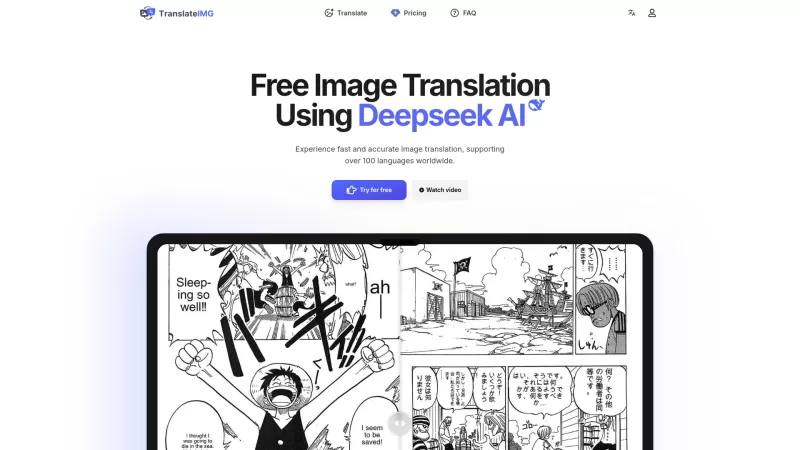
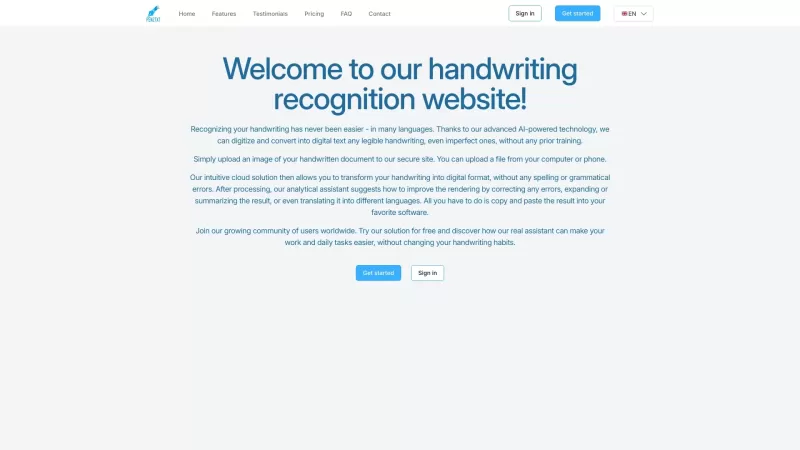
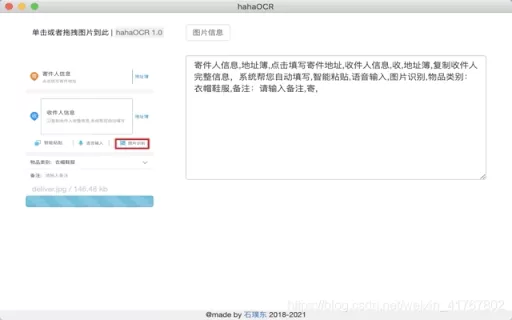
Ever stumbled upon an image with text in a language you can't understand? That's where Deepseek R1 comes in, a nifty online tool that transforms text within images into over 100 different languages. Whether it's a manga page, an e-commerce product descrip
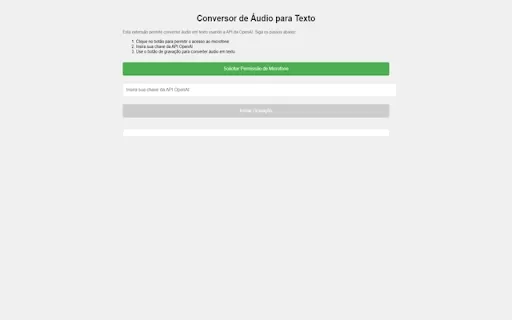
Ever wished you could magically transform your audio recordings into neatly typed text? Well, the Conversor de Áudio para Texto AI Chrome extension is here to make that wish come true! This nifty tool harnesses the power of OpenAI's advanced API to turn y
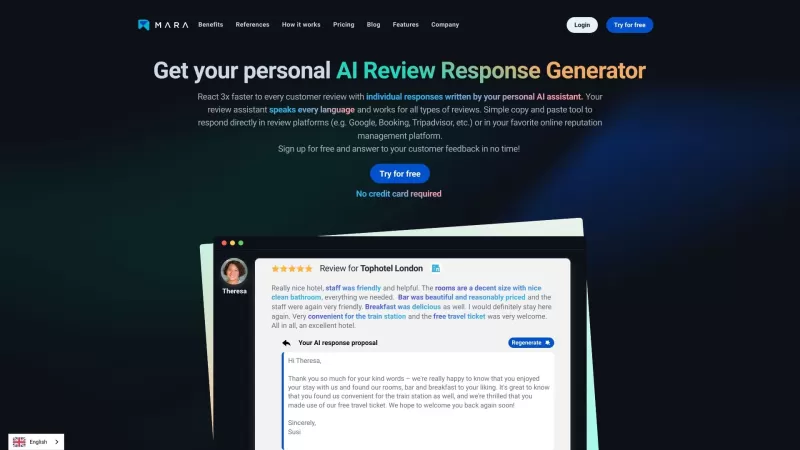
Ever found yourself staring blankly at customer reviews, wondering how to respond in a way that feels genuine and personal? That's where the AI Review Response Generator comes in—a nifty tool designed to take the hassle out of crafting those responses. Cr
Ever wondered how to breathe life into your scripts without spending hours in a recording booth? Meet Cugent, your new best friend in the world of AI voiceovers. This nifty tool takes your scripts—whether they're in PDF, Docs, or just plain text—and transforms them into professional, high-quality vo
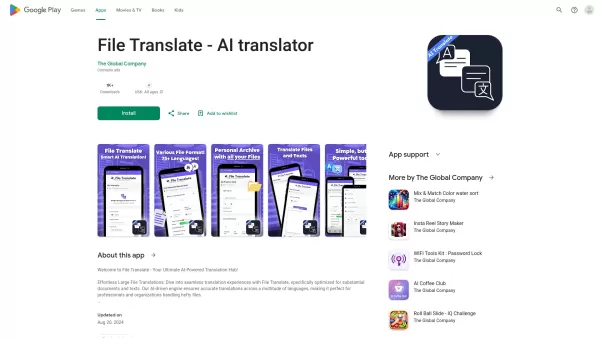
Ever found yourself staring at a mountain of documents, wishing you could magically translate them into another language? Well, that's where File Translator AI comes in—your new best friend for tackling those translation woes. This isn't just any translat
文字转语音助手 Product Information
What is the Text-to-Speech Assistant?
The Text-to-Speech Assistant is a versatile tool designed to convert written content into spoken words efficiently. It helps users better understand written material by providing audio renditions. Whether you are reading a lengthy article, studying complex material, or simply want to give your eyes a break, this tool is perfect for you. It supports multiple languages and a wide range of platforms, ensuring accessibility and convenience for all users.
Who will use the Text-to-Speech Assistant?
- Students
- Professionals
- Visually Impaired Individuals
- Language Learners
How to use the Text-to-Speech Assistant?
- Step 1: Install the extension from the Chrome Web Store.
- Step 2: Highlight the text you want to convert.
- Step 3: Right-click and select 'Convert to Speech'.
- Step 4: Adjust the speed and voice settings as needed.
Platform
- Web
- Chrome
Text-to-Speech Assistant's Core Features & Benefits
The Core Features
- Text-to-Speech Conversion
- Multilingual Support
- Adjustable Voice Settings
The Benefits
- Enhanced Content Comprehension
- Convenient for Multitasking
- Accessible for Visually Impaired Users
Text-to-Speech Assistant's Main Use Cases & Applications
- Listening to Articles
- Learning New Languages
- Studying Complex Material
FAQs of the Text-to-Speech Assistant
How do I install the Text-to-Speech Assistant?
You can install it from the Chrome Web Store by searching for 'Text-to-Speech Assistant' and clicking Add to Chrome.
What languages does it support?
It supports multiple languages including English, Spanish, French, and more.
Can I adjust the speed of the speech?
Yes, you can adjust the speed and voice settings to match your preference.
Is it free to use?
Yes, it is a free tool available for download on the Chrome Web Store.
Do I need an internet connection to use it?
Yes, an internet connection is required to fetch the latest features and updates.
Can it be used on mobile devices?
Currently, it is designed for use on desktops and laptops via the Chrome browser.
How do I report a problem with the extension?
You can report issues via the support email provided in the Chrome Web Store listing.
Can I use it to read PDF documents?
Yes, you can highlight text within PDF documents opened in Chrome and convert them to speech.
Does it retain formatting?
The focus is on converting text to speech; some formatting may not be preserved audibly.
How can I stop the speech once it starts?
You can stop the speech by right-clicking and selecting 'Stop' from the context menu.
Text-to-Speech Assistant Company Information

2026 Latest Best Top-Rated AI Outline Generators for Long-Form SEO Articles, meticulously curated by XIX.AI. These powerful tools offer game-changing assistance in creating high-quality content quickly, boosting writing efficiency significantly. Get a free vs paid comparison along with real-world tests and detailed rankings to help you find the must-try option that suits your needs. Explore now to unlock your AI edge.
 8 tools
 xix.ai

2026 Latest Best AI Study Tools for Homework and Exam Prep! XIX.AI curates a top-rated list of powerful, game-changing tools that help students boost productivity, streamline homework completion, and ace exams through real-world tests. Get a free vs paid comparison, detailed rankings, and must-try options to unlock your AI edge. Explore now!
10 tools
xix.ai
2026 Latest Best AI Vocal Demo Tools for Songwriters, Hook Creators, and Multi-Language Content Teams! XIX.AI has curated a top-rated list of powerful game-changing tools that go through rigorous real-world tests. You’ll find detailed free vs paid comparison data, comprehensive rankings, and must-try options to help you boost writing efficiency and unlock your creative potential. Explore now to discover your perfect tool for all your content needs!
9 tools
xix.ai

2026 Latest Best Top-rated AI Competitive Research Tools for Small Businesses! XIX.AI has curated a highly powerful game-changing collection, updated weekly with rigorous real-world tests and detailed rankings. You can find a comprehensive free vs paid comparison to help you identify the must-try tools that boost your productivity and give you a competitive edge. Explore now to discover your perfect tool!
9 tools
xix.ai

2026 Latest Best Photoshop AI retouch tools for ecommerce apparel, skin cleanup, and color consistency! This top-rated curated list features powerful game-changing solutions that help you boost writing efficiency, streamline content creation, and achieve perfect visual results effortlessly. Each tool has undergone real-world tests through weekly updated rankings, complete with free vs paid comparison details. Backed by XIX.AI, it’s the must-try guide for anyone aiming to unlock your AI edge. Explore now!
10 tools
xix.ai
2026 Latest Best Top-Rated AI Prompt Libraries for optimizing all types of ChatGPT workflows. XIX.AI has curated a powerful, game-changing collection that goes through rigorous real-world tests to ensure top performance. You can find detailed free vs paid comparisons and expert rankings to help you choose the must-try tools that boost your productivity and unlock your AI edge. Explore now!
11 tools
xix.ai


