


 Home
HomeVoice Transcription



Helps TikTok sellers, brands, MCNs, and TAPs discover winning products and find creators.

HelpLook is an AI-powered all-in-one knowledge base tool that helps businesses quickly build knowledge bases, help centers, and...

Your AI Workspace

302.AI is an enterprise-grade AI resource platform with pay-as-you-go pricing, API access to a full range of AI models, and ready-to-use online applications.

剧火AI — AI Screenwriter + Director, a One-Person Short Drama Studio In one sentence, what is it?
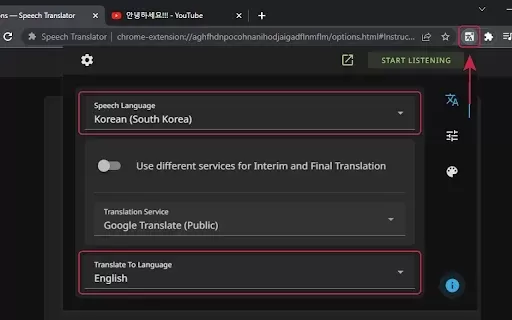
What is Speech Translator?Speech Translator leverages Google's advanced speech recognition to deliver real-time translation for videos, audio, and live streams. This tool bridges language gaps, enabling seamless conversations and fostering clearer un
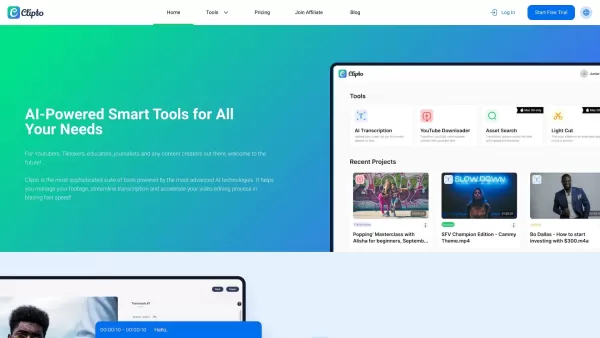
Ever wondered how to effortlessly turn your audio and video files into text? Enter Clipto, the powerhouse of AI transcription on the web. Imagine harnessing the same cutting-edge tech that fuels ChatGPT to convert your Zoom meetings, interviews, and
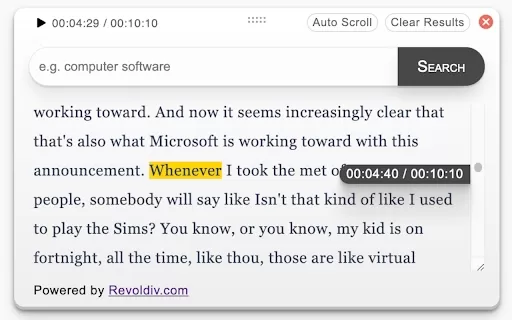
What is Revoldiv AI Chrome Extension? Revoldiv is a Chrome browser extension that instantly transcribes audio and video directly in your browser. It lets users follow along by reading live transcriptions and search for specific spoken words within po
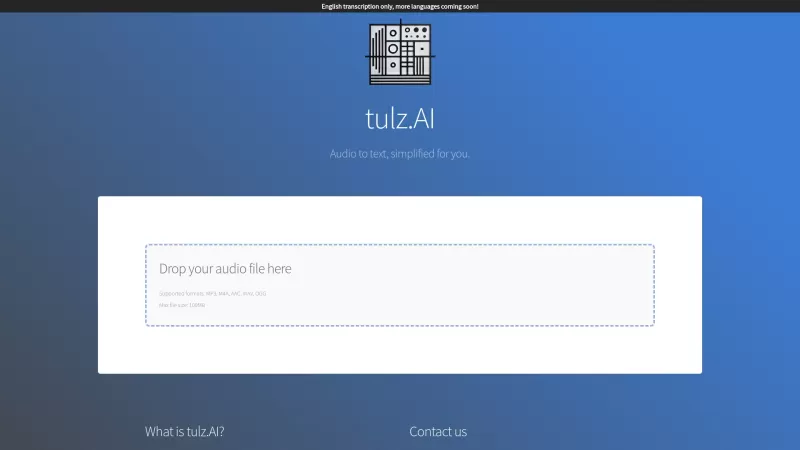
Ever found yourself needing to turn spoken words into written text? Well, let me introduce you to tulz.AI—an AI-powered service that's all about making audio transcription a breeze. Whether it's a podcast, a business meeting, or any other spoken content,
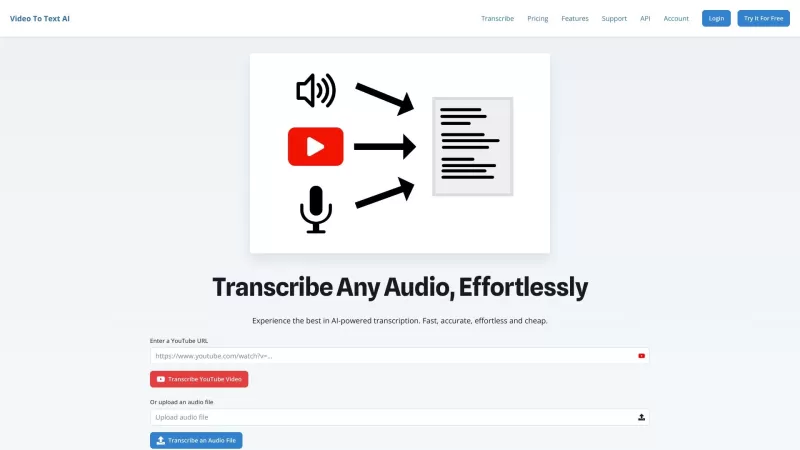
Ever found yourself in need of a quick and accurate transcription of a video or audio file? That's where Video To Text AI comes into play. It's a slick AI-powered tool designed to effortlessly convert your media into text. Whether you're juggling YouTube
Voice Transcription Product Information
What is Voice Transcription?
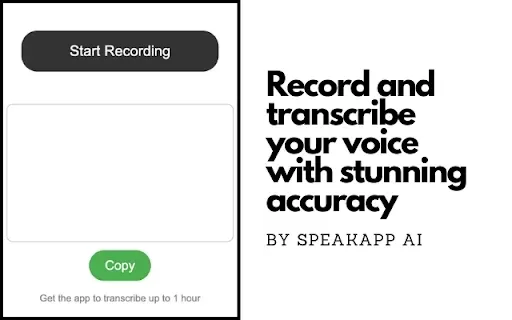
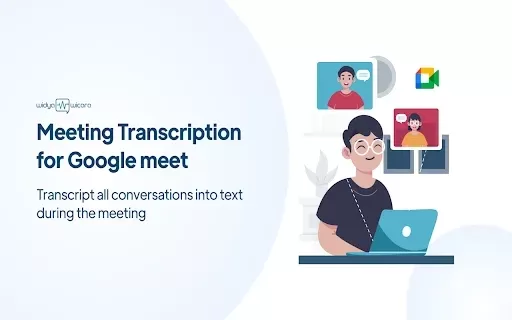
Voice Transcription allows users to convert speech to text quickly and effortlessly. With an intuitive interface, it supports various voice commands and accurately transcribes spoken words in real time. This extension is ideal for professionals who need to document conversations, students recording lectures, or anyone looking to improve efficiency through note transcription. It works in multiple languages with high accuracy, making it a versatile tool for diverse applications.
Who Uses Voice Transcription?
- Professionals
- Students
- Podcasters
- Writers
- Researchers
How to Use Voice Transcription?
- Step 1: Install the Voice Transcription extension from the Chrome Web Store.
- Step 2: Click the extension icon to open it.
- Step 3: Allow microphone access when prompted.
- Step 4: Start speaking into the microphone.
- Step 5: Stop recording when finished, and the text will be displayed.
Platform
- Google Chrome
Voice Transcription's Core Features and Benefits
Core Features
- Real-time transcription
- Voice command support
- Multilingual support
- User-friendly interface
Benefits
- Increases productivity
- Saves time on manual typing
- Enhances note-taking accuracy
- Flexible use for different scenarios
Voice Transcription's Main Use Cases and Applications
- Transcribing meetings
- Taking lecture notes
- Creating written content from speeches
- Documenting interviews
FAQs about Voice Transcription
How Accurate Is the Transcription?
The transcription is highly accurate, thanks to advanced voice recognition technology.
Can I Use It in Different Languages?
Yes, it supports transcription in multiple languages.
Do I Need to Pay for the Extension?
The Voice Transcription extension is free to use.
Is My Data Safe with This Extension?
Yes, your data is secure and is not stored on external servers.
Can I Edit the Transcriptions After Recording?
Yes, you can edit the transcribed text to ensure accuracy.
Is There a Tutorial on How to Use It?
Yes, comprehensive guides are available within the extension.
What Kind of Microphone Do I Need?
Any standard microphone works, including built-in laptop microphones.
Can I Use It Offline?
No, it requires an internet connection to process speech.
Will It Work on Other Browsers?
This extension is specifically designed for Google Chrome.
How Do I Uninstall the Extension?
Go to Chrome settings, locate the extensions menu, and remove it from there.
Voice Transcription Company Information
Voice Transcription Screenshot
2026 Latest Best Top-rated AI Competitive Research Tools for Small Businesses! XIX.AI has curated a highly powerful game-changing collection, updated weekly with rigorous real-world tests and detailed rankings. You can find a comprehensive free vs paid comparison to help you identify the must-try tools that boost your productivity and give you a competitive edge. Explore now to discover your perfect tool!
 9 tools
 xix.ai

2026 Latest Best Photoshop AI retouch tools for ecommerce apparel, skin cleanup, and color consistency! This top-rated curated list features powerful game-changing solutions that help you boost writing efficiency, streamline content creation, and achieve perfect visual results effortlessly. Each tool has undergone real-world tests through weekly updated rankings, complete with free vs paid comparison details. Backed by XIX.AI, it’s the must-try guide for anyone aiming to unlock your AI edge. Explore now!
10 tools
xix.ai
2026 Latest Best Top-Rated AI Prompt Libraries for optimizing all types of ChatGPT workflows. XIX.AI has curated a powerful, game-changing collection that goes through rigorous real-world tests to ensure top performance. You can find detailed free vs paid comparisons and expert rankings to help you choose the must-try tools that boost your productivity and unlock your AI edge. Explore now!
11 tools
xix.ai

2026 Latest Best AI Quiz Builder Platforms for Teachers, Tutors, and Cohort-Based Learning Programs! XIX.AI has curated a top-rated list of powerful game-changing tools that go through real-world tests to deliver accurate rankings. These must-try platforms help boost writing efficiency, streamline content creation, and simplify quiz design across all learning scenarios. Explore now to discover your perfect tool for unlocking your AI edge in teaching!
13 tools
xix.ai
2026 Latest Best AI Pull Request Review Tools for GitHub Teams are here on XIX.AI! This top-rated curated list showcases powerful game-changing solutions that streamline refactoring, bug fixing, and security gap detection across all team workflows. Enjoy a free vs paid comparison along with real-world tests and detailed rankings to help you find the perfect tool that boosts productivity significantly. Explore now to unlock your AI edge!
12 tools
xix.ai
2026 Latest Best Top-rated AI Text to Speech Tools for Natural Voiceovers are here on XIX.AI! This curated list features powerful, game-changing options that deliver crystal-clear voices for every use case, backed by real-world tests and weekly updated rankings. Get a free vs paid comparison to find the must-try solution that boosts your productivity instantly. Explore now to Unlock your AI edge!
11 tools
xix.ai


