


 Home
HomeRemove Objects from Photo



Helps TikTok sellers, brands, MCNs, and TAPs discover winning products and find creators.

HelpLook is an AI-powered all-in-one knowledge base tool that helps businesses quickly build knowledge bases, help centers, and...
Your AI Workspace

302.AI is an enterprise-grade AI resource platform with pay-as-you-go pricing, API access to a full range of AI models, and ready-to-use online applications.

剧火AI — AI Screenwriter + Director, a One-Person Short Drama Studio In one sentence, what is it?
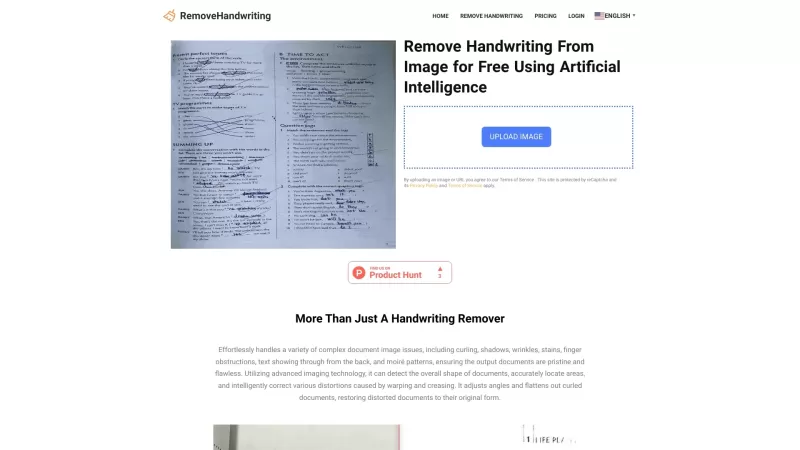
What is RemoveHandwriting?RemoveHandwriting is an innovative online AI tool designed to effortlessly remove handwriting from images and PDFs. It's like having a magic eraser for your documents, making them look clean and professional in no time!How to Use RemoveHandwriting?Using RemoveHandwriting is
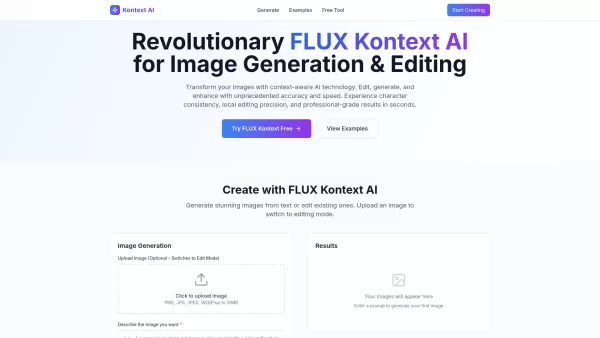
What is Kontext AI? Kontext AI is a cutting-edge, free image generation and editing tool powered by FLUX Kontext technology. It uses context-aware artificial intelligence to produce, alter, and improve images with remarkable speed and precision. The
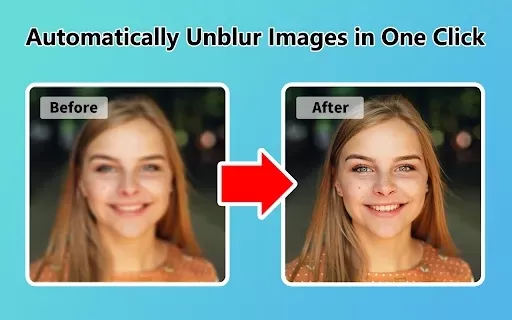
What is Unblur Image?Unblur Image is a smart Chrome extension that automatically sharpens blurry images. Leveraging advanced AI, it precisely identifies and corrects blurry sections in your photos, only enhancing the affected areas. Whether you're wo
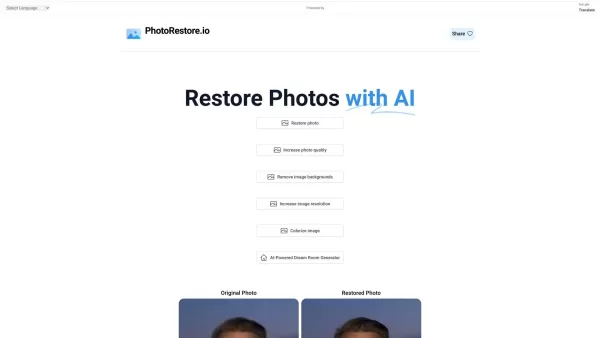
What is Photo Restore?PhotoRestore.io provides a specialized, free AI photo restoration service dedicated to reviving old, blurry, or damaged photographs. Utilizing advanced artificial intelligence, it repairs fading, enhances clarity, and improves o

Ever wished you could transform your old, pixelated photos into crisp, stunning 4K masterpieces? Well, that's where the 4K AI Upscaler comes into play! This nifty online tool harnesses the power of advanced AI technology to breathe new life into your imag
Remove Objects from Photo Product Information
What is Remove Objects from Photo?
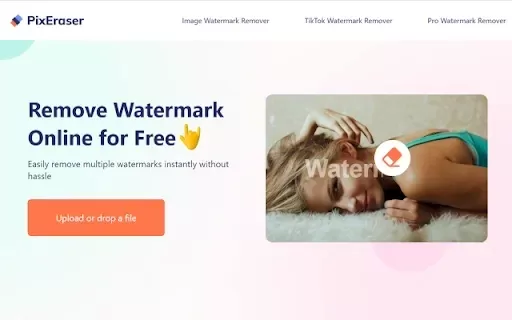
This tool enables you to selectively erase unwanted elements from your pictures. Powered by advanced AI, it identifies and removes objects, people, text, or watermarks while preserving the original image quality. Just select the area you want gone, and the AI seamlessly fills in the background. It's perfect for anyone seeking quick, aesthetically pleasing photo edits.
Who will use Remove Objects from Photo?
- Photographers
- Social Media Influencers
- Graphic Designers
- Marketing Professionals
- Everyday users looking to improve their photos
How to use the Remove Objects from Photo?
- Step 1: Install the 'Remove Objects from Photo' extension from the Chrome Web Store.
- Step 2: Open the image you wish to edit in your browser.
- Step 3: Click the extension icon to activate the tool.
- Step 4: Use the brush tool to highlight the object or text you want to remove.
- Step 5: Click the 'Erase' button to process the removal.
- Step 6: Save or download your newly edited photo.
Platform
- Chrome
Remove Objects from Photo's Core Features & Benefits
The Core Features
- AI-Powered Object Removal
- Watermark and Text Erasure
- Intuitive, User-Friendly Interface
- High-Quality Image Restoration
The Benefits
- Fast and Efficient Editing
- Clean Results with No Watermark Traces
- Enhanced Overall Photo Quality
- Versatile for a Wide Range of User Needs
Remove Objects from Photo's Main Use Cases & Applications
- Polishing vacation and travel photos
- Cleaning up product images for online stores
- Enhancing personal portraits and pictures
- Removing distractions from images for social media posts
FAQs of Remove Objects from Photo
How does the AI object removal work?
The AI analyzes the surrounding pixels and intelligently reconstructs the background to fill the erased area naturally.
Can I use this extension for videos?
No, it is designed specifically for editing still images and photos.
Is it free to use?
Yes, the extension is completely free to install and use.
Will it leave any traces after removal?
No, the goal is to deliver a clean, natural-looking result without any traces.
Do I need any prior editing skills?
No, the tool is built to be straightforward for users of all experience levels.
Can I undo my changes?
Yes, you can easily undo changes if you are not happy with the outcome.
What image formats does it support?
It supports popular formats such as JPEG, PNG, and GIF.
How do I report issues or bugs?
Please report any issues via the support section on the Chrome Web Store listing.
Can I use it offline?
No, an active internet connection is required for the AI to function.
Is there a limit to how many images I can edit?
No, there is no limit; you can edit an unlimited number of images.
Remove Objects from Photo Company Information
Remove Objects from Photo Screenshot
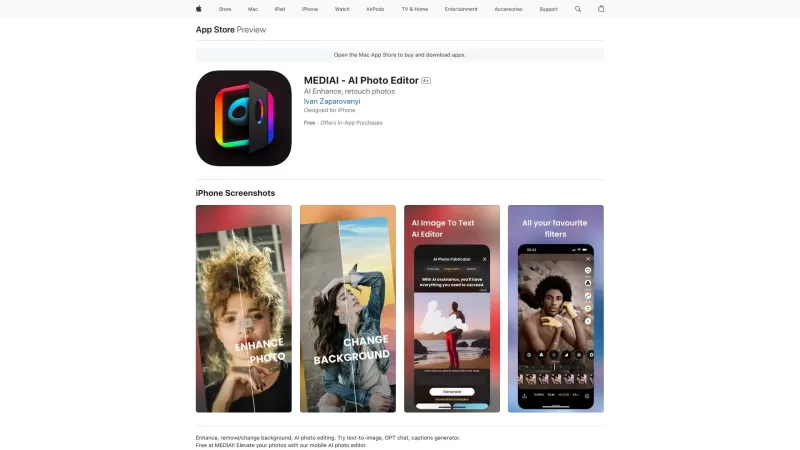
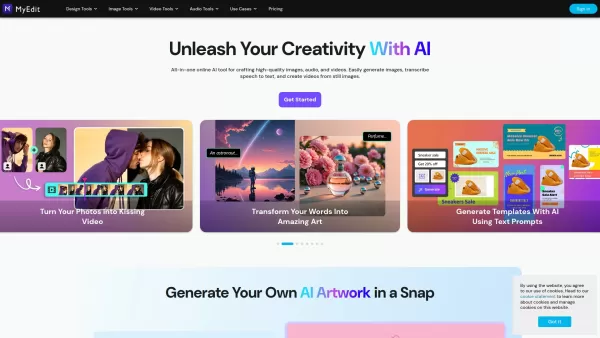
2026 Latest Best Top-rated AI Object Removal Editors for portraits travel product shots! XIX.AI curates a powerful game-changing collection regularly updated with weekly rankings. These tools offer real-world tests to help you quickly remove unwanted elements, boost content quality, and save tons of time without compromising results. Must-try for anyone aiming to unlock their AI creation edge. Explore now!
 10 tools
 xix.ai
2026 Latest Best Top-rated AI Text to Speech Tools for Online Courses are curated by XIX.AI based on rigorous real-world tests and weekly updated rankings. These powerful tools help creators deliver crystal-clear audio content effortlessly, boosting writing efficiency and streamlining course production. Check out the free vs paid comparison to find your perfect fit. Explore now to unlock your AI edge in online education.
10 tools
xix.ai

2026 Latest Best Top-Rated AI Blog Title Tools for Higher Click Through Rates! XIX.AI has carefully curated a powerful, game-changing collection of top tools that go through rigorous real-world tests. You’ll find a free vs paid comparison, weekly updated rankings, and detailed insights to help you boost your blog’s traffic efficiently. Must-try options are highlighted to help you unlock your AI edge. Explore now!
10 tools
xix.ai
2026 Latest Best Top-rated AI Task Routing Tools for Support Workflows! XIX.AI has curated a highly powerful game-changing collection of must-try solutions, all undergoing rigorous real-world tests and updated weekly. These tools streamline workflows, boost productivity, and help teams deliver faster, more efficient support. Explore now to discover your perfect tool and unlock your AI edge!
17 tools
xix.ai
2026 Latest Best Top-Rated AI Citation and Paper Summary Tools Curated by XIX.AI. Get powerful game-changing solutions for quick content creation, improved writing efficiency, and boosting productivity. We offer a free vs paid comparison along with real-world tests and weekly updated rankings to help you find the must-try tool that fits your needs perfectly. Explore now to Unlock your AI edge.
10 tools
xix.ai
2026 Latest Best Top-Rated AI Productivity Tools for Daily Work! XIX.AI has curated a powerful, game-changing selection based on rigorous weekly updated rankings and real-world tests. You’ll find must-try options that boost writing efficiency, streamline content creation, and help you overcome daily work challenges. Get a free vs paid comparison to find the perfect fit for your needs. Explore now to unlock your AI edge!
9 tools
xix.ai


