


 Home
HomeImage to Text for ChatGPT


Helps TikTok sellers, brands, MCNs, and TAPs discover winning products and find creators.
HelpLook is an AI-powered all-in-one knowledge base tool that helps businesses quickly build knowledge bases, help centers, and...
Your AI Workspace
302.AI is an enterprise-grade AI resource platform with pay-as-you-go pricing, API access to a full range of AI models, and ready-to-use online applications.

剧火AI — AI Screenwriter + Director, a One-Person Short Drama Studio In one sentence, what is it?
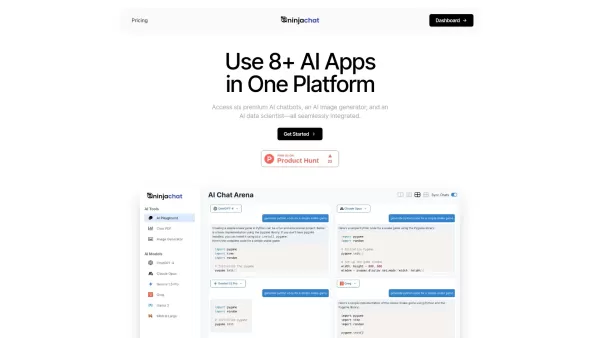
What is NinjaChat AI?NinjaChat is a comprehensive AI assistant that combines multiple AI capabilities into one unified platform. Users can interact with advanced models such as GPT-4 and Claude 3, analyze PDF documents, create images, and communicate
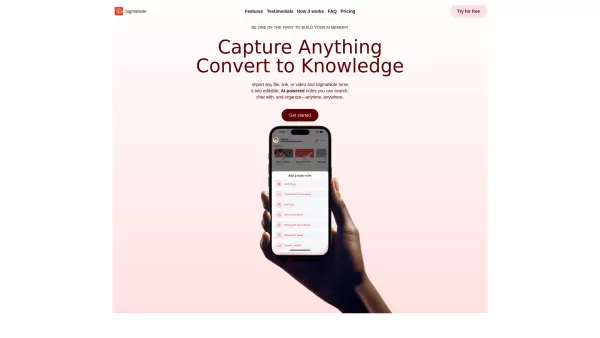
What is SigmaNote? SigmaNote is more than just another productivity tool—it’s your personal "second brain." Powered by AI, SigmaNote takes anything from PDFs to URLs, even videos, and turns it into smart, editable notes. Think of it as your ultimate knowl
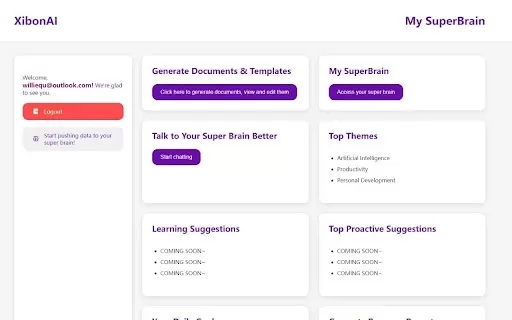
What is Xibon AI? Xibon AI's SuperBrain is an AI-powered tool that boosts productivity and learning by serving as your personal 'SecondBrain/SuperBrain.' It automatically captures, organizes, and summarizes important information as you browse the web
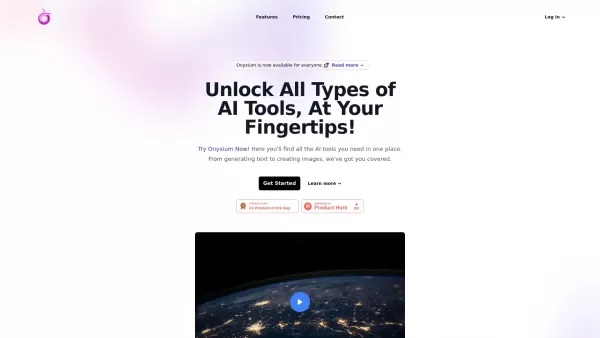
What is Onyxium AI?Onyxium AI is a comprehensive all-in-one platform providing a wide array of AI tools designed for diverse applications. Its capabilities include text generation, image recognition, and speech analysis. Users can navigate a straight

Ever wondered how students with ADHD can level up their study game? Enter Kumo Study, a revolutionary tool designed specifically to help these students thrive in their academic journey. It's not just another study app; it's a tailored experience that blen
Image to Text for ChatGPT Product Information
What is Image to Text for ChatGPT?
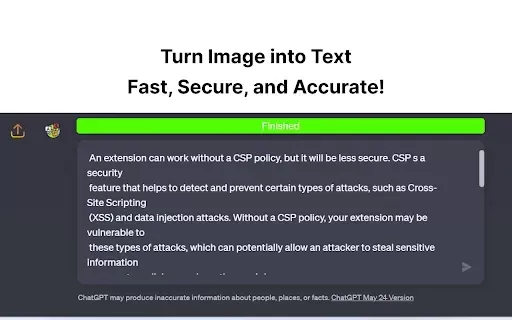
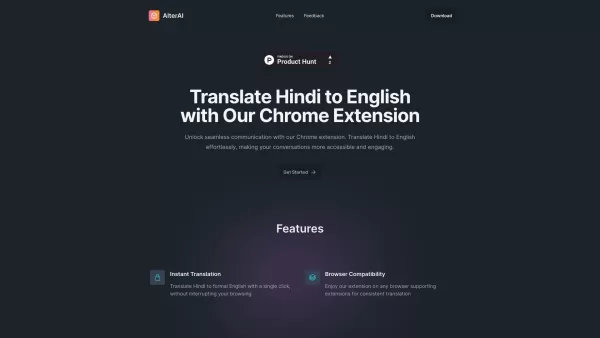
Image to Text for ChatGPT is a convenient Chrome extension that transforms images into editable text. Simply upload or drag an image into the tool, and it will instantly capture the text contained within. This streamlines your work by making it easy to pull information from pictures and documents, providing ready-to-use text for your ChatGPT prompts. It's perfect for students, researchers, and anyone who needs to quickly digitize text from images.
Who will use Image to Text for ChatGPT?
- Students
- Researchers
- Writers
- Content Creators
- Business Professionals
How to use the Image to Text for ChatGPT?
- Step 1: Install the Image to Text for ChatGPT extension from the Chrome Web Store.
- Step 2: Navigate to ChatGPT in your browser.
- Step 3: Upload an image by dragging it into the extension's area or clicking the upload button.
- Step 4: Allow the extension a moment to process the image and convert it to text.
- Step 5: The extracted text will appear automatically in the ChatGPT input box, ready for you to use.
Platform
- Chrome
Image to Text for ChatGPT's Core Features & Benefits
The Core Features
- Image upload with drag-and-drop support
- Automatic text insertion into ChatGPT
- Simple, intuitive interface
The Benefits
- Saves time on manual text extraction
- Seamless integration with ChatGPT
- Works with multiple image file types
Image to Text for ChatGPT's Main Use Cases & Applications
- Pulling quotes from screenshots or photos
- Turning textbook pages or articles into editable text
- Digitizing handwritten notes from a picture
FAQs of Image to Text for ChatGPT
Is the extension free to use?
Yes, the extension is completely free to download and use.
What types of images can I upload?
It supports common formats like JPEG, PNG, and GIF.
How accurate is the text extraction?
Accuracy is typically high but depends on the image quality and text legibility.
Can I edit the text after extraction?
Yes, you can freely edit the text within ChatGPT after it's inserted.
Do I need to create an account?
No account is required. Simply install the extension to start using it.
Can I use it on mobile?
Currently, it is only available as a Chrome extension for desktop browsers.
What if text is not extracted properly?
For best results, use a clear, well-lit image with legible text.
Is there a limit to the size of the image?
Very large images may process slower; refer to Chrome's extension policies for specifics.
How do I uninstall the extension?
Right-click the extension icon in your browser toolbar and select 'Remove from Chrome.'
Does it support multi-language text?
Yes, it can extract text in various languages, provided the image is clear.
Image to Text for ChatGPT Company Information
Image to Text for ChatGPT Screenshot
2026 Latest Best Top-rated AI Object Removal Editors for portraits travel product shots! XIX.AI curates a powerful game-changing collection regularly updated with weekly rankings. These tools offer real-world tests to help you quickly remove unwanted elements, boost content quality, and save tons of time without compromising results. Must-try for anyone aiming to unlock their AI creation edge. Explore now!
 10 tools
 xix.ai
2026 Latest Best Top-rated AI Text to Speech Tools for Online Courses are curated by XIX.AI based on rigorous real-world tests and weekly updated rankings. These powerful tools help creators deliver crystal-clear audio content effortlessly, boosting writing efficiency and streamlining course production. Check out the free vs paid comparison to find your perfect fit. Explore now to unlock your AI edge in online education.
10 tools
xix.ai
2026 Latest Best Top-Rated AI Blog Title Tools for Higher Click Through Rates! XIX.AI has carefully curated a powerful, game-changing collection of top tools that go through rigorous real-world tests. You’ll find a free vs paid comparison, weekly updated rankings, and detailed insights to help you boost your blog’s traffic efficiently. Must-try options are highlighted to help you unlock your AI edge. Explore now!
10 tools
xix.ai
2026 Latest Best Top-rated AI Task Routing Tools for Support Workflows! XIX.AI has curated a highly powerful game-changing collection of must-try solutions, all undergoing rigorous real-world tests and updated weekly. These tools streamline workflows, boost productivity, and help teams deliver faster, more efficient support. Explore now to discover your perfect tool and unlock your AI edge!
17 tools
xix.ai
2026 Latest Best Top-Rated AI Citation and Paper Summary Tools Curated by XIX.AI. Get powerful game-changing solutions for quick content creation, improved writing efficiency, and boosting productivity. We offer a free vs paid comparison along with real-world tests and weekly updated rankings to help you find the must-try tool that fits your needs perfectly. Explore now to Unlock your AI edge.
10 tools
xix.ai
2026 Latest Best Top-Rated AI Productivity Tools for Daily Work! XIX.AI has curated a powerful, game-changing selection based on rigorous weekly updated rankings and real-world tests. You’ll find must-try options that boost writing efficiency, streamline content creation, and help you overcome daily work challenges. Get a free vs paid comparison to find the perfect fit for your needs. Explore now to unlock your AI edge!
9 tools
xix.ai


